
This post is (also) available in: NederlandsFrançais
Extensive Exploration
A Whole New Kiosk
Immerse yourself in the Belga.press kiosk!
Various collections (the number depending on your access to sources) offer you a kiosk experience that allows you to discover the news the way you want. Follow the Belga wire closely, check your personal real-time feed, newsletters enriched with interesting selections, the Belgian press agenda, newsrooms, and much, much more… Listen to radio news and podcasts or watch informational programmes from your sofa or during your lunch break.

Within this new kiosk, you’ll get a glimpse of what Belga and other sources, often audiovisual, have to offer. Want more? Don’t hesitate to contact our sales colleagues at ‘[email protected]’.
Frontpage
The frontpage is the actual homepage of Belga.press and can be found under the “Explore” menu. Here you will find an overview of the main kiosk items. On the left, you’ll always see the navigation bar to all kiosk pages.
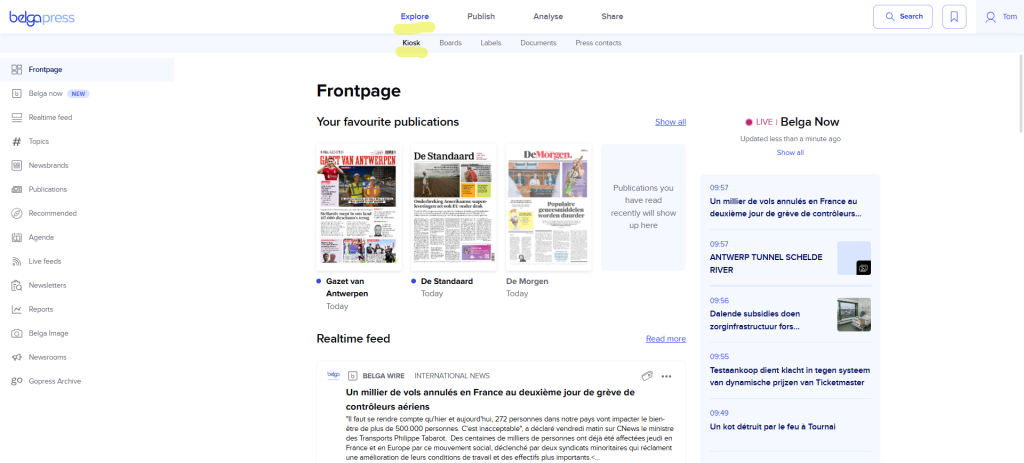
At the top of the frontpage, you will find your most-read publications. If you read the same newspapers or magazines every morning, they will be ready for you here, so you can start your day browsing your favourite print publications.
On the right, you will find the Belga now section. Here you will find the latest Belga messages. Depending on your subscription, you will see the full Belga wire or just the headlines.
Below your favourite publications, you will see the most recent messages from your Realtime feed. With the “Read more” or “SHOW MORE ARTICLES” buttons, you are one click away from all your real-time articles.
Further down on this frontpage, in addition to the most recent press releases, newsrooms, and agenda items, you will also find the live feeds curated for you and the 3 most recent newsletters.
If you prefer multimedia content, you can quickly view or listen to the most important radio and television news at the bottom of the page.
Belga Now
You can follow the Belga wire feed in terminal style from the front page. You get a real-time view of everything the Belga editorial team produces in text, photo, audio, and video. As soon as we publish, the items are pushed here instantly.
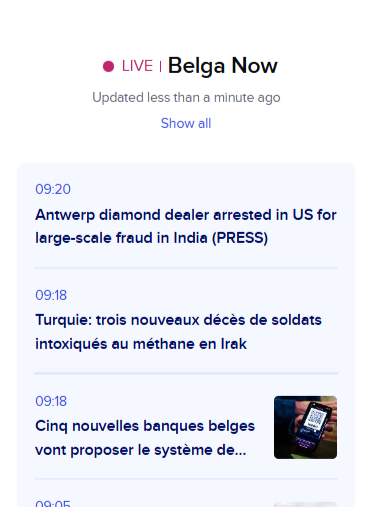
By clicking on ‘Show all‘ or the menu item “Belga now” on the left, you can go through to the full page. There you will not only find Belga’s coverage, neatly organized by desk, but also a look at today’s and tomorrow’s agenda.
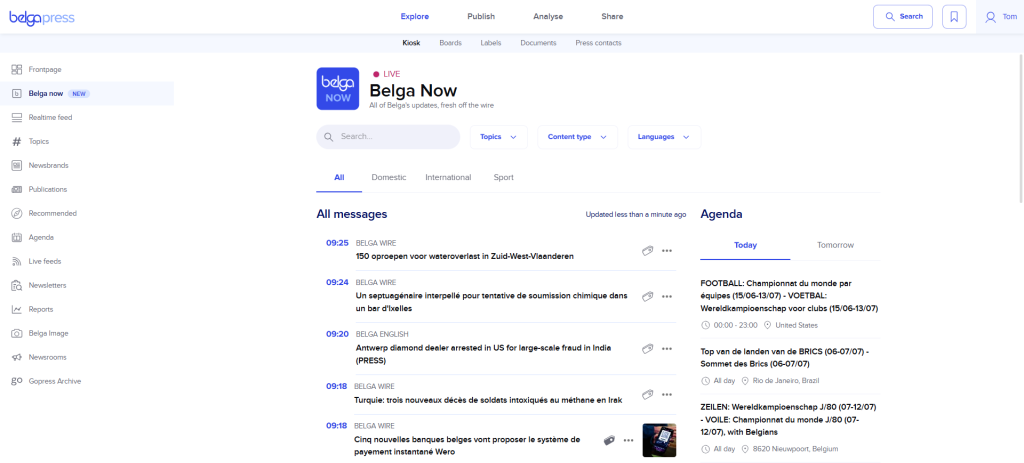
In addition to a simple search, you can also filter by topic, type, or language within this view. If you save the filter, it will be retained in your profile and also applied to the view on the frontpage.
Realtime feed
The Realtime feed contains your personal news overview. This feed is the same on the web version as in the app and the compilation is based on the topics you follow and articles selected based on your saved searches.
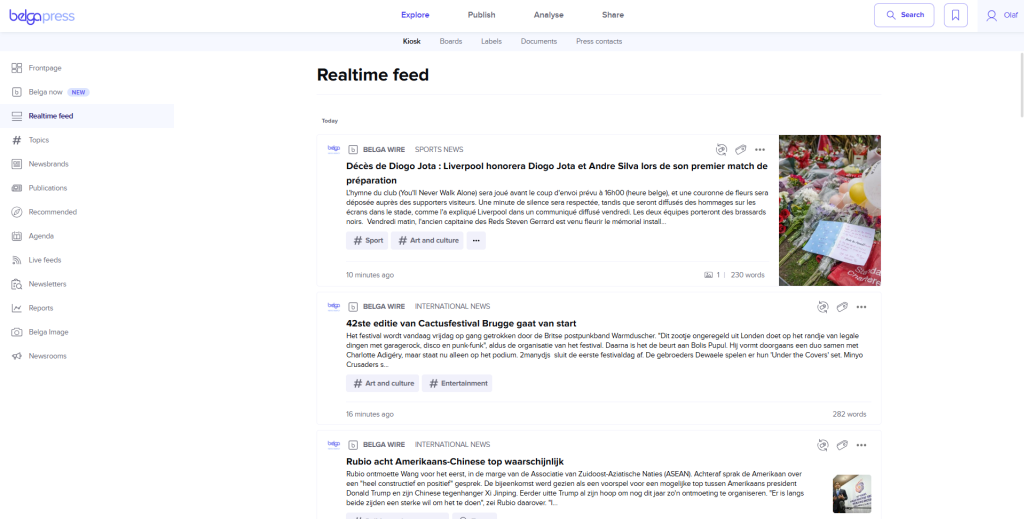
If you are not using the application yet, we will ask you to choose the topics you want to follow. once chosen click ‘continue‘. Next, we will ask you to indicate your favourite newsbrands. You can follow or unfollow these whenever you want.
Topics
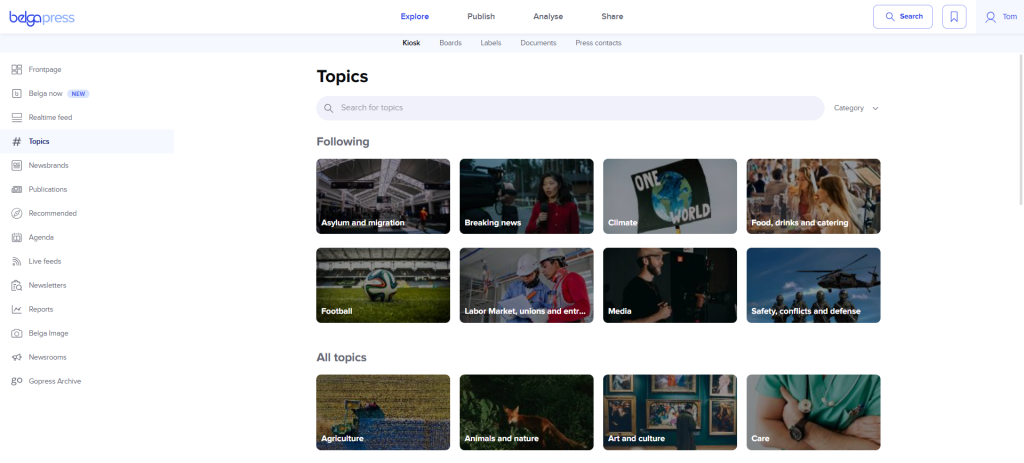
Looking for specific messages? Under topics you’ll find relevant items neatly organized into 38 categories selected by our editorial team. Tap to view the content and follow the topics that match your interests. Followed topics appear at the top.
Within a topic, you will see the most recent press releases and newsrooms at the top. Scroll down a bit to discover the messages. Are you getting lost in the number of items? Then use the tab structure to, for example, further filter on only the press releases or articles within your favorite news brands. Use the language filter to switch between NL, FR, and EN.
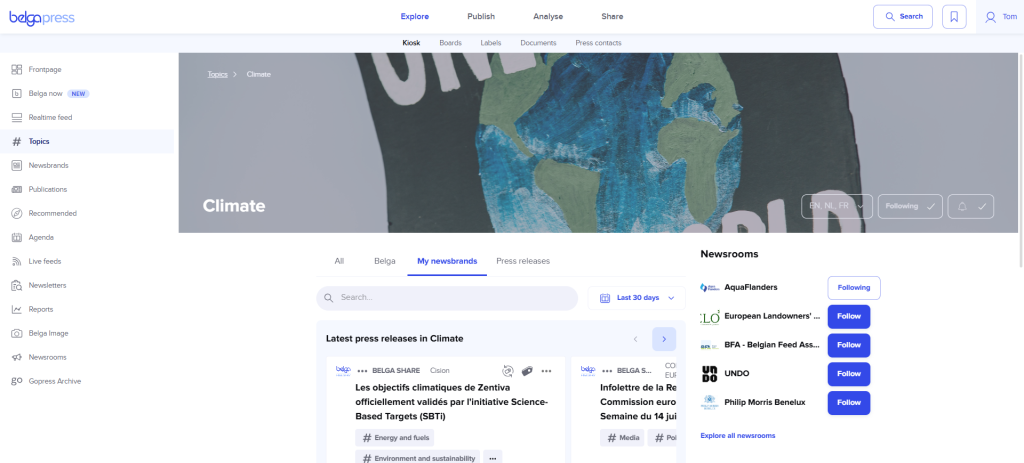
Want to stay up to date? Follow the topic and set your notifications, either instantly or as a summary at a time of your choice. We have made sure that you can indicate very specifically for each topic which messages you do or do not wish to receive.
Newsbrands
Not sure which sources you have access to? In this section, you’ll find an alphabetical list of newsbrands included in your subscription. We’ve grouped titles logically under a newsbrand where possible. To keep the list clear, we’ve clustered some sources (e.g., political organisations, influencers) under a single newsbrand. Use the handy filters to quickly find your preferred newsbrands. We’ll save your filters so you won’t need to reselect them each time.
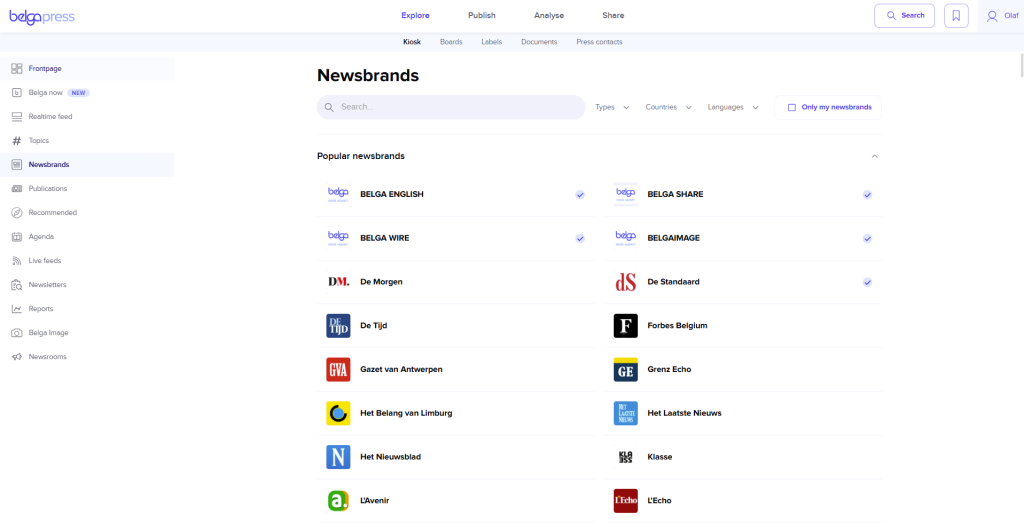
Suggestions for improvement are welcome at [email protected].
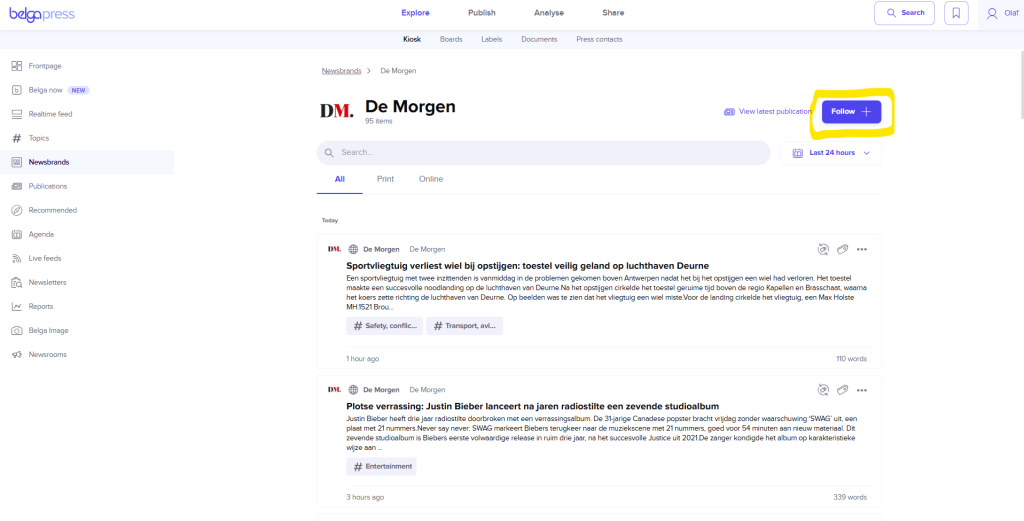
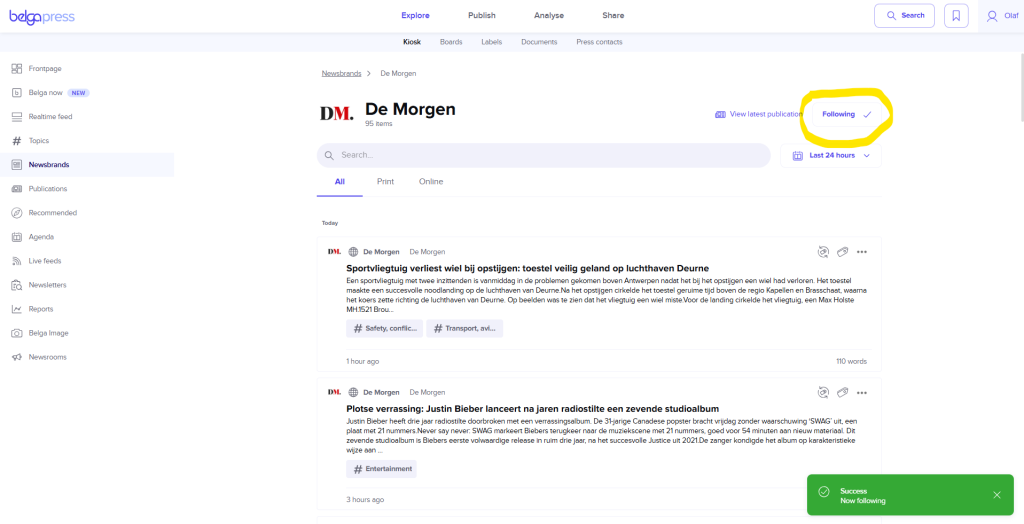
The ‘follow + / following’ indicators show whether a news brand is one of your favorites. Within a news brand, you can easily filter by type or search.
Publications
Here you will find our newspaper and magazine kiosk. Read the newspapers and magazines within your subscription in PDF format. By default, you will see the newspapers and magazines that have been published today.
With the date picker, you can easily find publications from a specific day or within a certain period. With the other filter options, you can easily filter the publications by your favorite brands, country and language.
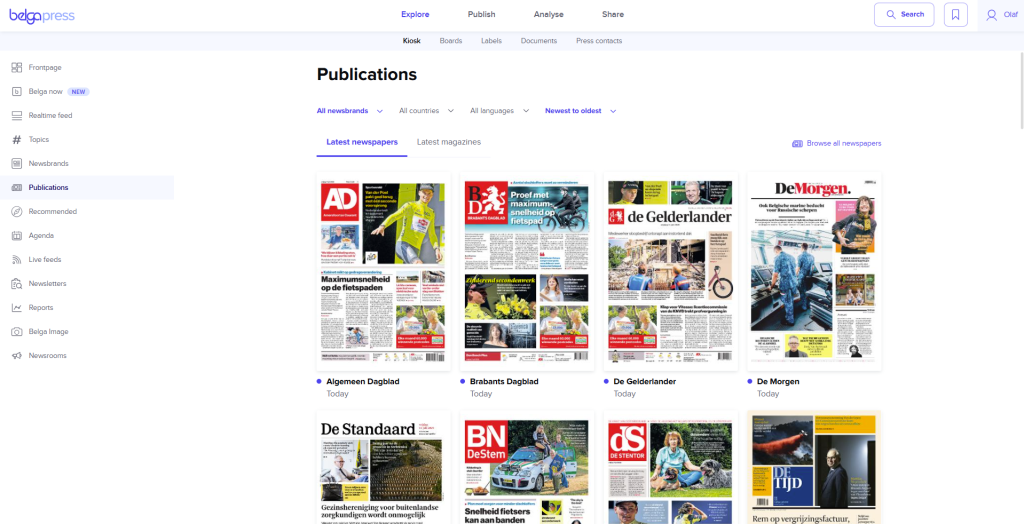
The “latest newspapers” and “latest magazines” tabs give you an overview of the latest versions of newspapers and magazines. It is also possible to filter by country and language here. You can also sort the publications from new to old, old to new, or alphabetically.
Via “browse all newspapers” (or magazines in the relevant tab), you will land on a screen where you can specifically search for a particular publication within a certain day or period.
Click on the newspaper or magazine you want to read to open the PDF view. In this screen, you can choose an edition at the top, adjust the date, and quickly navigate to one of the attachments.
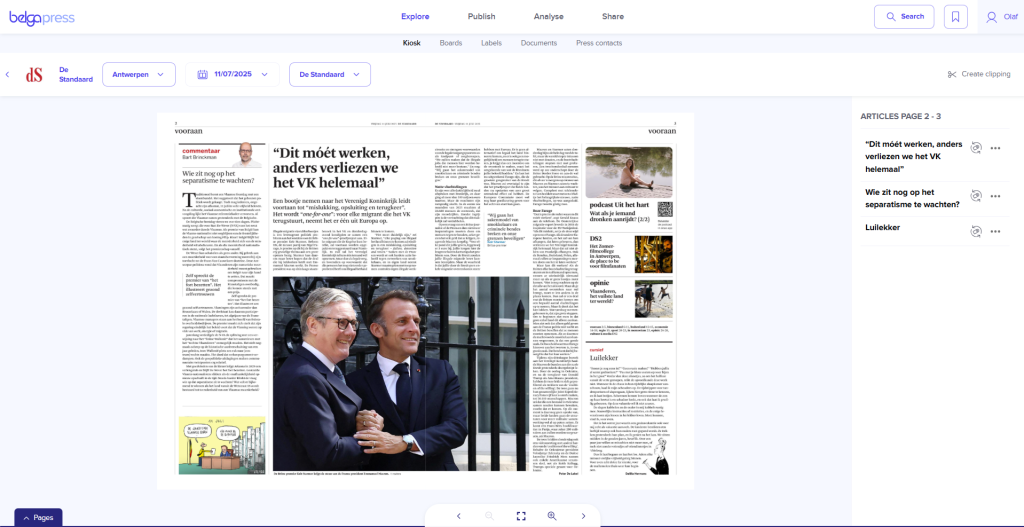
In the right column, you will find the articles on the page and you can quickly read, share, or save the article in text form. You can also open the article detail by clicking on the article in the PDF.
At the bottom, you’ll find a number of action buttons. You can zoom in and out with the magnifying glass, display the page in full screen, and navigate to the previous or next page. You can also use the arrow keys on your keyboard to turn pages.

In the bottom left, “Pages” gives you an overview of all pages where you can click on, to jump to a certain page.

To close the PDF view, click the arrow in the top left beside “Pages”.
Recommended
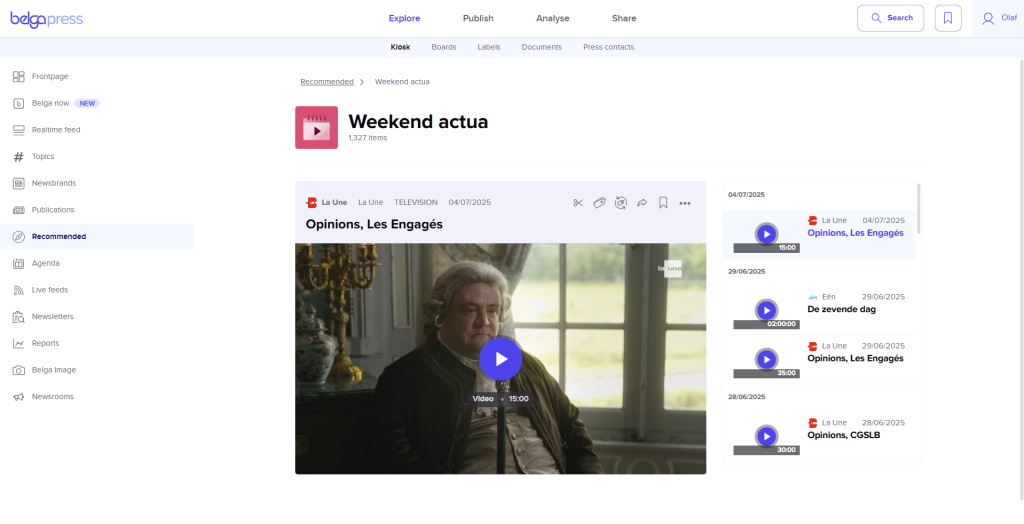
Under recommended, you will recognize the explore sections from our native app.
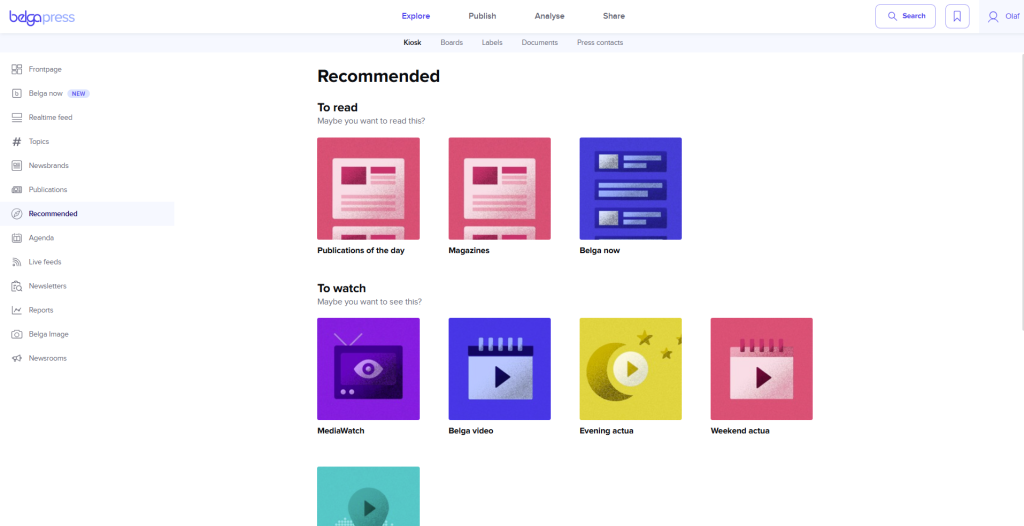
Under “To read”,“To watch” and “To listen,” you can discover not only Belga content but also print, television, and audio news available within your sources package.
Agenda
Here you will discover which press events will be covered by the Belga teams. You get a complete view of the Belgian press agenda, used by all media.
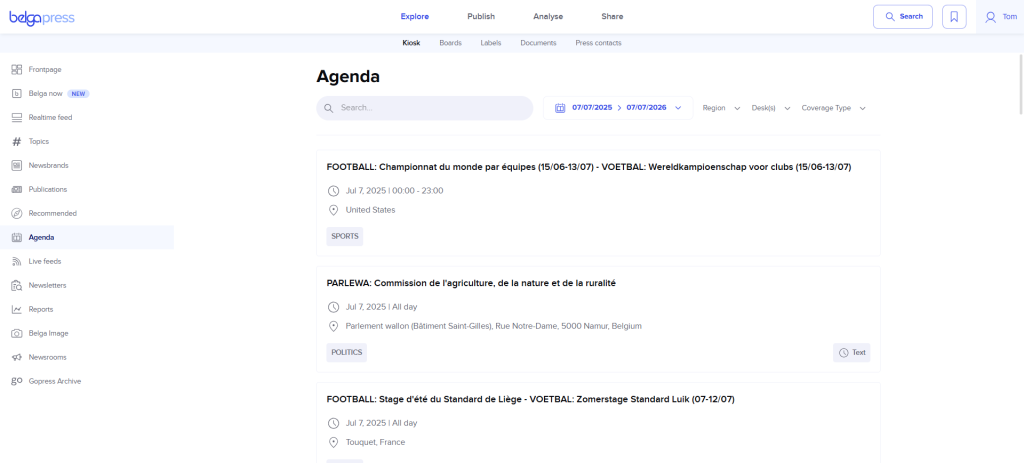
Via the top bar, you can search specifically by keyword, within a certain period, or according to certain criteria (region, desk, and coverage type).
Click on an event in the list to view the details, which contain all relevant information. If desired, add the event to your own calendar. If you would like an event to be covered by Belga, contact our sales team via the ‘request coverage‘ button. You can also share the event. In a later phase, you will also be able to add it to a newsletter.
Whether you have full access depends on your belga.press subscription. Interested in our agenda? Contact us at [email protected].
Live feeds
This section provides access to your 24/7 personalized live feeds.
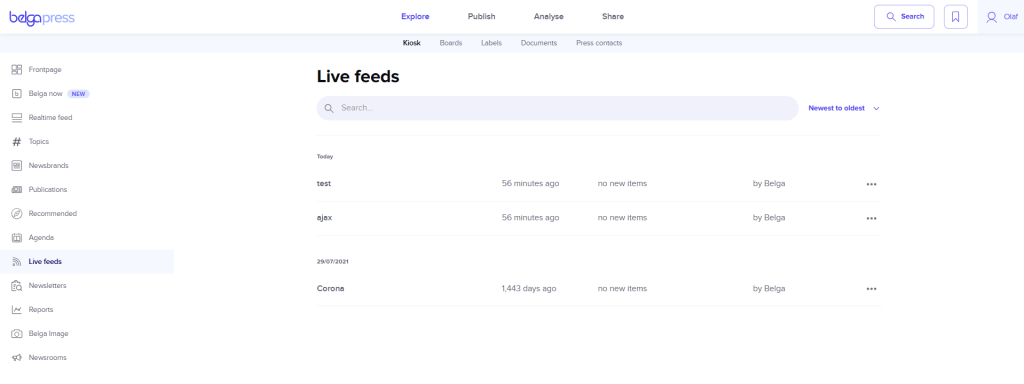
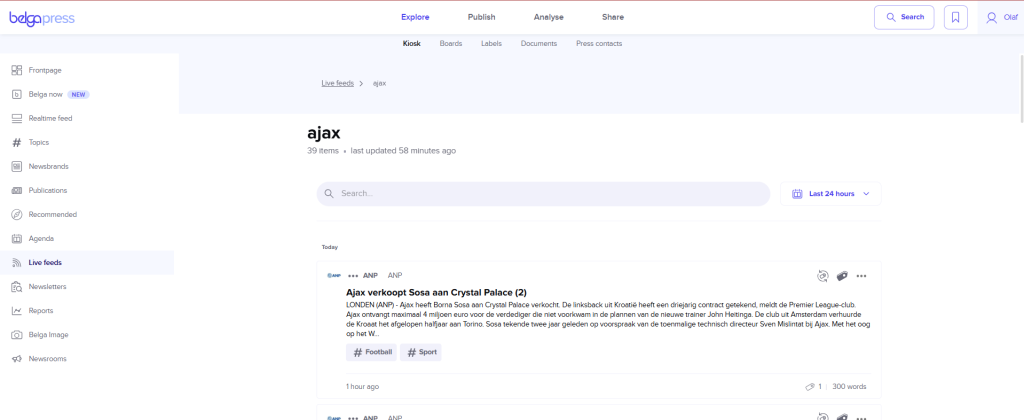
Select a live feed to explore its content. By default, articles from the past 24 hours are displayed. The timeframe can be adjusted easily using the date picker. Select an article to view its full details or initiate a targeted search for specific articles within the feed.
Newsletters
This section provides access to your personalized newsletters. By default, all newsletters from the past 7 days are displayed. Select a newsletter to review its contents. The table of contents enables quick navigation to articles within the category of your choice. Selecting an article opens its detailed view.
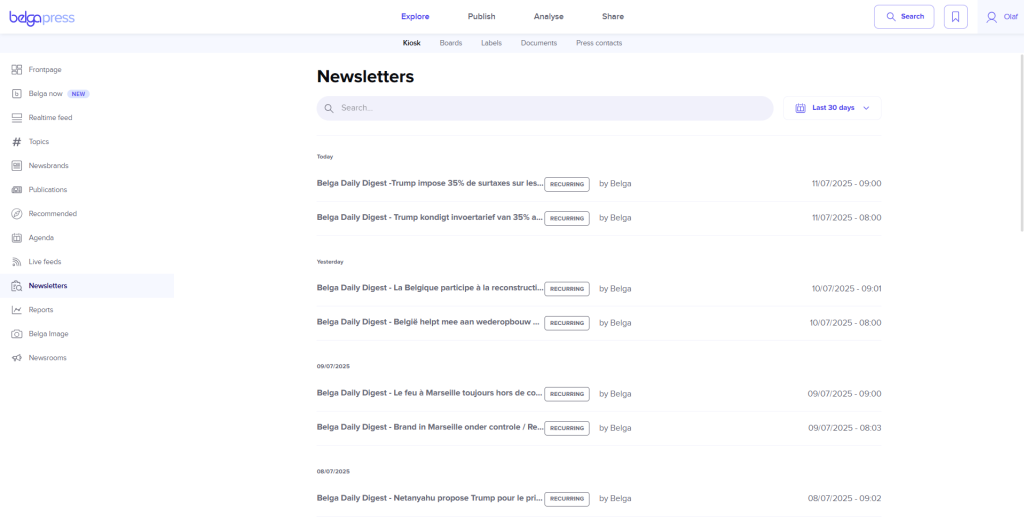
For recurring newsletters, older editions can be accessed using the date picker, similar to publications. Use the search field to locate specific articles within your newsletters. By enabling the “receive updates via email” option, you can choose to receive newsletters by email. Once published by the curator, you will receive an email containing a clear summary of the selected articles as well as a direct link to the newsletter on the platform. Unsubscribing from email notifications does not affect your platform access, it simply stops the emails.
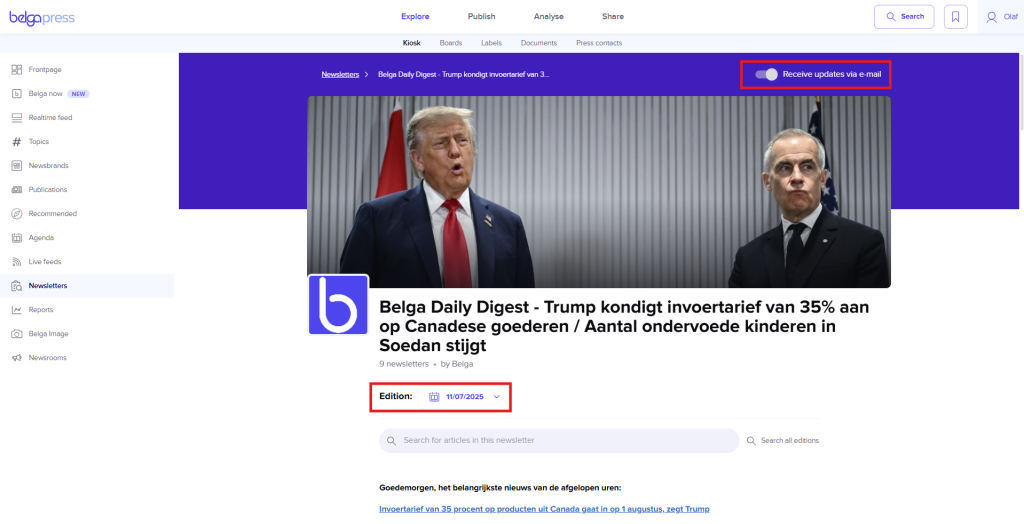
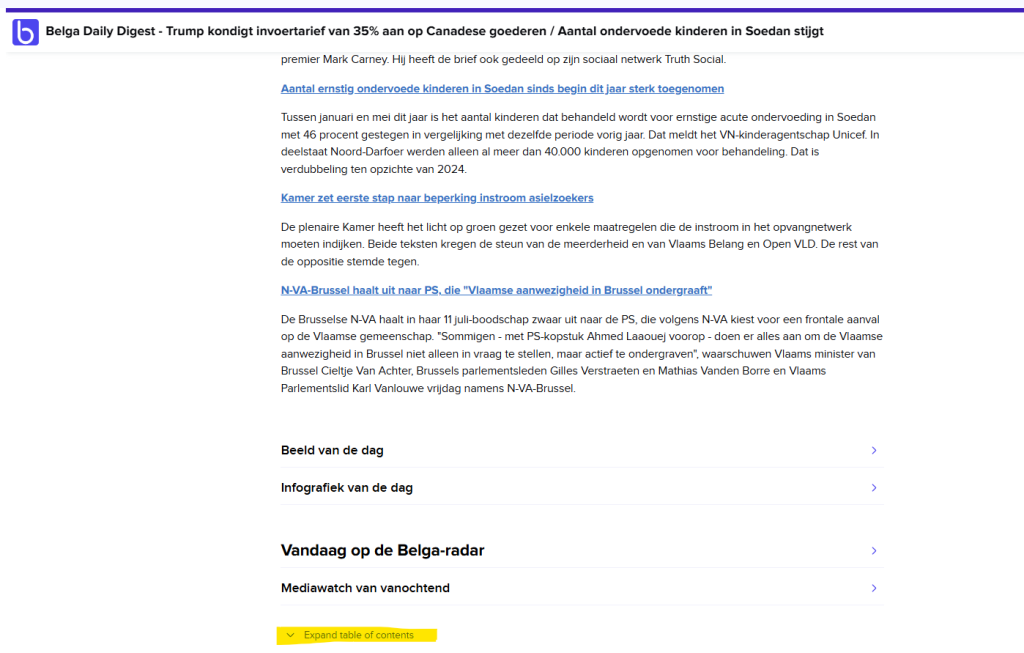
Click on ‘expand table of contents’ to see the full table of contents for this newsletter. Click on an article in the list to view the details immediately.
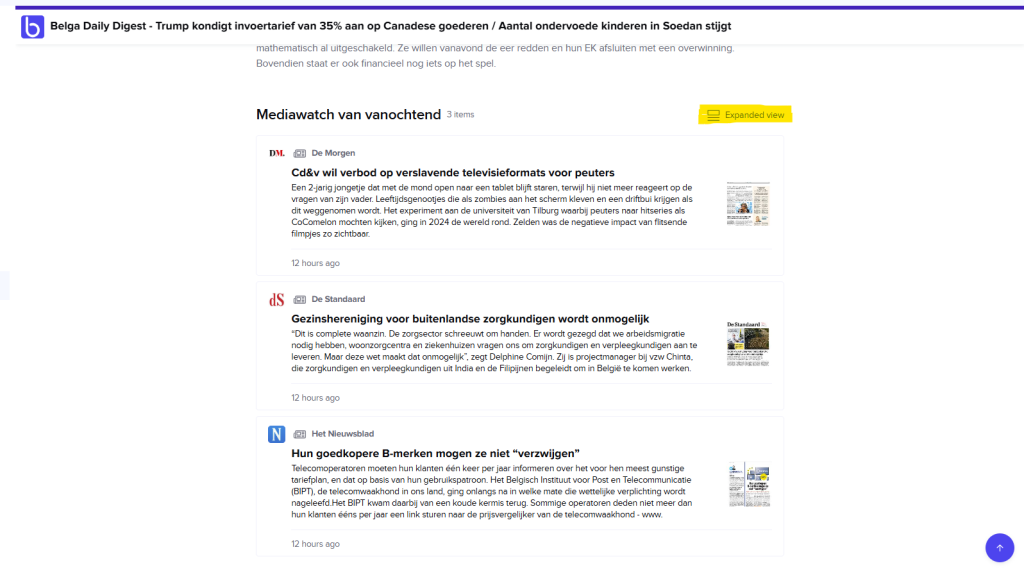
Through the ‘expanded view’ feature, you can read all articles in a single block without having to click on each one individually.
Reports
Not visible to everyone.
In this section, you’ll find custom-curated reports just for you. Otherwise, the functionality is identical to newsletters.
Belga image
View Belga photo coverages in real-time as they are provided by our photographers.
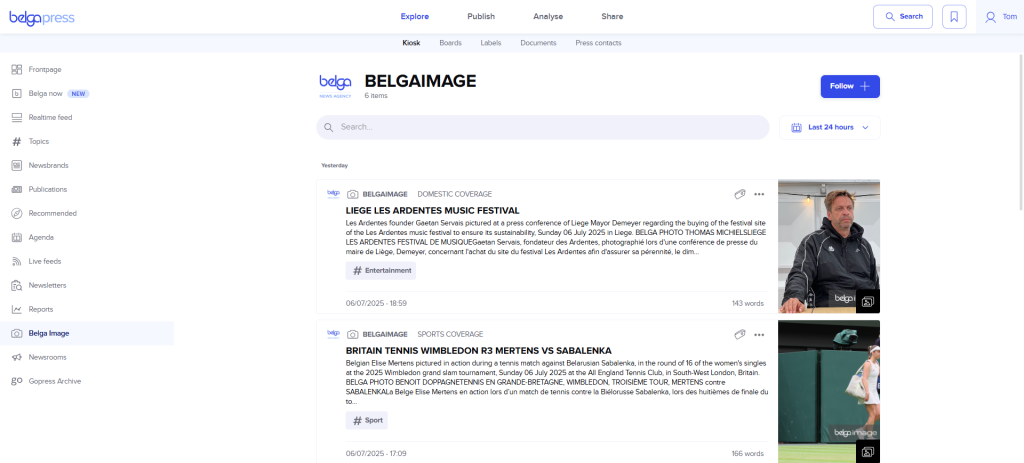
Use the search bar to search for a specific topic, and click on the coverage to discover the images.
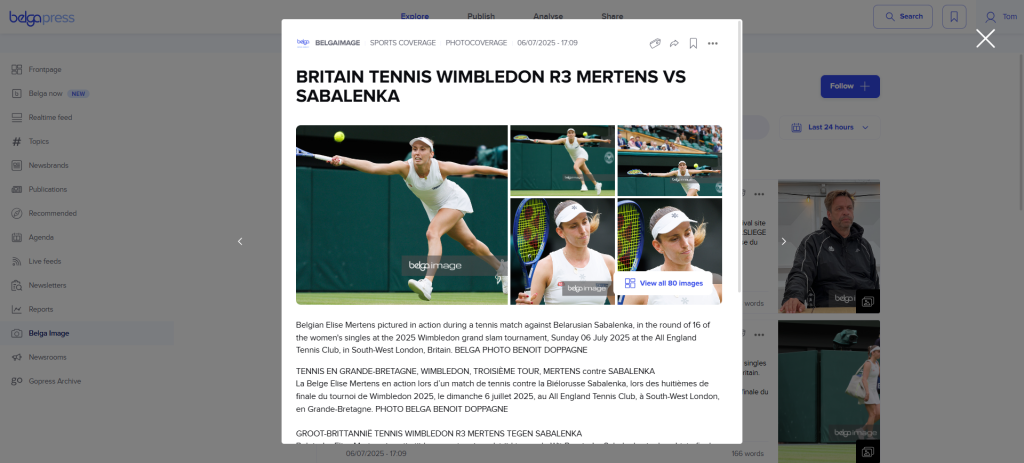
Note: The coverages are also searchable through the regular search function within the ‘BELGA IMAGE’ source. If you have a saved search, board, or auto-labeling active, these will be included.
Just like other articles within Belga.press, you can perform various actions. For example, you can label the entire coverage as well as each individual image so you can use them in your report or newsletter for digital use. If you want to highlight a specific image, add it as a separate module to your newsletter or report.
Whether you have full access depends on your Belga.press subscription. Interested in this feature? Contact us at [email protected].
Newsrooms
In this section, you can view all the newsrooms of organizations and key people who use our Share service. A newsroom is a showcase for journalists and communication professionals. Each newsroom contains, in addition to press releases, a wealth of other information such as contact details, press events, relevant press articles, media & documents, and more.
In the overview, you will find all available newsrooms. Use the top bar to search for a specific newsroom, sort newsrooms, or filter by topic. If you only want to see the newsrooms you follow, check that option.
Clicking on a newsroom takes you to the newsroom itself. It is entirely set up by the organization or person involved and may be available in multiple languages. To switch languages, use the language selector within the newsroom.
The function of each newsroom is self-explanatory. Read the press releases, discover relevant (downloadable) documents like annual reports, view relevant events, and selected press materials. If you want to be notified of every new press release immediately, choose to follow this newsroom! New press releases will then appear directly in your real-time feed, and you will also receive an email notification.
Note: On our public website www.belgashare.be, you can also discover all newsrooms without a Belga.press login.
Gopress archive
Not visible to everyone.
We have gradually made the Gopress press overviews you had access to available within Belga.press. You can click on each press overview (use the date picker to go to a specific edition) and use the search field to search for articles within that set of press overviews.

Because Gopress and Belga.press articles are technically completely different, you unfortunately cannot label or share a Gopress article