
This post is (also) available in: NederlandsFrançais
Introduction
Reach journalists, news enthusiasts, and communications professionals with insightful press releases and newsrooms featuring relevant, valuable content.
With the launch of Belga.share, we are bringing press release distribution into belga.press. Previously, you relied on our PRpro platform for this. But Belga.share is so much more. Find out what here.
Newsroom
Set up newsrooms to gather press releases from various brands or topics relevant to your organization or key figure.
Create a newsroom featuring a cover image, an “About” section, and relevant links. Easily add documents, media, press contacts, events, and press coverage to your press page.
Publish it so journalists and other interested parties can follow you and stay up to date with all your activities.
How?
We have made managing and creating a newsroom as intuitive as possible. Below, you can learn step-by-step how to work within a newsroom.
Creating a newsroom
Select the option to create your first newsroom on the main screen, or use the button at the bottom left if you already have a newsroom. The wizard will then guide you through the creation process.
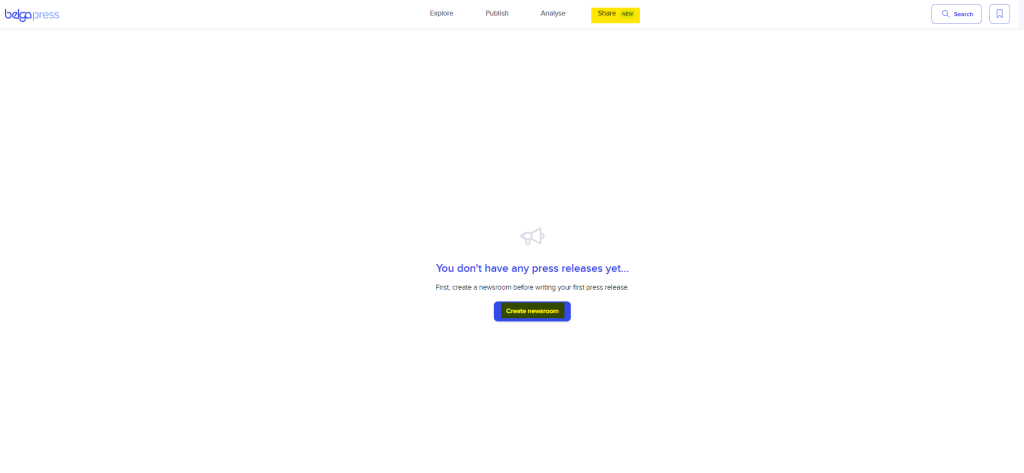
Note: Depending on your subscription, you can create one or more newsrooms. These can be for your organization as a whole or for key individuals/experts within it. If you reach the limit for the number of newsrooms, the ‘create a newsroom’ button will disappear. Deleting an existing one frees up space for a new one.
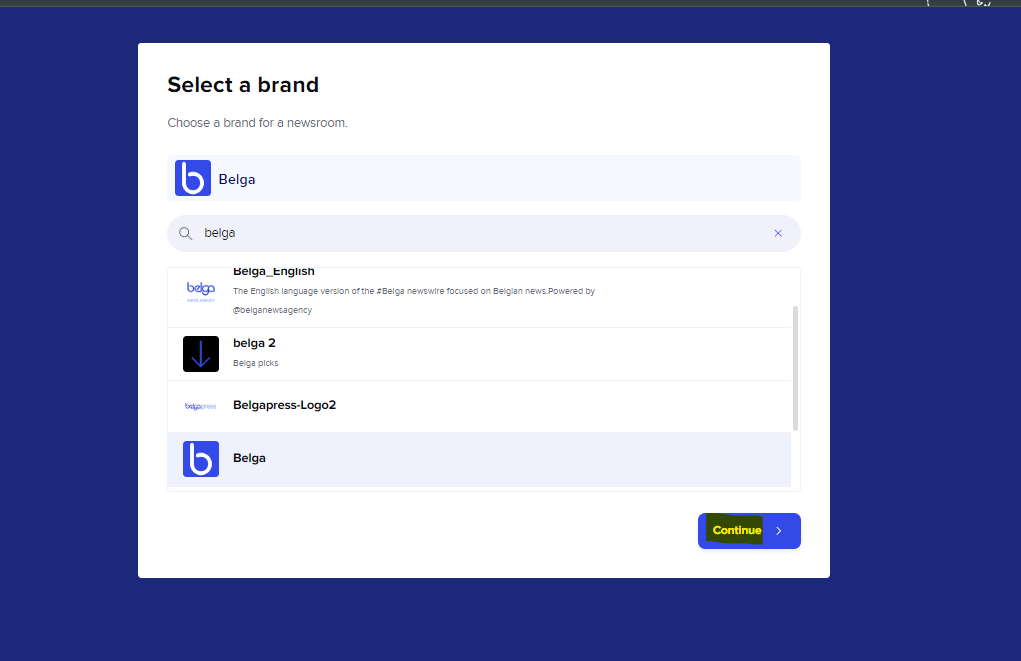
Step 1: Choose a brand
Just as with newsletters, you can style your newsroom according to your own corporate identity using the ‘brand’ feature. Select an available brand from the list. If you don’t have one yet, create a new one under ‘settings’.
Step 2: Choose one or more languages
Choose the language(s) for your newsroom. You can always change this later.
Step 3: Choose a name
Choose a name for your newsroom. It must be unique, as the name determines the source under which your press releases will be searchable via our search engine later on.
Is your preferred name no longer available? Let our support team know at [email protected]. We will then check if you can use it after all.
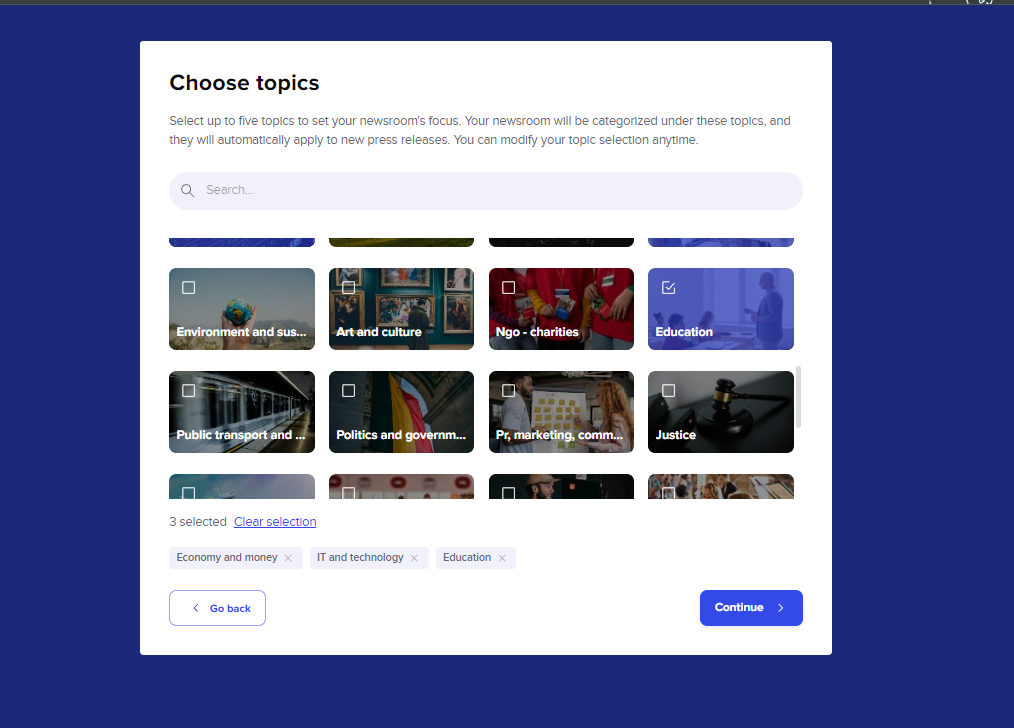
Step 4: Choose topics
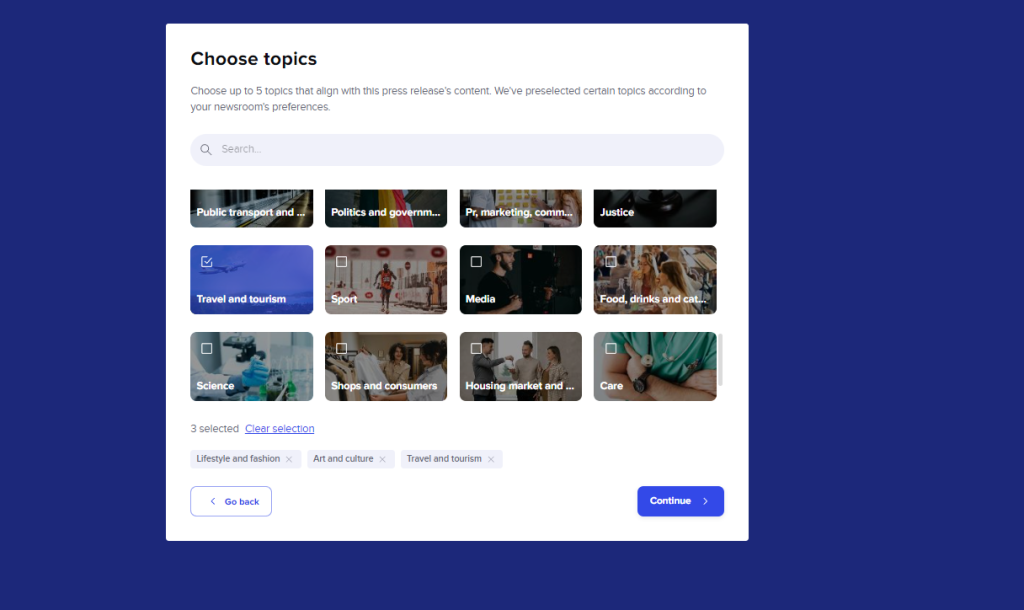
At Belga.press, we categorize all articles into a select set of 38 topics. This helps our users track specific subjects in a targeted way. It is therefore in your best interest to select the topics that are right for you. You can select up to 5.
Step 5: Collaboration
Choose who you want to manage the newsroom with. This could be just you, or a selection of colleagues from your own organization or even another one.
Your newsroom has now been created! We recommend setting it up further before proceeding, as it isn’t live yet. You need to publish it first; until you do, you won’t be able to send out any press releases!
Populating your newsroom
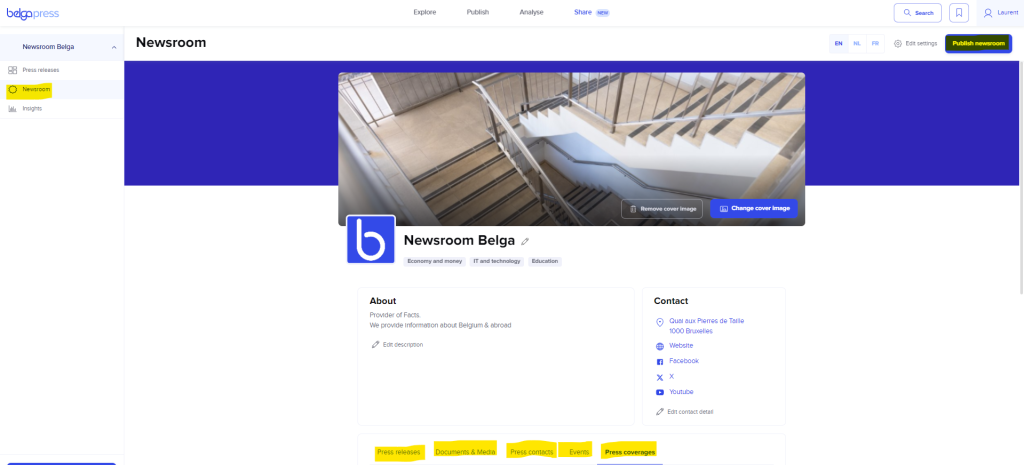
Start by filling in the ‘About’ section and adding further contact details on the right. This could be your address, or a link to your website or social media accounts. If you aren’t happy with your cover image, you can change it here.
If you work with multiple languages, you can easily switch between them using the buttons in the top right corner. To save time, you can also copy data from another language version.
You can also change your newsroom’s name here. Please note: this does not affect how you appear in general search results.
Once you feel your newsroom is ready for the general public and belga.press users, you can publish it (using the button in the top right corner). At that point, your organization or key contact person becomes visible to other users if both within belga.press (via Kiosk → Newsrooms) and on the public website www.belgashare.be (more on that later).
Press releases
This is where all your press releases will appear after publication. You can read how to create them in the ‘Press releases’ section later in this manual.
Documents & media
Here, you can group together all documents, photos, and videos relevant to your newsroom’s end users. This could include annual reports, campaign photos, and more.
Please note: everything you upload here is also available for your target audience to download.
We have deliberately chosen to organize content by language here. To prevent things from becoming cluttered over time, you can use folders. You can assign a name and a logo to each folder. Once your structure is set up, you can start uploading items or adding video links.
For every uploaded item, ensure the file name clearly indicates its content. Currently, you cannot change this name within the platform.
We automatically organize uploaded files and video links by type, making them easier to identify at a glance. Within each section, we sort the files chronologically so that the most recent item always appears at the top.
Press contacts
Manage your press contacts here. Create one or more press contacts for use within your newsroom or with your press releases. Enter the required details for each contact and, for the language-specific fields, choose whether or not you want this person to be permanently displayed in your newsroom. If you do not select this option, you can of course still add the person as a contact for a specific press release.
To edit or delete a press contact, click the three dots and select ‘edit’ or ‘delete’. Please note: when deleting a press contact, we perform a ‘soft delete’ so that the contact is removed from your newsroom but remains associated with previously published releases.
Events
You can create and manage your own events here.
As soon as you save an event, we immediately forward all the information to our editorial team. This ensures your event reaches Belga right away! It may also be included in our own editorial calendar.
Unlike other sections of the platform, here you can enter an event for every language within your newsroom simultaneously.
To do this, fill in both the language-independent and language-specific fields. Select contact person(s) and enrich your event with additional attachments.
Once an event has ended, it is no longer displayed in your newsroom by default. You can, of course, retrieve it yourself using the ‘show past events’ slider.
Press coverage
Add relevant belga.press reports to your newsroom here. You can add any article from sources you have access to. As a belga.share subscriber, this includes at least Belga photos. Would you like access to more sources (and thus a media monitoring package)? Please contact [email protected].
You can add articles using labels. If you are not familiar with using labels, you can read more about them here in the knowledge base. Once an item has been labeled, you can add it to your newsroom under that label. To remove an article, click the ‘delete’ icon on the right.
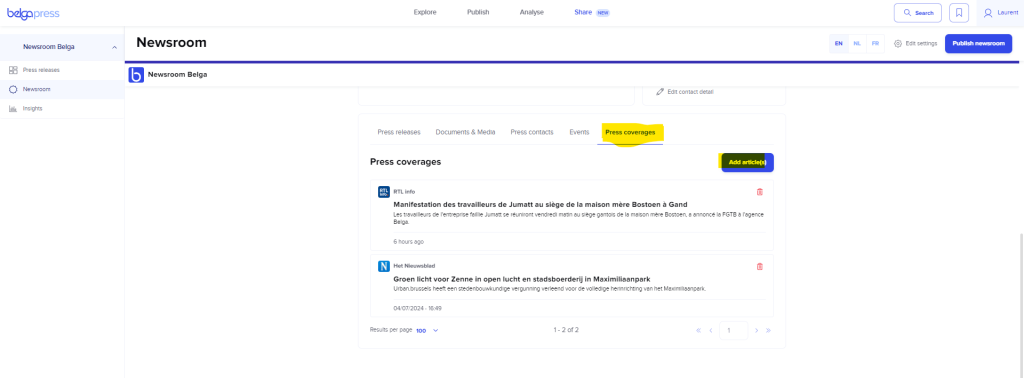
End users can view every item—at the very least—in snippet form. Users with a full subscription (including all government users and journalists) can view the complete content of any selected article.
Managing a newsroom
You can modify your newsroom’s general settings at any time via the ‘edit settings’ option in the top right corner. Here, for example, you can add or remove languages or topics. You can also delete your newsroom entirely; doing so makes it invisible to end users. However, previously published articles remain archived and searchable within Belga.press.
Press releases
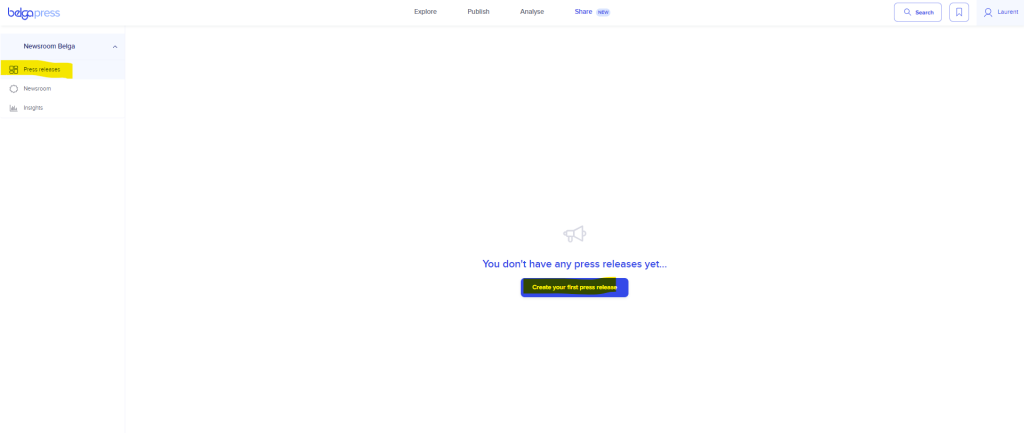
Your newsroom is all set. Time to send out your (first) press release!
Under “Press releases,” you’ll find an overview of all your press releases. For each release, you’ll see the title along with useful details such as the number of selected topics and recipients, the language, publication and update dates, and the release’s status.
As soon as you start working on a release, it is assigned the status “Draft.” Other statuses include “Scheduled,” “Published,” and “Privately published”—the latter being for releases sent to a limited audience (more on that in a moment).
Click on a release to view or edit it, or start creating a new press release. You’ll be guided through a simple wizard.
In the first step, you select the language or languages for your press release. You will only see the languages for which you have an active newsroom.
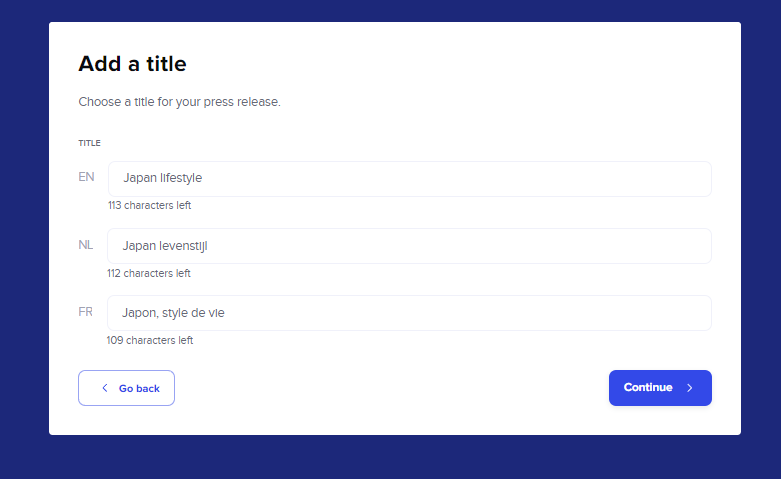
In the next step, enter the title for each selected language.
Next, select up to 5 topics that best capture the content of your post. By default, these are the topics assigned to your newsroom, but you are free to adjust them.
The foundation of your press release is now ready. The next steps are to finalize the content, determine your distribution channels, and ultimately schedule the release time.
The content
We recommend including a cover image with every press release. Experience shows that visually rich releases get more reads! However, this is not mandatory.
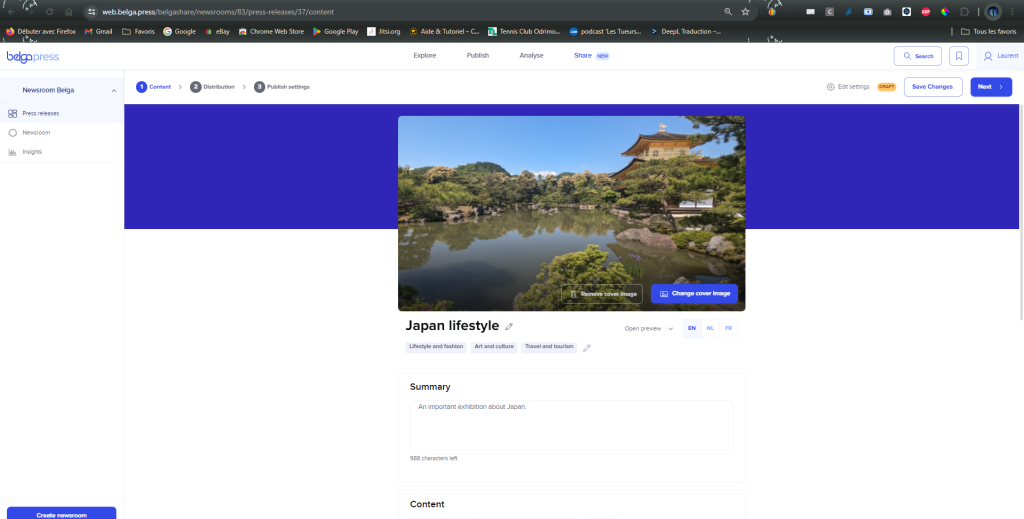
If desired, you can still adjust the title and selected topics using the edit icons.
Next to the title, you will also see the language version you are working in. Curious to see how your press release looks within the platform? Use the preview function.
Next, enter a summary as well as the actual content of your release. You can apply HTML formatting to this section.
Then, add documents or media. You can do this by uploading files and/or providing a video link. Pay attention to the filenames you assign to any uploaded files.
Select one or more contact persons, and you are ready for the next step.
To proceed, click ‘Next’ or save your changes if you are working on other things as well.
distribution
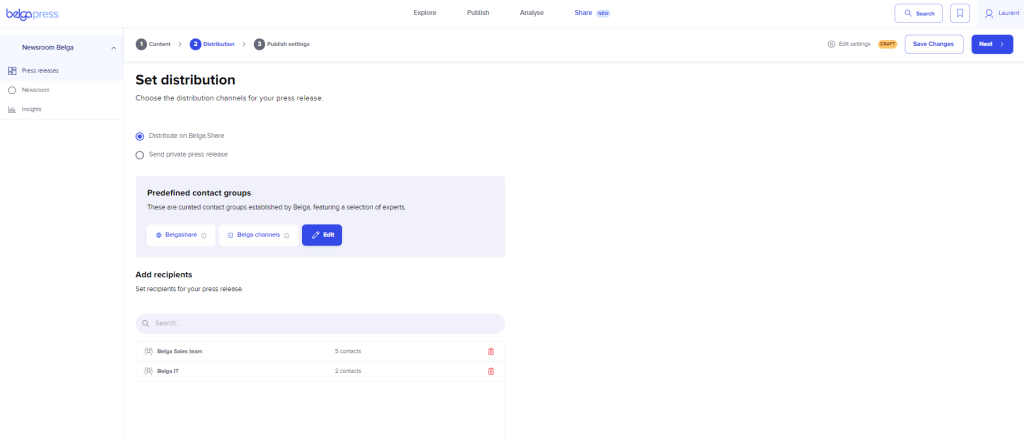
You can choose between maximum distribution or a highly targeted approach. In the latter case, select the ‘send private release’ option. This makes your press release visible only to the specific contacts or groups you select; other users on the platform or the public website will not be able to find your release.
Do you want to send it to a larger group later? That is possible. Simply open the previously published release and select the first option at this stage: ‘distribute on Belga.share’. This ensures maximum distribution.
This means your press release becomes available on the public website www.belgashare.be, reaches other newsrooms directly via the Belga wire, and is featured within belga.press (via the newsstand, under selected topics, within search results/alerts, etc.).
For both types of distribution, you can choose to add recipients yourself. You can manage these via contact management (here). These can be groups, your entire organization, individual contacts, or a combination thereof.
Satisfied with your target audience? Then you can move on to the final step of the process.
publish settings
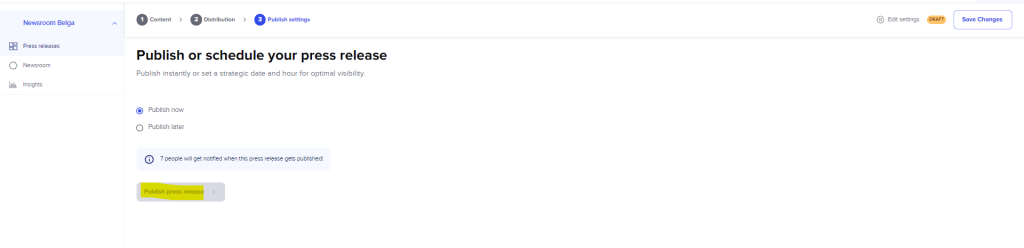
In this final step, you can choose to publish immediately or at a time of your choosing.
For the first option, click the ‘publish press release’ button. After confirmation on the next screen, your communication will be sent immediately to the selected channels. Your message will also be assigned the status ‘published’.
Alternatively, you can select the desired publication time and click ‘schedule press release’. Your message will then be assigned the status ‘scheduled’ until the designated time.
The final confirmation screen provides a visual overview to ensure everything has been filled in correctly. If not, you can go back and make changes. If everything is in order, you are ready to publish; simply click ‘publish (anyway)’.
Insights
Track the performance of your press releases and newsrooms.
In this section, you can view key metrics for your newsrooms and press releases.
Improve reach and press coverage over time by experimenting and closely monitoring performance.
Insight into the usage of your press releases
We track every instance of relevant usage in a GDPR-compliant manner, whether within belga.press or on the public website belgashare.be.
After clicking on ‘Insights’, you will first see the key KPIs for your press releases. Scrolling further down reveals similar data for your newsroom.
You can view various averages (along with the variance compared to the previous five press releases), specifically regarding the number of articles read, the open rate for distributed emails, and the number of press pickups (i.e., how often your press release was picked up by the media).
Below that, you can view specific information about your latest press release, which you can immediately compare with your best-performing or most recent releases.
Under “Your audience,” you gain insight into which contact groups (your own or those provided by Belga) yield the best results for your messages across the KPIs mentioned above.
If you would like an overview of all press releases, click “View all.” Here, you can also specifically search for a previously published message.
Clicking on a press release displays its specific details. You gain detailed insight into various metrics and can immediately see who picked up your message. You will see at least a snippet of each article; if you have a full subscription to the source, you can view the full details as well. For further questions or information, please contact [email protected].
For each of your selected contact groups, you can see the number of reads and how your current message compares to the others.
At the very bottom of the page, you get an overview of your press release’s potential reach. This varies depending on the topics and recipients you have selected.
Insights into your newsroom usage
Here, too, we track all relevant usage in a GDPR-compliant manner.
This gives you insight into the number of unique visitors, page views, or followers over the last 7 or 30 days, and shows how these figures compare to the previous period.
Elsewhere on the dashboard, you can view more detailed data by day or week, as well as the impact of each press release you have sent out. At the bottom, you can see which sections of your newsroom received the most clicks.
Belgashare.be
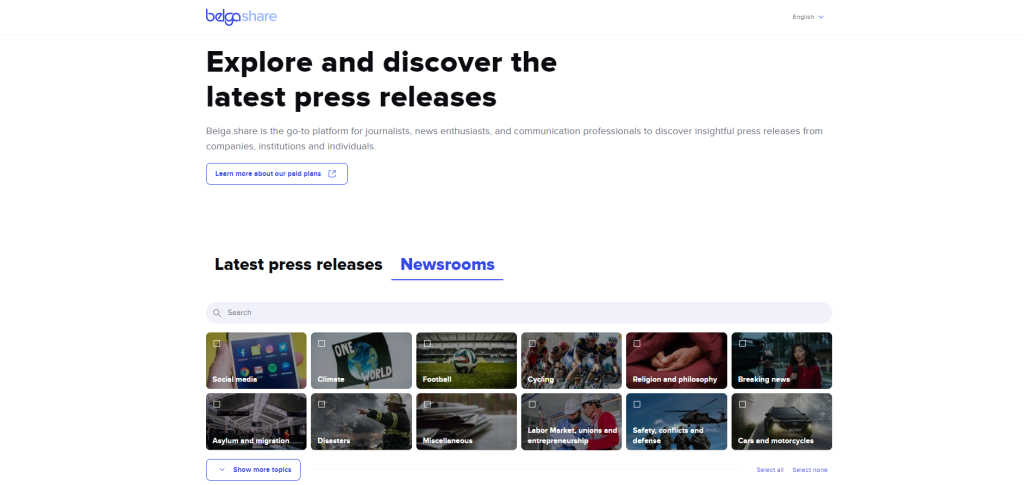
Your newsroom is naturally visible to all belga.press users within the platform, but you also have an immediate public showcase. You can find it at www.belgashare.be.
We deliberately opted for minimal Belga.press branding here, so you can promote it yourself if you wish.
At a later stage, you will also be able to easily customize your newsroom’s URL using CNAME technology. Similarly, if you wish to embed the newsroom into your own website or intranet, we offer a simple iframe option.
The public site has been kept intentionally simple. Users can choose to view the latest press releases or browse the newsrooms. Use the search bar to find a specific newsroom or press release, or filter directly by one or more topics.
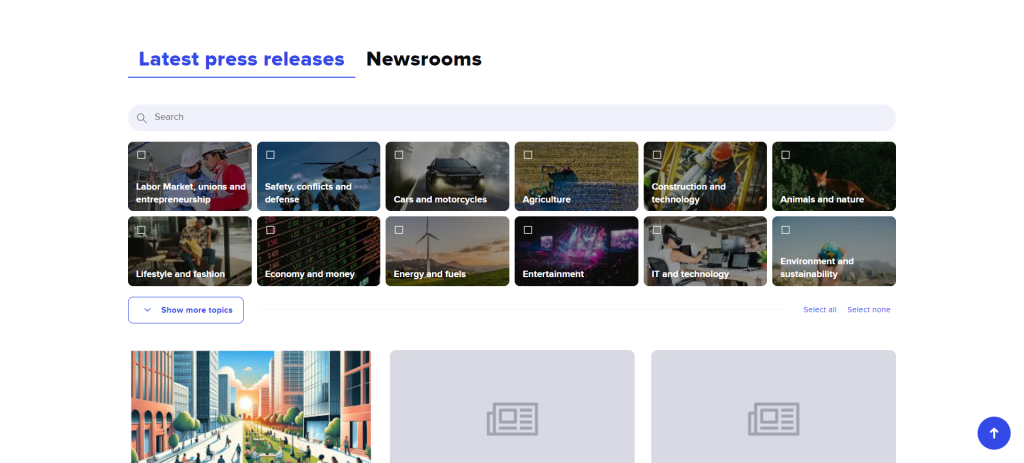
If you have photos or documents anywhere in your newsroom (e.g., from a press release or within the ‘documents & media’ section), these can also be easily downloaded here.
The visual presentation of both the newsroom and the press release is fully consistent with the layout on belga.press itself.
Note that we also give non-belga.press users the opportunity to follow your newsroom or specific topics within it. This allows you to reach an even wider audience.
Did you know?
As a belga.share subscriber, you also get immediate, full access to our Belga agenda and Belgaimage.
Use our editorial press calendar (the go-to resource for all media in the country) to schedule your event at the optimal time.
Access to Belgaimage not only gives you a view of all incoming Belga photo reports, but also allows you to use the images in your newsroom, for instance, as an item in your press coverage tab or as a cover image for a press release. If you also wish to make these available for download to your newsroom users, please purchase them separately via www.belgaimage.be.