
This post is (also) available in: NederlandsFrançais
For managing account information, preferences, brands, templates, recurring newsletters, contacts (and contact lists), statistics, and more…
You can access this section by clicking your user icon in the top-right corner and selecting ‘Settings’. Here, you can manage various settings that are useful while using Belga.press.
To make navigation easier, we have organized all settings into categories. What you see here depends on your user profile, so don’t worry if you see fewer features than listed below.
Personal preferences
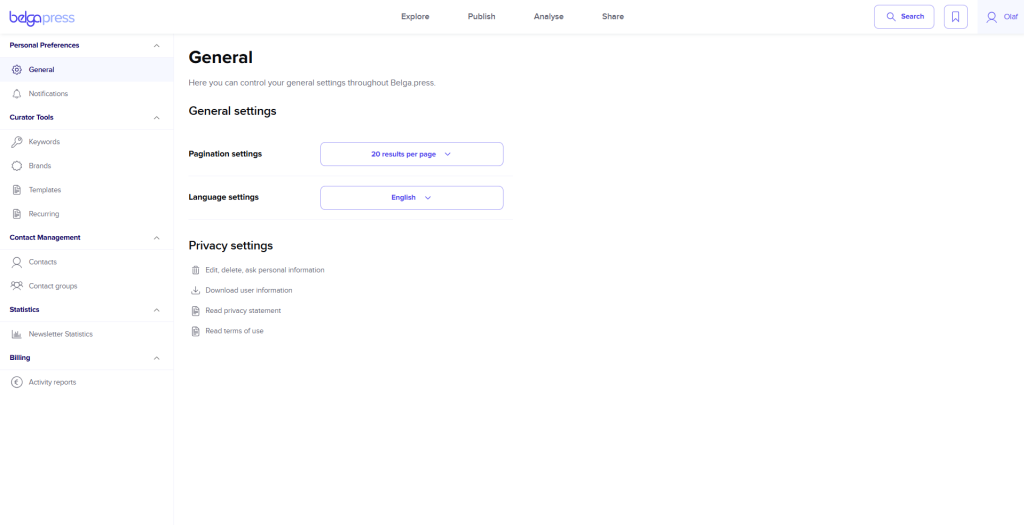
General
You can manage your preferences under ‘General’. Currently, this is limited to the number of results per page and the interface language setting, but the intention is to expand this section in the future to include other relevant parameters.
You can find more information about our GDPR policy under ‘Privacy settings’.
Notifications
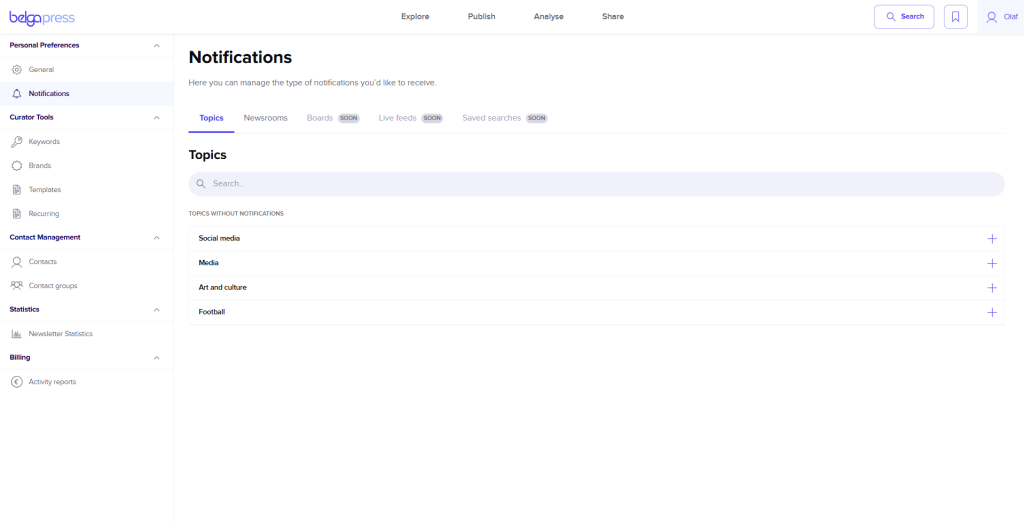
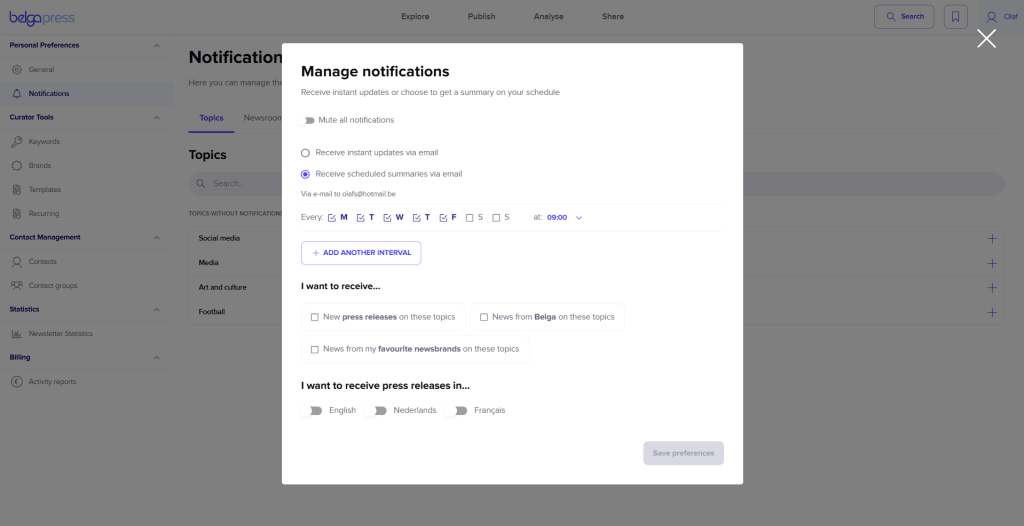
As a user, you can set up various notifications across the belga.press platform. We have gathered them here for you to ensure you always have a handy overview. Currently, this is limited to Topics and Newsroom, but eventually, you will also be able to manage notifications for boards, live feeds, and saved searches here.
Curator tools
Brands
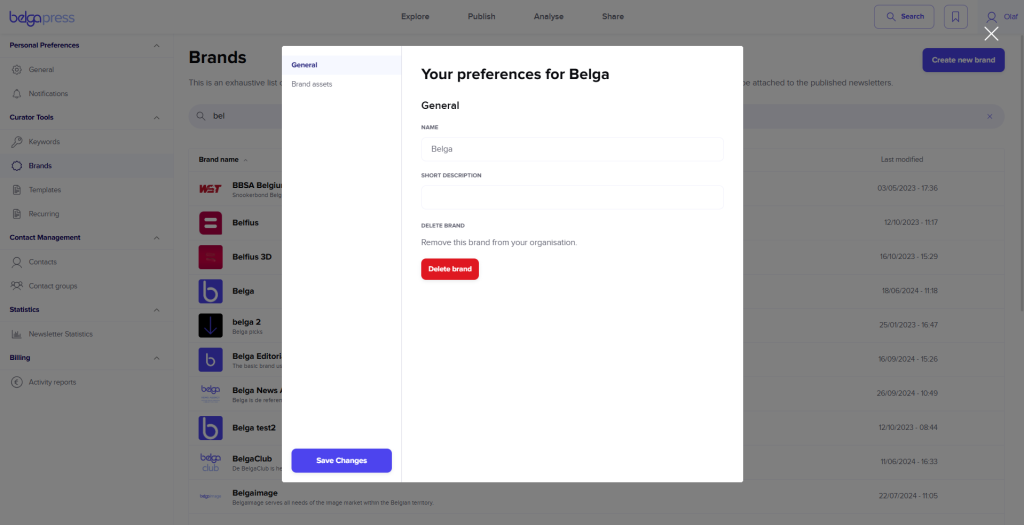
Being able to add your own branding is important for a live feed, newsletter, or newsroom. Here, you can view all the logos and brands used by your organization. Please exercise caution when deleting or modifying a logo, as this affects all users within your organization.
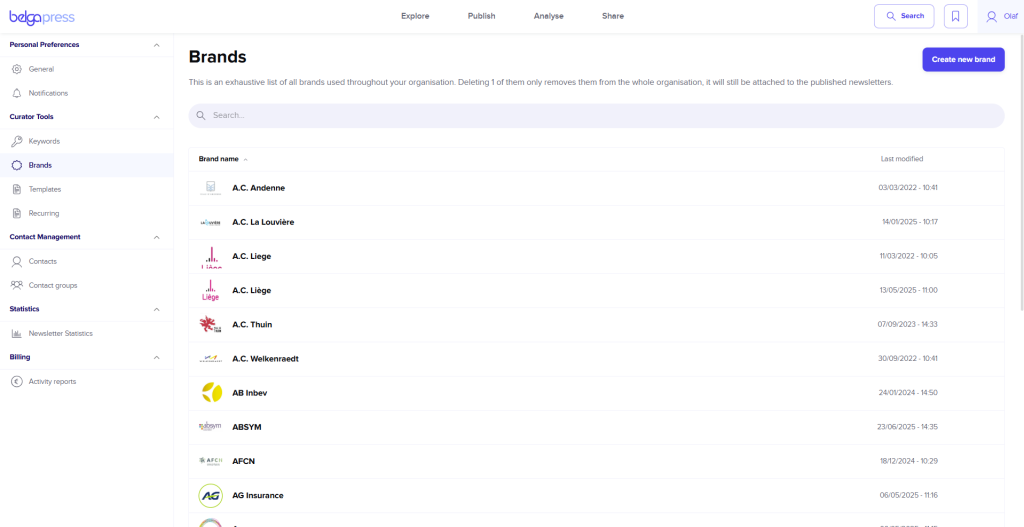
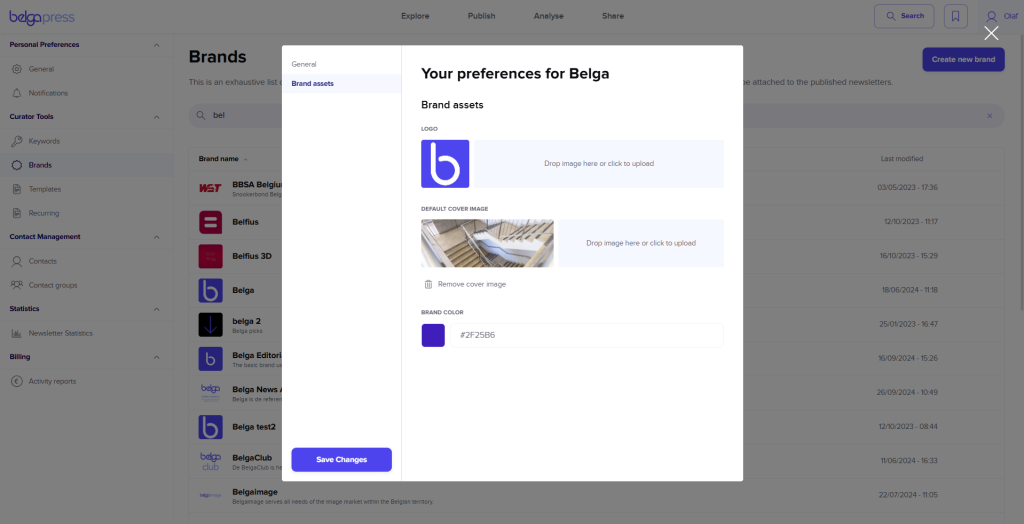
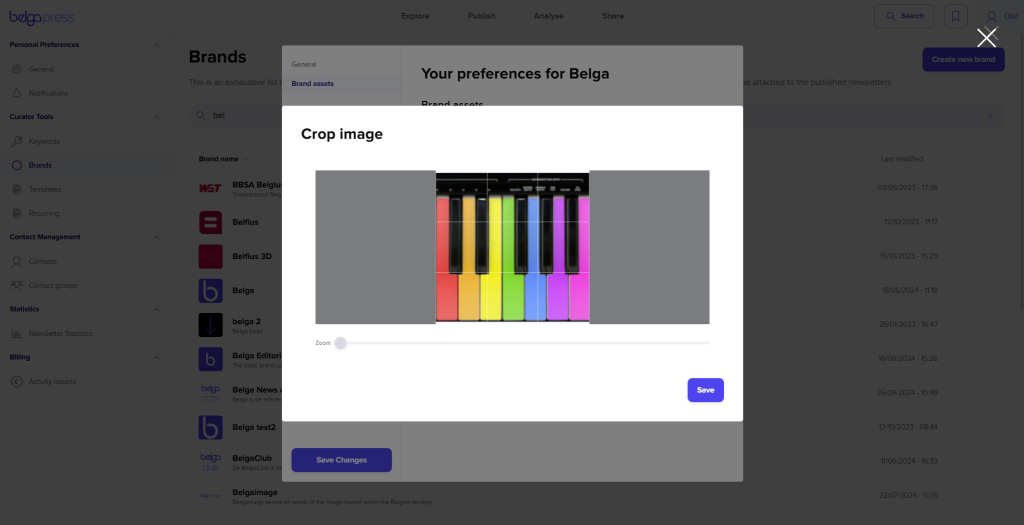
You can easily add a new logo via ‘create brand’. Give your brand a name and, if desired, add a brief description. In the next step, add a logo, cover image, and brand color. Use the crop and edit feature to adjust your logo or cover image so it fits within the safe area. Then, click ‘create brand’ to create your brand. Once created, the brand will appear in your list. Select ‘edit’ if you wish to make changes or delete the brand. Deleting it removes the logo from the list; however, if you have already used it—for instance, in a newsletter—it will naturally remain visible there. You can find the logo, cover image, and brand color under ‘brand assets’.
Templates
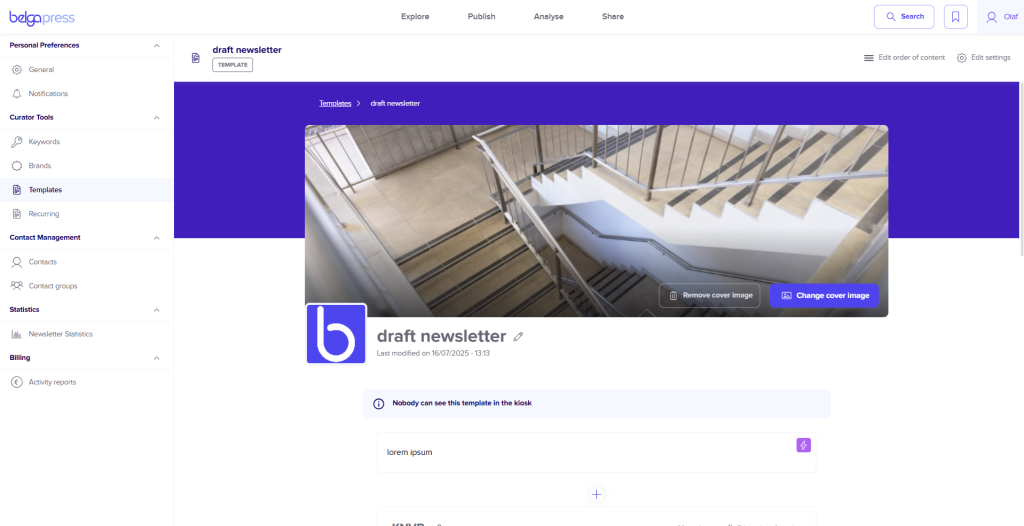
How to create templates is described in detail in the Newsletters section. Once created, you can manage your templates (which are used for newsletters) here.
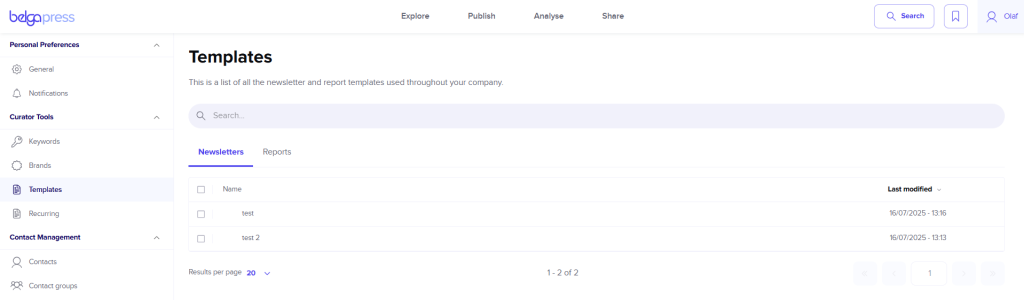
To do this, select a template from your list. The selected template will then appear. Using the on-screen editing features, you can rename blocks, as well as modify, add, or remove labels. All changes are saved immediately. Click ‘edit settings’ to take the next step. Under ‘General’, you can change the template name or logo, or delete the template entirely. You can change the order of the blocks via ‘items order’ by dragging them to the desired position. Similarly to other areas of the portal, you can manage your readers and co-curators via the ‘publishing’ and ‘collaboration’ sections, respectively.
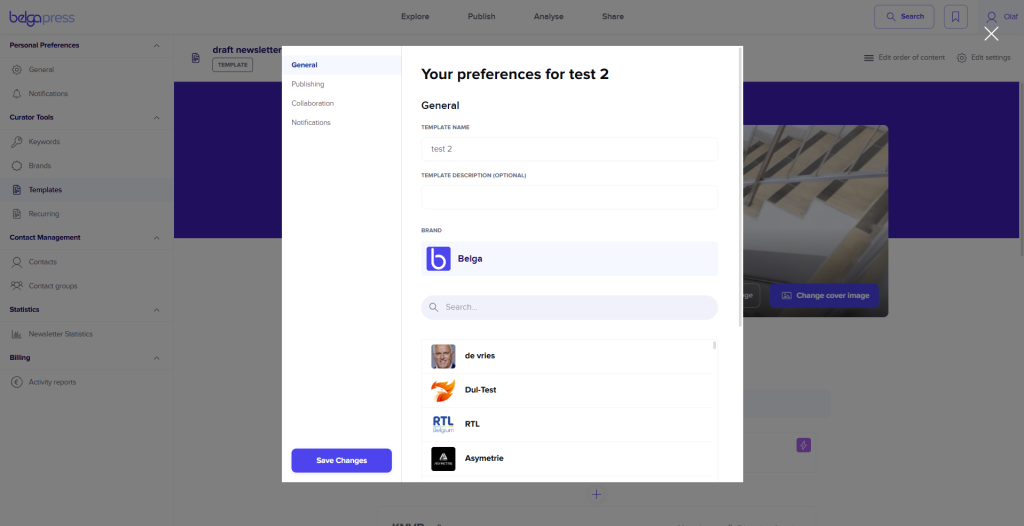
Click ‘save changes’ each time to save your changes.
Recurring
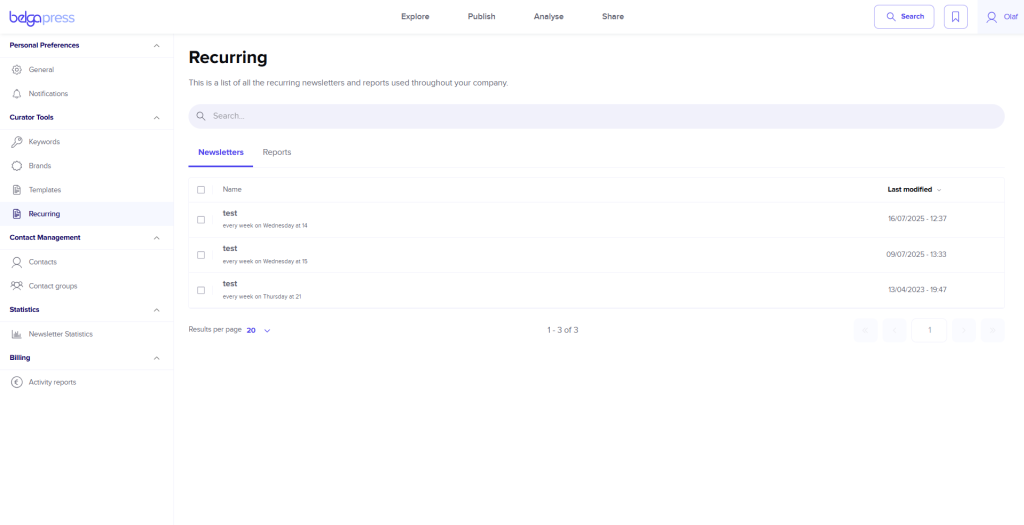
In the ‘recurring’ section, you will find an overview of all your recurring newsletters and reports (only visible if you have access to the analytics feature).
Contact management
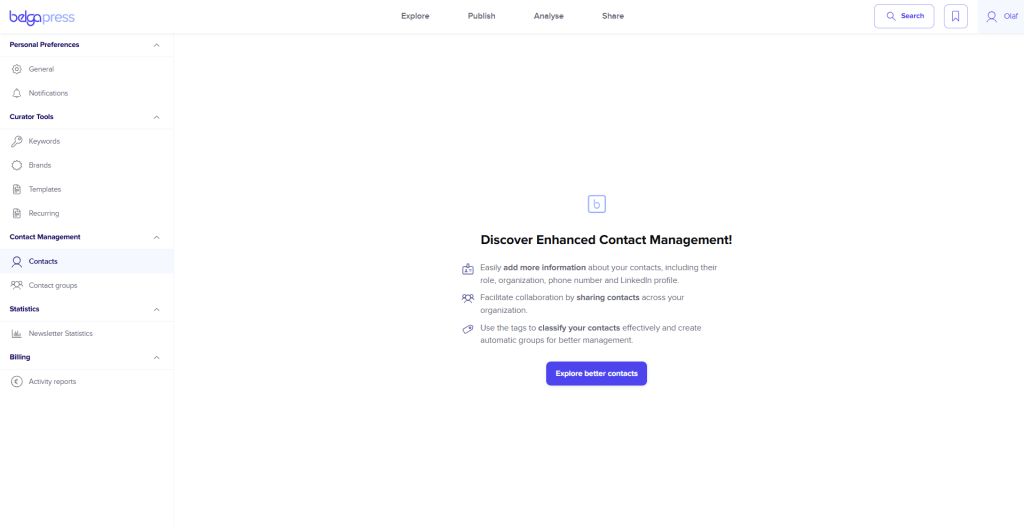
As a curator, you naturally want to reach your readers in the best possible way—whether through a press release via Share, a newsletter, a live feed, a label, or simply by sharing posts. In this section, you can easily manage your readers and contacts, as well as organize them into lists.
Contacts
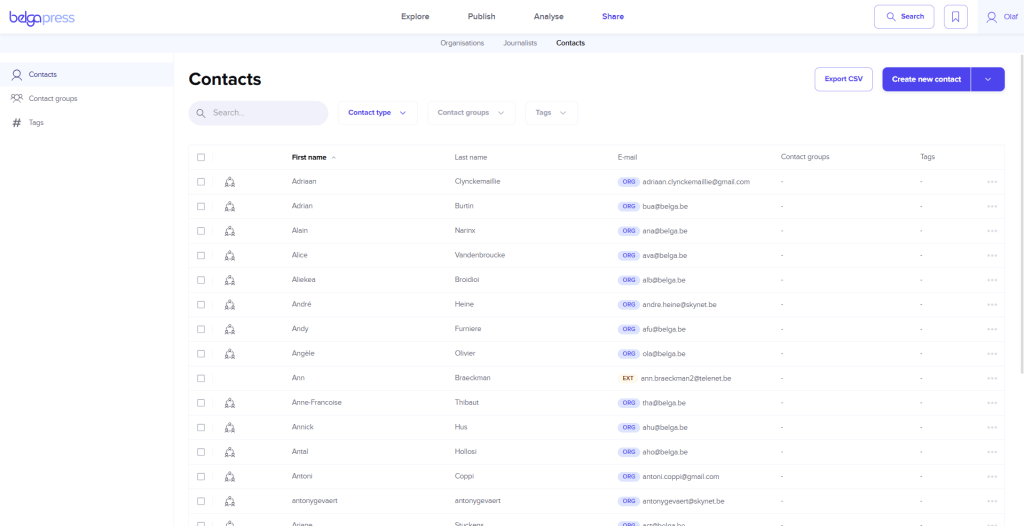
You can find all your contacts under ‘Contacts’. Belga.press users within your organization automatically populate your list (this list cannot be deleted). Such contacts are marked with the label ‘ORG’. Use the search feature to easily locate contacts. You can export all your contacts to a CSV file using the ‘export csv’ button.
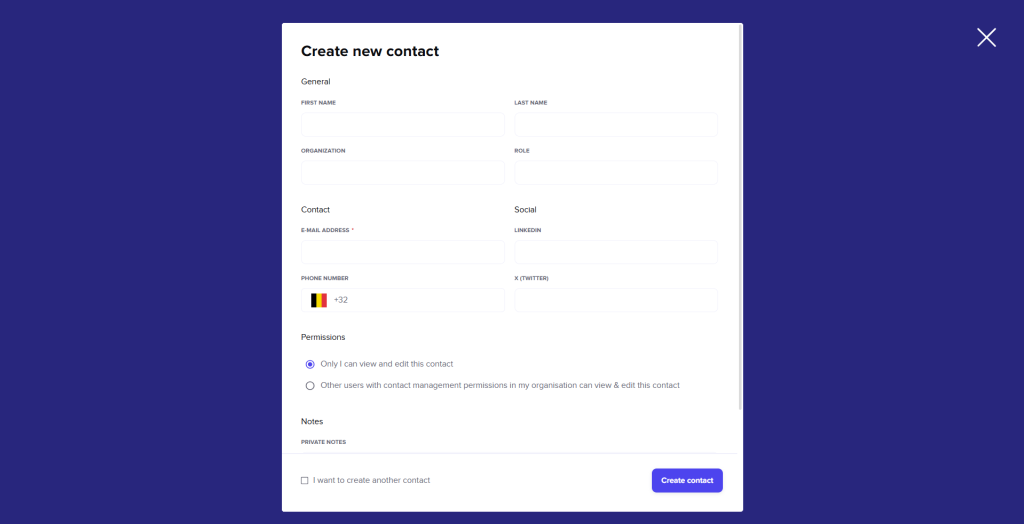
You can add new contacts via ‘create new contact’. To perform a bulk upload, click the ‘v’ button and select that feature. In the first instance, type in the full email address and press ‘Enter’; you can add as many addresses as you like. For bulk uploads via CSV, including just the email address is sufficient. In the next step, you can immediately add the contacts to one or more contact lists, if applicable. Click ‘add contact’ to finalize the process.
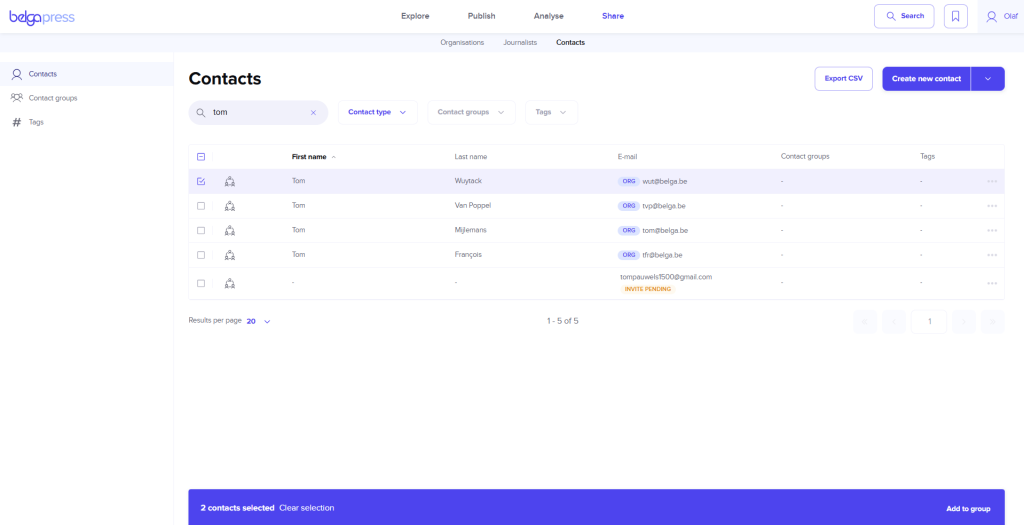
You can add a note to any contact later on. Select the contact and click ‘edit’. You cannot modify a contact’s details; these are managed by the reader themselves once they are registered with Belga.press. However, you can delete the reader. Using ‘contact groups’, you can add the reader to one or more contact lists if this was not done during creation. While you cannot share an individual contact, you can share a contact list. You can perform a bulk delete or CSV download by selecting multiple contacts and making your choice from the blue bar at the bottom of the page.
Contact groups
Click ‘contact groups’ to view an overview of all your contact lists. These can be lists you created yourself or lists that have been shared with you. Shared lists are marked with a specific icon. Click on a list to manage the contacts within it. You can add new contacts using the ‘add contacts’ option; these can be existing readers, or you can choose to perform a bulk upload via CSV. To remove readers, select them and use the ‘remove from group’ option in the blue bar at the bottom of the page to delete them in bulk (or download them as a CSV file).
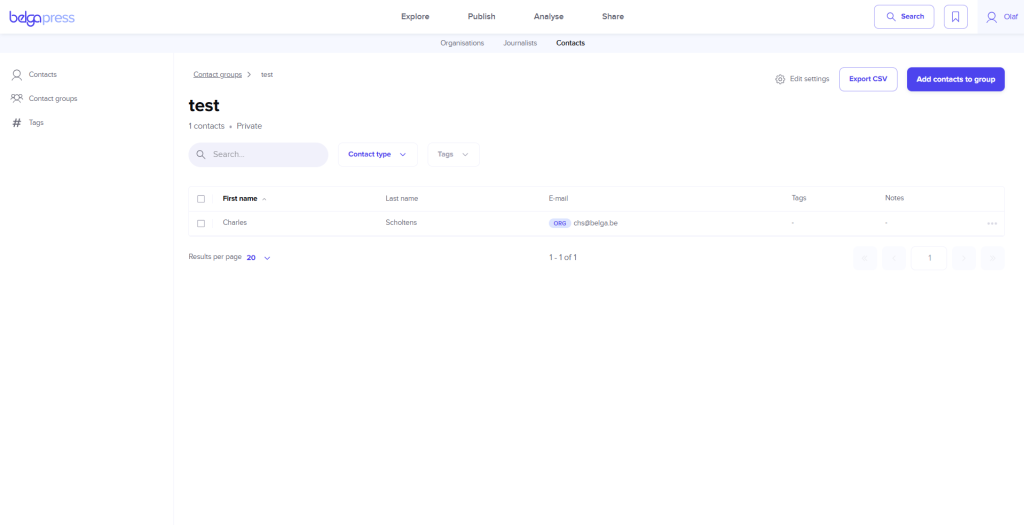
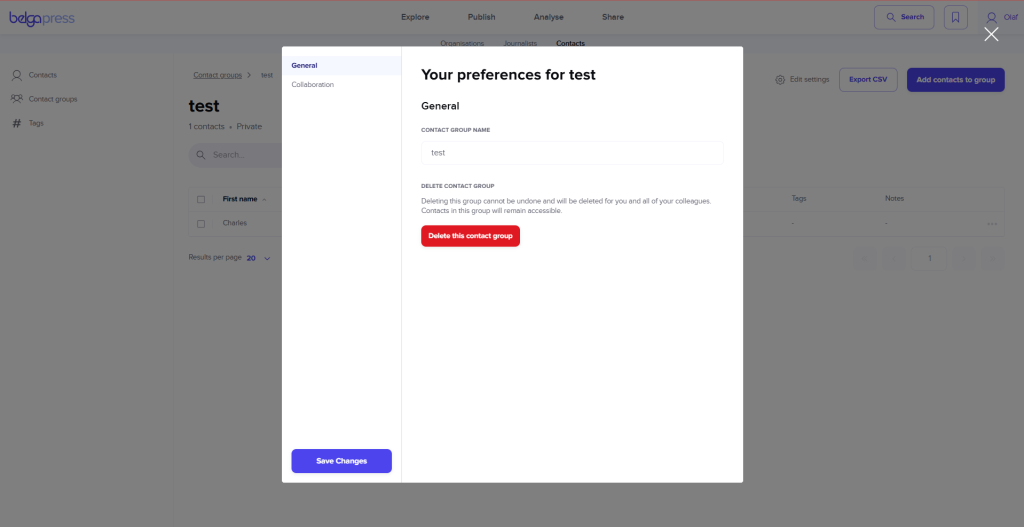
You can delete (General) or share (Collaboration) a contact list via ‘edit settings’.
Statistics
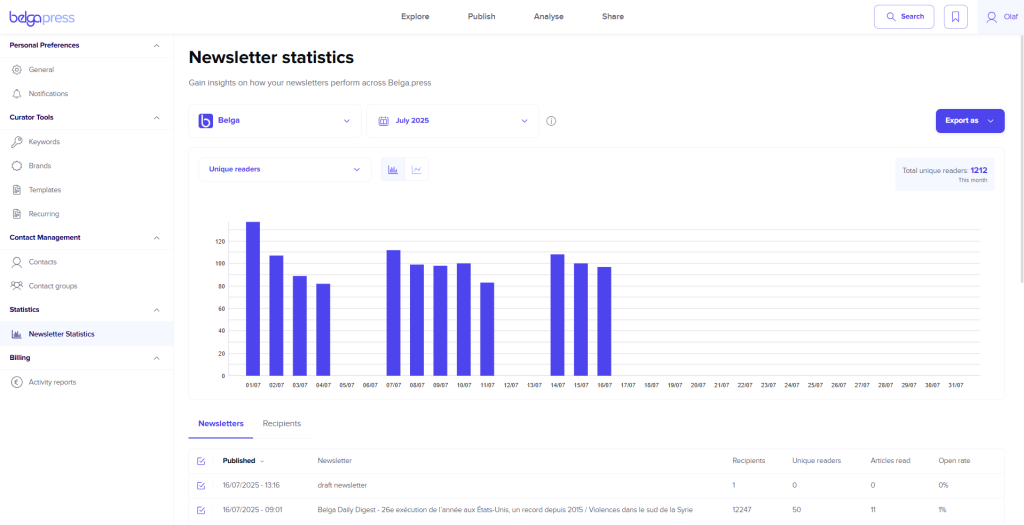
As a curator, you currently only see readership statistics for your newsletter here. In the future, we will expand this to include live feeds and other relevant insights.
Billing
Activity reports
Enkel zichtbaar voor PR agencies