This post is (also) available in: NederlandsFrançais
Note: for curators only
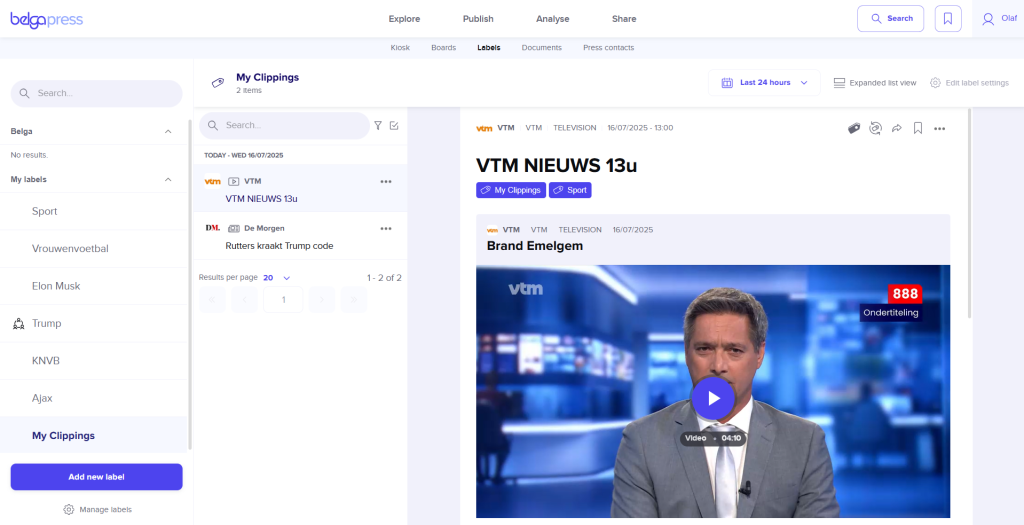
The clippings feature in Belga.press allows you to ‘clip’ both publications and radio or television segments. Each item is assigned a ‘My clippings’ label; once further labeled, you can use it in your ongoing curation work—for example, in a live feed or newsletter.
Clipping a publication
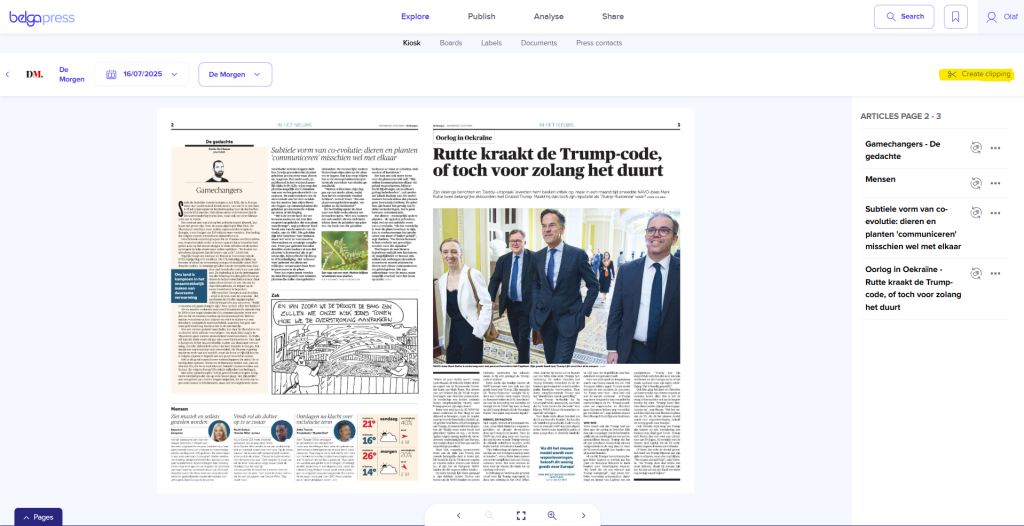
If you wish to create a clipping from a publication, click the ‘create clipping’ icon found in the kiosk or on the detail page of a print article. A wizard will then open to guide you through the process of creating the clipping.
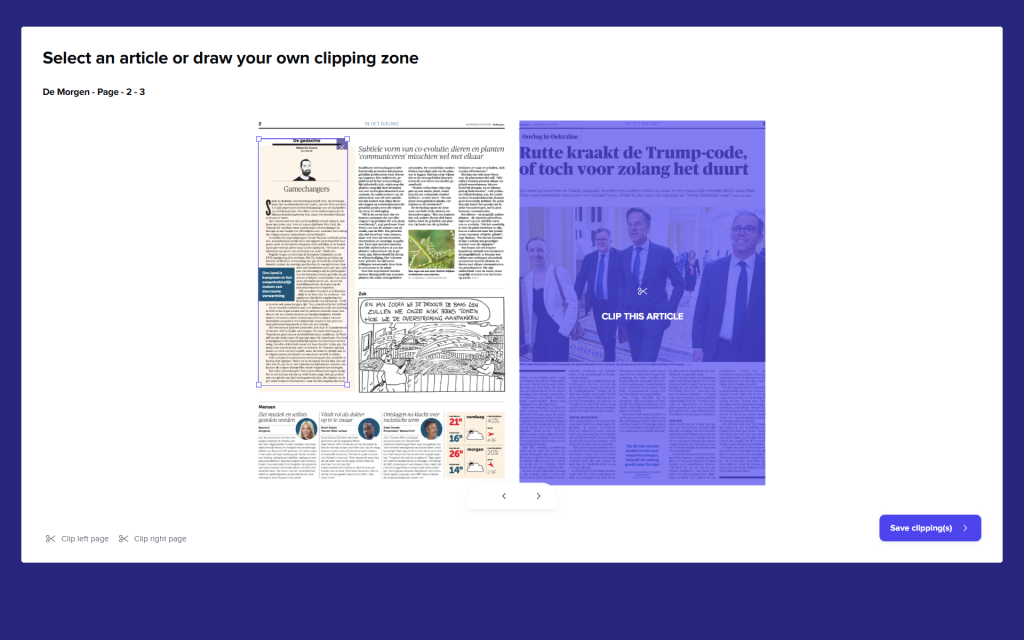
In the first step, select the zone(s) you wish to clip. You can choose a predefined (blue) zone or select one or more zones yourself; this can even span multiple pages. Use the handles to adjust the clip zone, or the ‘X’ icon to remove a selection. If you want to quickly select the entire page, choose the ‘clip left/right page’ options at the bottom. Click ‘save clippings’ to proceed to the next step.
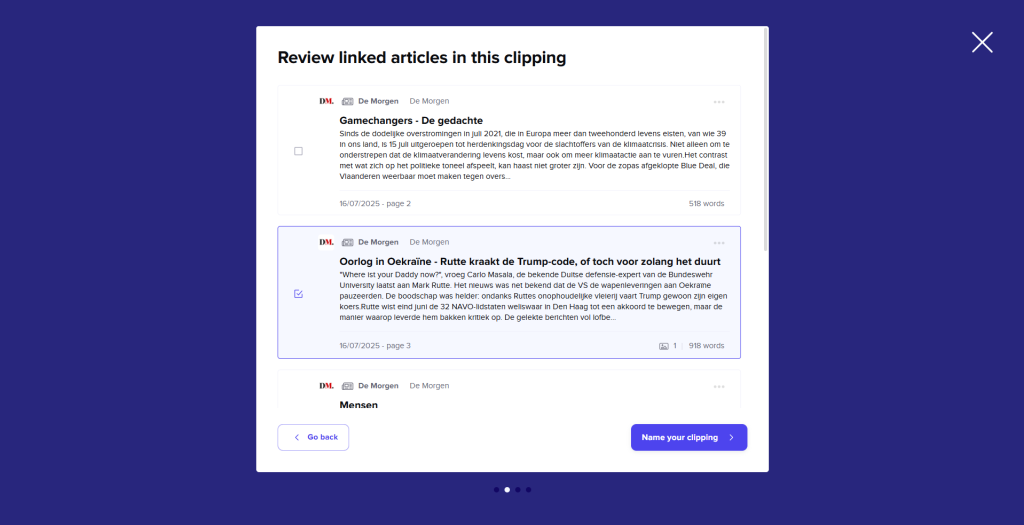
In this step, the system identifies which articles fall within your clipping zone. Click ‘name your clipping’ if you agree with the selection, or deselect items as necessary. Selected articles are added to your clip, allowing for direct links to the relevant articles later on.
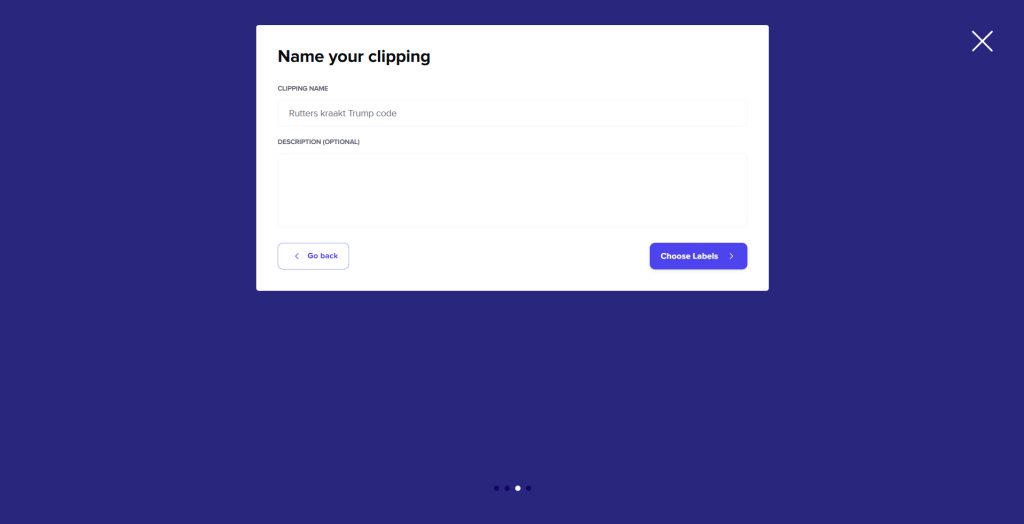
Give your clip a name and, optionally, a description here. By default, we use the name of the first item selected. Click ‘choose labels’.
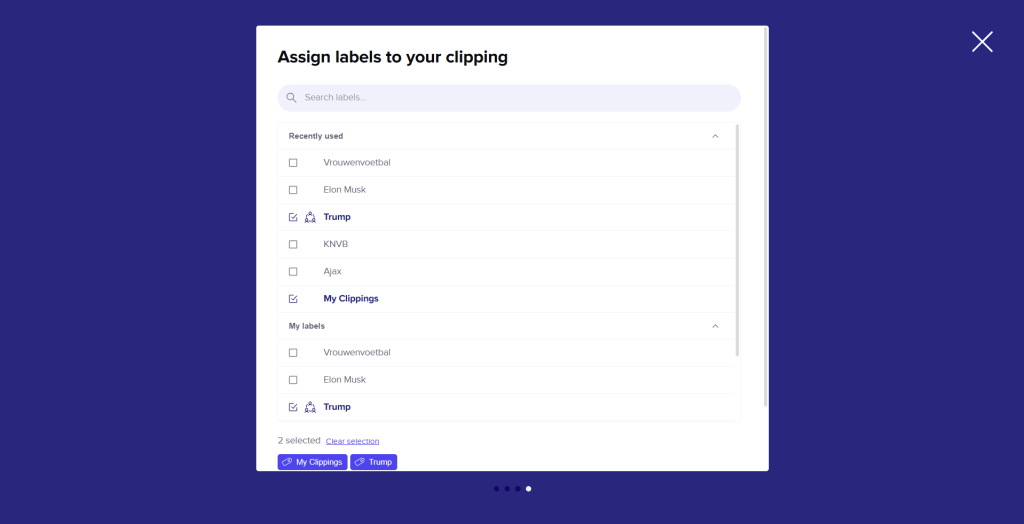
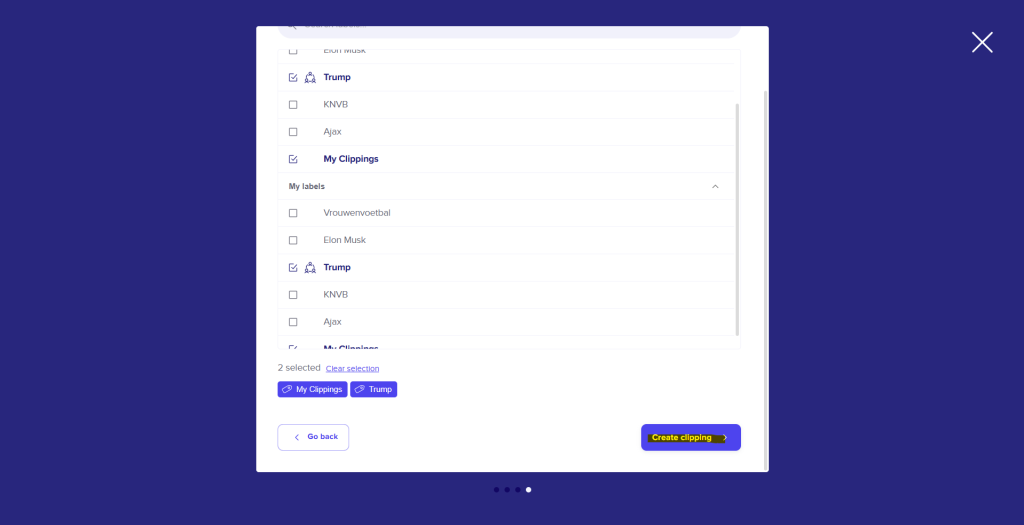
Your clippings are always assigned the label ‘My clippings’. Add extra labels if desired and finish by selecting ‘create clipping’. Your clip is now being created and will appear among your labels shortly (this process takes a little time), ready for further use.
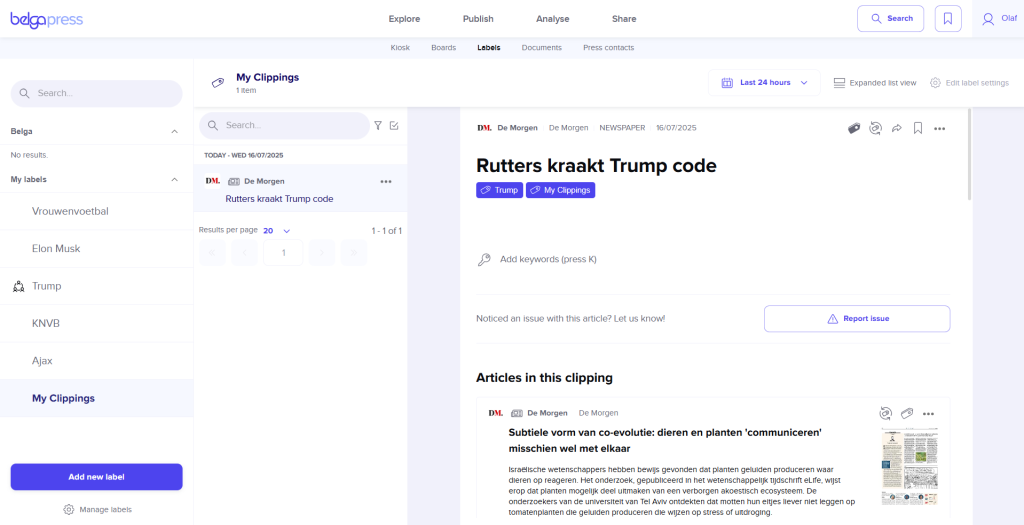
Tip: Clipping a publication (newspaper/magazine) is of little use if the system already recognizes the article’s exact coordinates. Unlike Gopress, Belga.press retains the publication’s PDF. This ensures the recipient of your newsletter or live feed can always view the publication. Consequently, using this feature is recommended for publications or zones where coordinate data is unavailable.
Clipping a radio or television segment
You can, of course, label an entire audio or video segment, but be aware that the clipping function also allows you to select specific excerpts. The recipient of your live feed or newsletter will then see only those selected parts as clips.
The workflow is similar to that of a print publication, though adapted to this type of content.
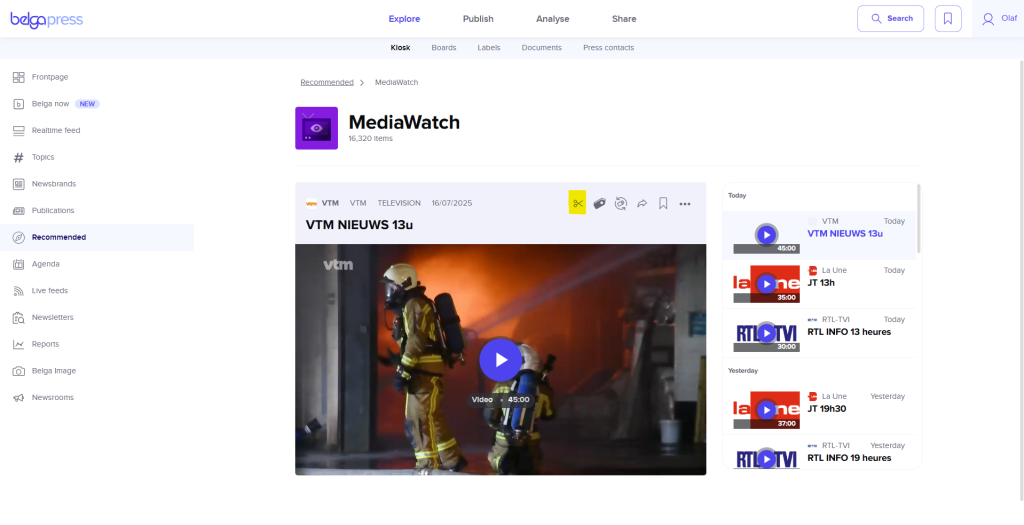
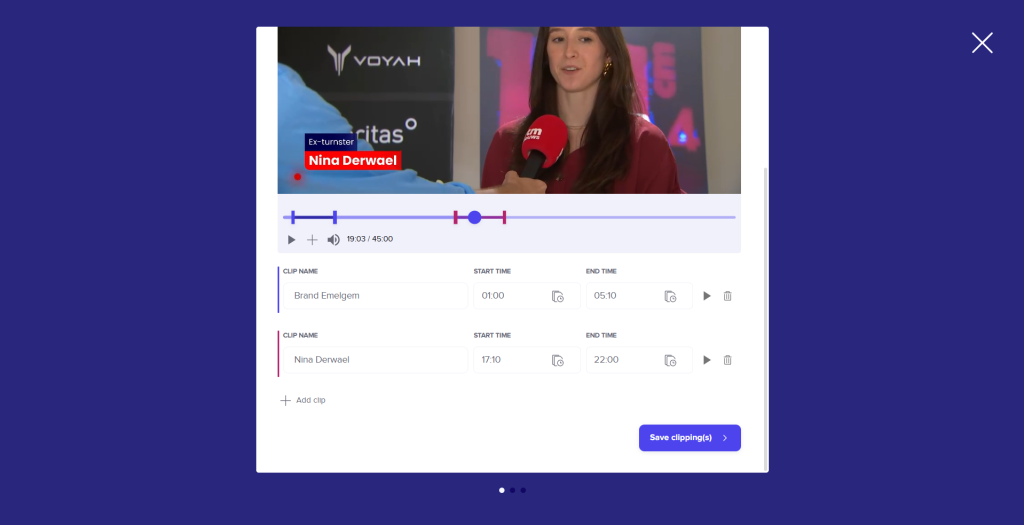
For any audio or video clip, you can click the ‘create clipping’ feature to open a wizard containing the full item. Scroll down and use the two handles to select a specific segment. Name your clip, make any further adjustments to the time selection if needed, or delete it. To select an additional segment, click the ‘+’ icon (or ‘add clip’). Click ‘save clippings’ to save your selection(s).
The subsequent steps are identical to those for a print clipping. Name your clip, assign labels, and complete the wizard. You will then find your clip under the ‘My clippings’ label and any other labels you selected.