This post is (also) available in: NederlandsFrançais
Welcome to Belgium’s leading news search engine.
The Search Screen
In Belga.press, you’ll find the Search features at the top right of the menu bar. Clicking the search button takes you to the Belga.press search screen, which is composed of 5 components.
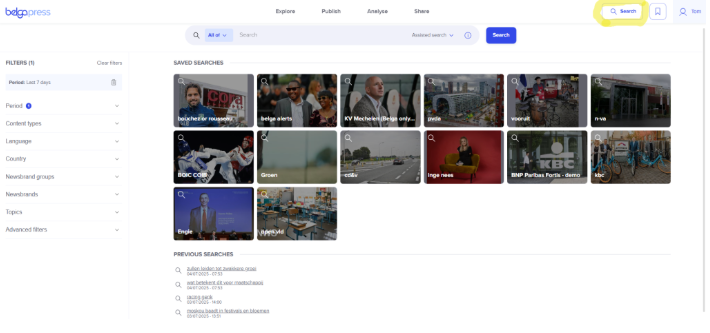
At the top, you will find the search bar where you can enter your search terms. All search filters are located on the left. In the middle of the screen, you will find a list of all your saved searches and your previous searches below that. As soon as you launch a search, the results will be displayed in the central area.
Assisted vs. Boolean Search
Belga.press offers two ways to search: you can use Assisted search or search based on a Manual boolean query.
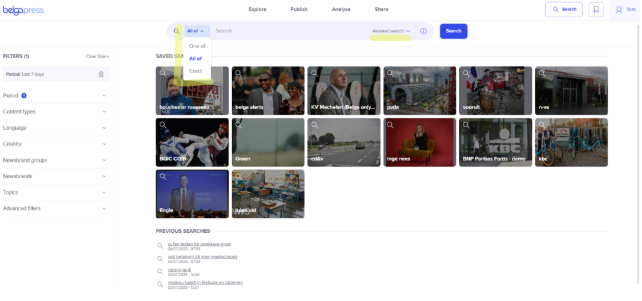
By default, assisted search is ready, offering you 3 options. These options are found on the left side of the search bar. Let’s take Elon Musk, the CEO of Tesla, as an example. If you use “One of” you’ll get articles containing either “Elon” or “Musk.” With “All of” you’ll get articles containing both “Elon” and “Musk.” If you use “Exact” you’ll get articles where “Elon Musk” appears in that exact order.
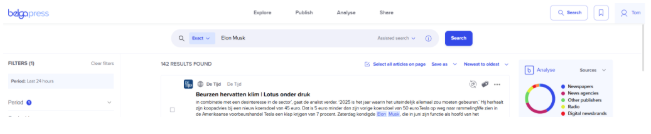
On the right in the search bar, there’s the “Manual Boolean Query” option. Clicking this transforms the search bar into a text field where you can use a Boolean query. Belga.press supports most Boolean operators such as AND, OR, and NOT. For more advanced operators, we refer you to our tutorial avanced search or you can click the ‘i’ icon next to “Manual Boolean Query” for more information.
Let’s go back to our Elon Musk example, but now with a more advanced search. In our example search query, we’ll put “Elon Musk” in quotation marks because we want to search for “Elon Musk” exactly and not “Elon” or “Musk” separately. We’ll add “Tesla” using AND. Now we will only get articles that contain both “Elon Musk” and “Tesla.” We’ll add NOT with “SpaceX,” which will exclude articles containing “SpaceX.” If we want to find all articles with “Elon Musk” and either “Tesla” or “SpaceX,” we do it as follows: we put “Tesla” and “SpaceX” in parentheses and place OR in the middle. (“Elon Musk” AND (Tesla OR SpaceX))
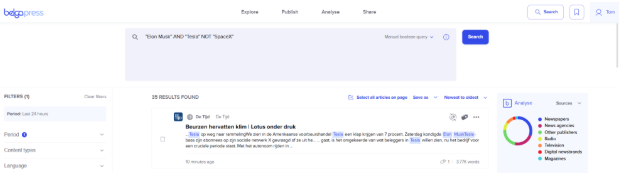
Thanks to Boolean search, you can enter very extensive queries. Make sure you always type the Boolean operators in CAPITAL LETTERS and place exact terms that you consider as one unit within quotation marks.
Good to know: Using very extensive queries can slow down the search!
A wide range of search filters
Belga.press offers a wide range of search filters that allow you to narrow down your search results to find the articles you want. All filters can be found in the left-hand column.
Use the ‘clear filters’ option at the top of the filter zone to reset all filters to their original values. If you navigate away or log out, your filter settings will be remembered.
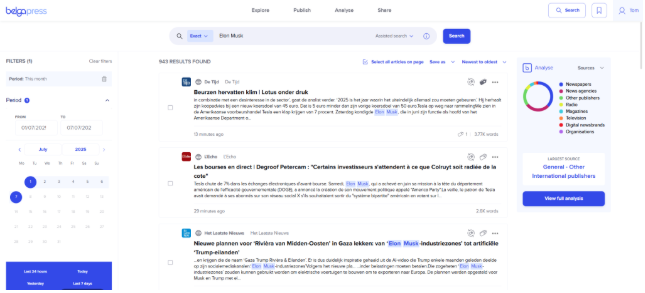
The first filter is for period. Here you can manually specify a period within which you want to search or use one of the standard date filters. By default, the period filter is set to “Last 24 hours.” For our Elon Musk example, we’ll choose “This month.” You’ll see that the search results automatically adjust when you select the filter.
All your filter choices remain visible in the light grey bar, allowing you to keep track of the selections made. Use the ‘delete’ icon to quickly remove them.
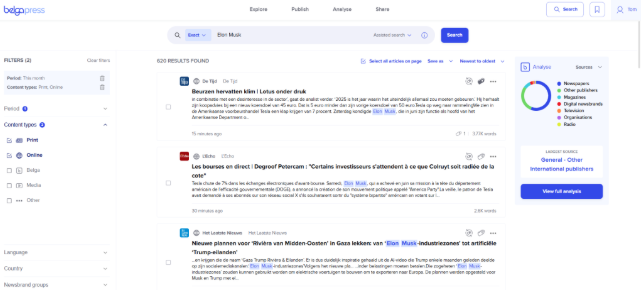
The second filter is for content type. With this filter, you indicate which content types should appear in your search results. If no filter is selected, it means you want to see all results within that filter. For our example, we only want newspaper and online articles.
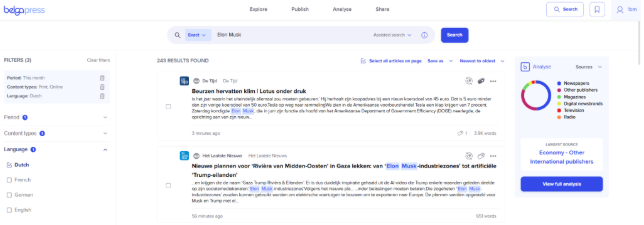
The third filter is for language. Use this to search only for articles in a specific language — for example, only Dutch.
The fourth option is by country. Here you can specify that you only want articles from, for example, the Belgian press. It’s not about the country an article is about, but rather the country of the source.
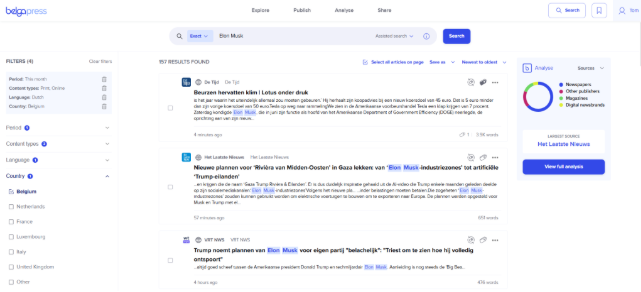
The fifth filter allows you to select Newsbrand groups. These Newsbrand groups are the categories in which news brands are organized by Belga. In our example, we only want articles published by newspapers or television news brand.
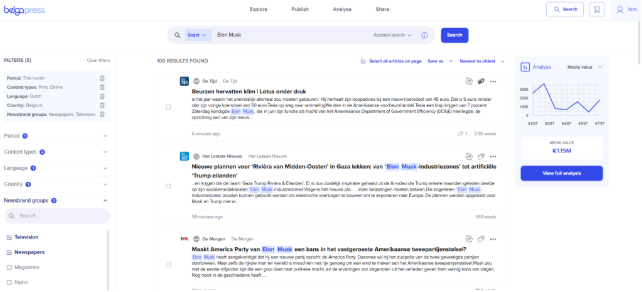
The sixth filter is by a newsbrand or source. Here you can specify that you only want articles from certain brands or sources. For our example, we only want articles from Het Laatste Nieuws, Het Nieuwsblad, and De Tijd. We only show the sources that remain based on the filters you set above. You can select a source from the (long) list or easily find it by starting to type its title in the search bar. After three characters, you’ll immediately see the corresponding sources appear. Use the ‘x’ to go back to the full list.
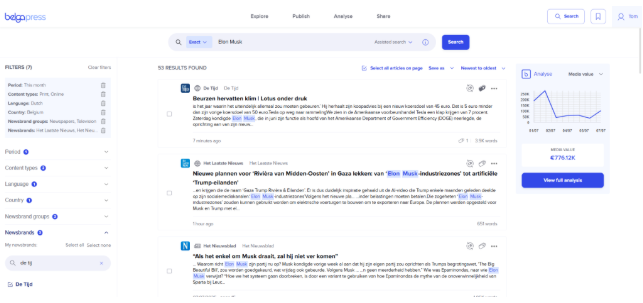
If you choose the ‘my newsbrands – select all’ option, you select all your favorite newsbrands in one go. ‘Select none’ will clear your selection.
As soon as you use the source filter, you will see additional options to filter by specific editions of newspapers using the editions filter. Or you can filter by sub-source, which could be supplements or an additional attachment of certain news brands.
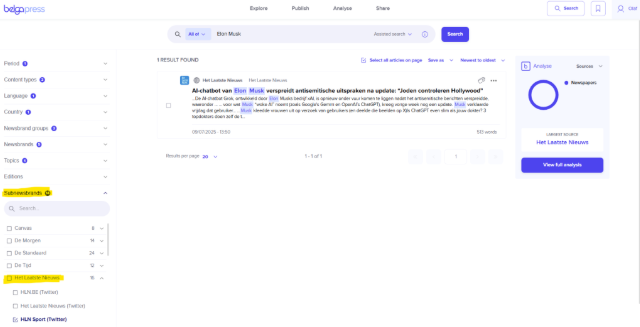
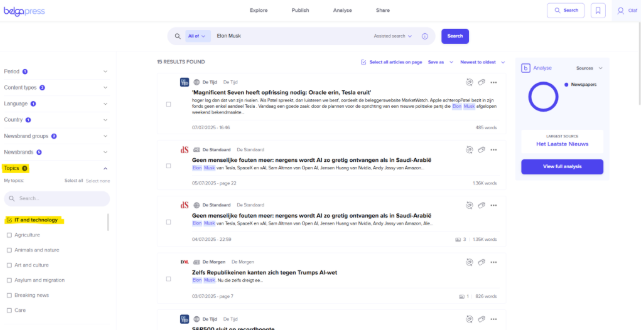
You can also filter by Topics.
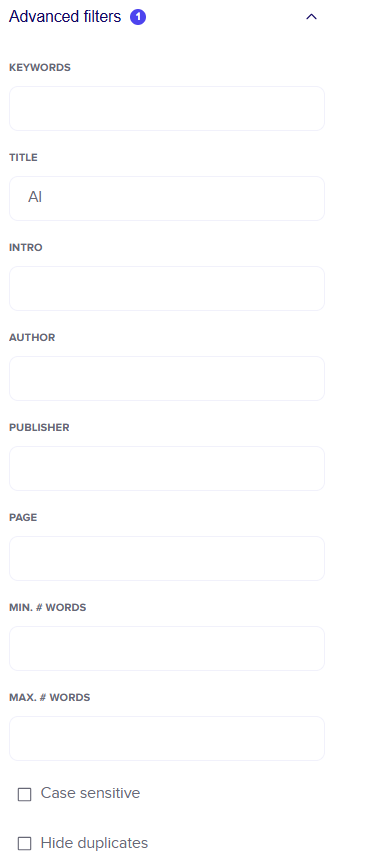
The last filter option includes extra Advanced filters. For example, you can specifically search within the title (multiple terms are possible) or on a specific page. The values you enter in ‘keywords’ and ‘publisher’ are interpreted as an AND query. At the bottom of this advanced filter, you’ll find two checkboxes to enable case-sensitive searching and to filter out duplicate articles.
Your search results and what to do with them
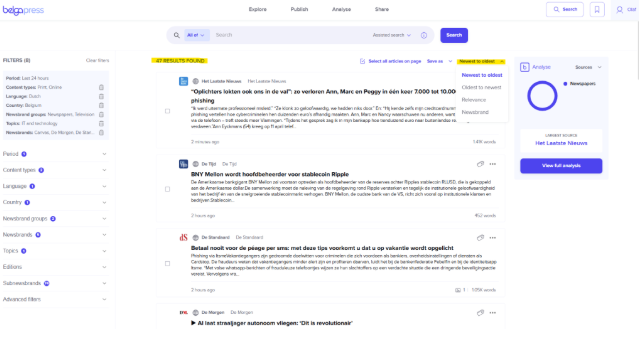
Once you initiate a search, the central area of the screen fills with results. Whenever you apply a filter, the search results update accordingly, and you can see the total record count. You can sort the results by newest to oldest (default), oldest to newest, by relevance, or by news brand.
At the bottom of the page, you’ll find navigation to move quickly through the search results. You can adjust the number of results per page, or go directly to a specific page by entering a page number in the box. The ‘back to top’ button will take you quickly to the top of the page.
Now that you have your desired search results, it’s time to take a closer look. Click on an article to read it in full. You can perform various actions on the article.
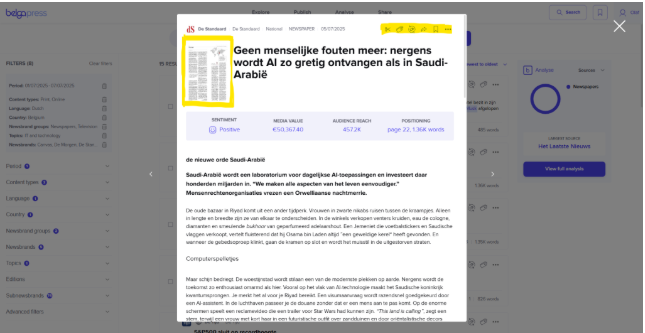
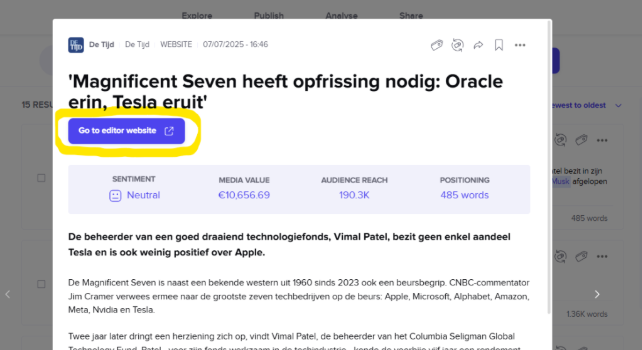
For a newspaper article, you will see a thumbnail of the newspaper page in the top left. Clicking on this thumbnail will open the newspaper page in a new tab. For an online article, you can view the article in its original context by clicking on the icon that follows the title.
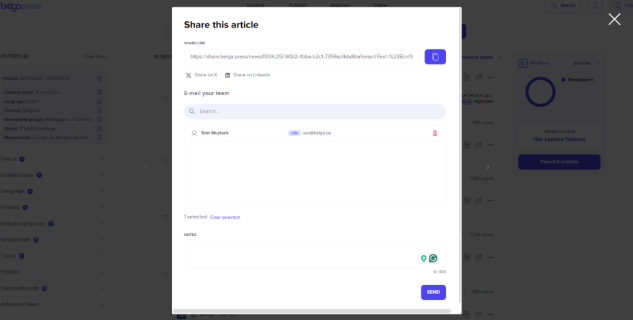
At the top right of the article, you’ll find the Belga.press action buttons. The arrow allows you to share an article. You can also copy the Belga.press link and share it via various social media channels. Or you can email the article to anyone by typing in their email address (then click ‘add contact’) or choose a previous contact. It is possible to add a short note for the recipient in your mail. You can share an article with multiple people, but not with a contact group. Please note that you can only share 1 article per source per month with the same person.
The bookmark icon allows you save an article to read later. You’ll find saved articles in your “Saved items.”
Depending on your profile, you may see extra features, such as labeling or printing an item (the latter is only permitted from an academic or legal perspective).
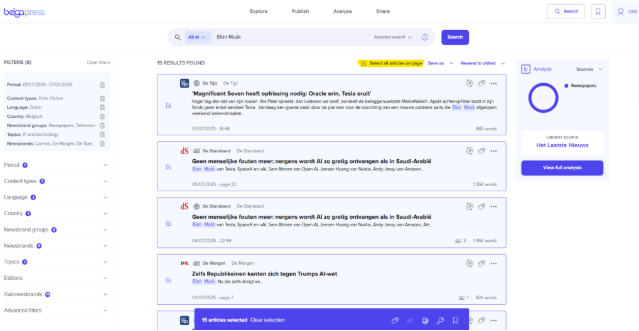
It’s also possible to perform actions on multiple articles at once. You do this by checking the checkboxes of the articles. The action buttons will then appear on the blue bar at the bottom of the screen.
A bit of analysis with your results
During your search, you will always see a concise visual analysis on the right. This includes the complete set of articles in your search results. If you select additional filters, the graph will also adjust to the new results.
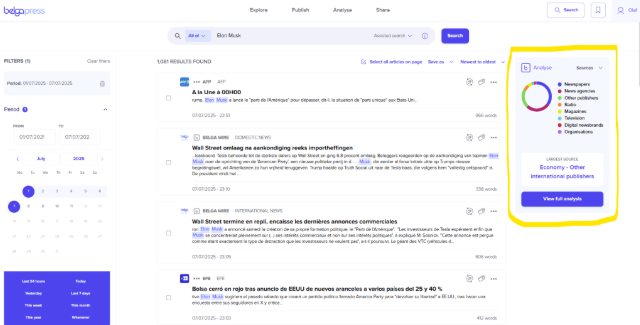
If you have access to the analysis module, you can easily switch between graphs. By default, we show you which sources are involved, but you can easily switch to the number of articles, sentiment, media value, or media reach. If you want to dive deeper into the analysis, click on ‘view full analysis’. You will then be prompted to save the search as a ‘saved search’, after which you can get started with your analysis.
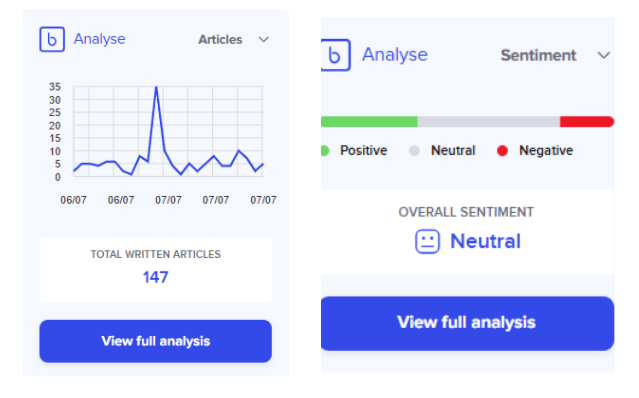
At the article level, we currently offer four analysis parameters.
The first is sentiment, or emotional value. Using artificial intelligence, we screen the content of each article fully automatically and indicate whether the articles from your search query are positive, negative, or neutral.
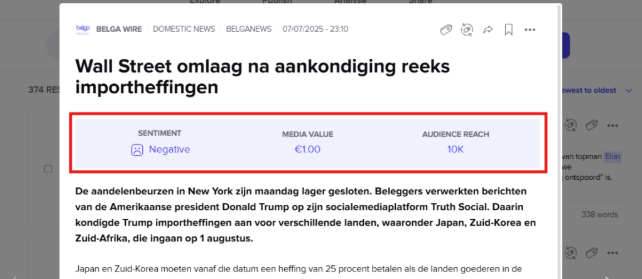
The second parameter is media reach, which refers to the reach of the articles. We base this mainly on CIM figures.
The third parameter, not visible to everyone, is media value. You can interpret media value as the equivalent advertising value. We determine this value together with Mediaspecs.
The last parameter, “written articles,” shows the number of hits your search query returns.
Saving a search query
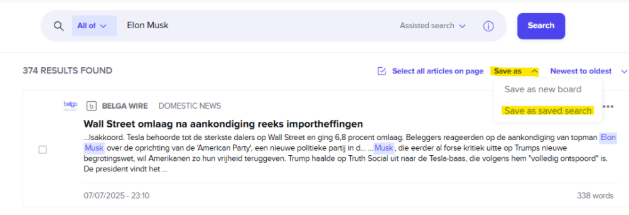
Within Belgapress, it’s also possible to save a search query. This way, you don’t have to configure the same search query every time. You can save a search query by clicking on “Save as” in the top right and choosing “Save as saved search”. You can give your search query a name so you can find it quickly.
When creating a saved search, you can also opt to receive notifications. Choose ‘instant’ if you want to receive new messages immediately after publication and make your choice about how (email/app) and for which news brands. With the other option, you choose to receive a summary email on the chosen day(s) and time(s) with the new articles since the last sent moment. You will then receive an email containing a link to belga.press, an indication of the number of articles, and a short summary of the first 5 articles.
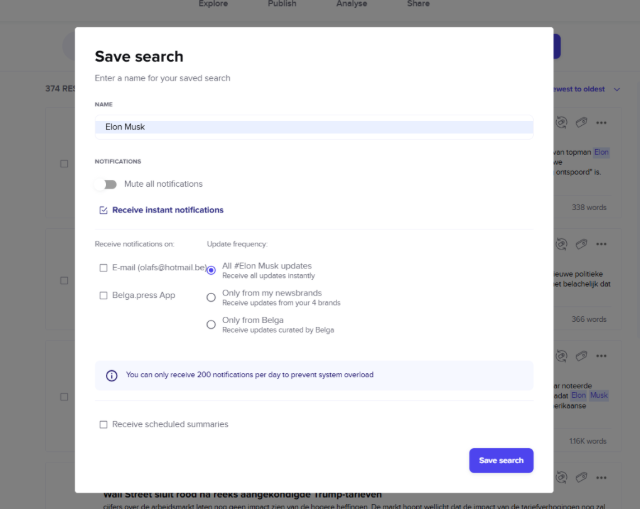
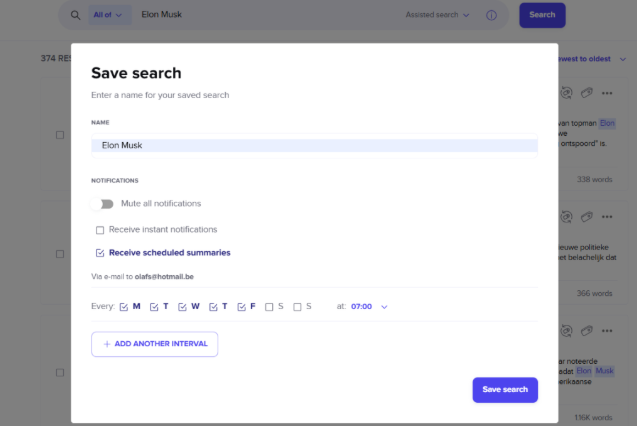
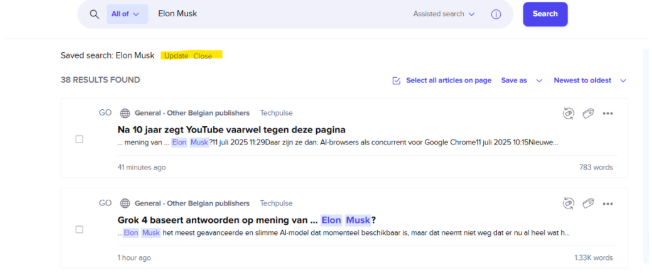
As soon as you save a search query as a saved search, new results for this query will also appear in your real-time feed in the kiosk, creating a sort of personal story tag. You can also find your saved searches in the mobile app, which you can easily modify by adjusting your search criteria and then clicking the ‘update’ button at the top left.
You can find an overview of your saved searches on the start page of the search section. Here you can also delete saved searches that are no longer relevant or needed.