This post is (also) available in: NederlandsFrançais
Welcome to Belgium’s news search engine.
The search screen
On Belga.press, you’ll find the search features at the top right of the menu bar. Clicking the search button takes you to the Belga.press search screen. This screen consists of five components.
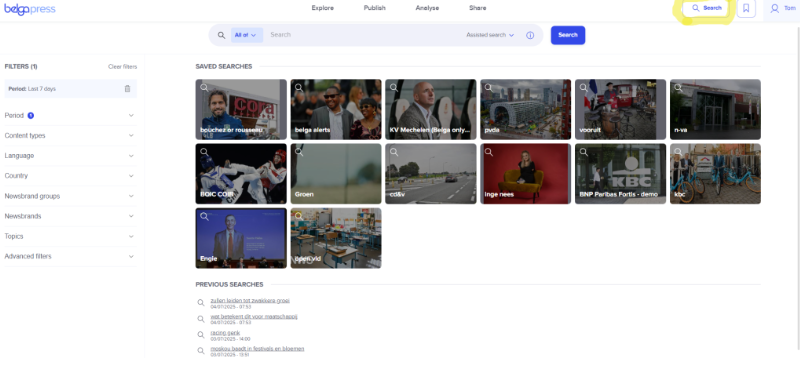
At the top, you’ll find the search bar where you can type in your search terms. On the left are all the search filters. In the centre of the screen, you’ll find a list of all your saved searches, and below that, your previous searches. As soon as you launch a search, the results will appear here in the centre section.
Assisted vs Boolean search
In Belga.press, you can search in two ways. You can use the assisted search or search using a Boolean query.
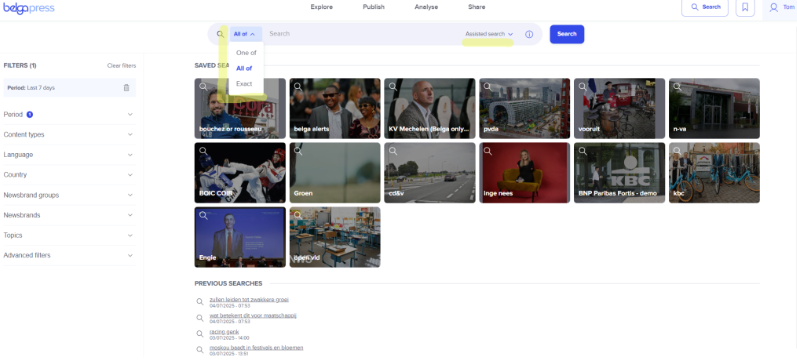
By default, the assisted search is available, offering you a choice of three options. You’ll find these options on the left-hand side of the search bar. Let’s take a search for Elon Musk, the CEO of Tesla, as an example. If you use “One of”, you’ll get articles that mention either Elon or Musk. If you select “All of”, you’ll get articles in which both Elon and Musk appear. If you select “Exact”, you’ll get articles in which “Elon Musk” appears in exactly that order.

On the right, you’ll see the option “Manual boolean query.” When you click it, the search bar turns into a text field where you can search using a Boolean query. Belgapress supports most Boolean search operators. The most common ones are AND, OR, and NOT. For the more specialized operators, we refer you to our tutorial on advanced search or you can click the “i” icon next to manual boolean query.
Let’s return to our example with Elon Musk, but this time we’ll search a bit more broadly. In our sample query, we place “Elon Musk” between quotation marks because we want to search for the exact phrase, not for Elon or Musk separately. With AND, we add Tesla. Now we will only get articles that mention both Elon Musk and Tesla. We then add NOT with spaceX, which excludes any articles that contain spaceX. If we want to find all articles that include Elon Musk and either Tesla or SpaceX, we do the following: we place Tesla and SpaceX between parentheses and put OR between them.
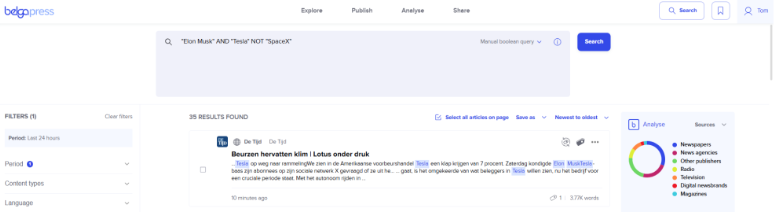
Thanks to Boolean searching, you can enter very extensive queries. Make sure to always type Boolean operators in uppercase, and place exact terms that should be treated as a single unit between quotation marks.
Good to know: using very complex queries may slow down your search!
A wide range of search filters
Belga.press offers a broad set of search filters that allow you to narrow down your results and find the articles you need. All filters can be found in the left-hand column. Using the ‘clear filters’ option at the top of the filter area, you can reset all filters to their original values. If you navigate to another screen within Belga.press or log out, we will remember your filter settings.
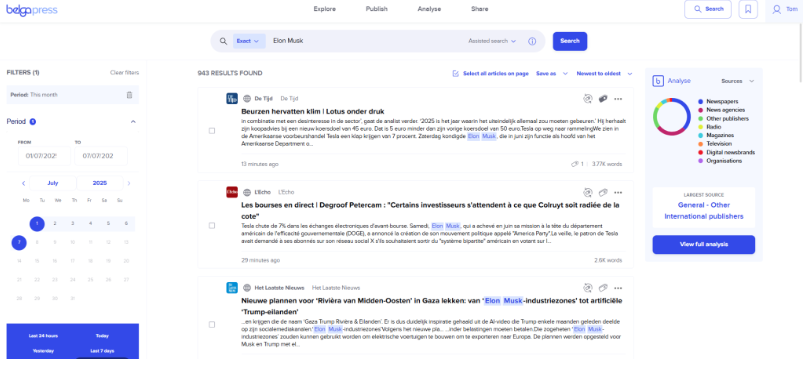
The first filter is the period filter. Here, you can manually select a time range in which you want to search, or choose one of the standard date filters. By default, the period filter is set to “Last 24 hours.” For our Elon Musk example, we select “This month.” You’ll notice that the search results automatically update as soon as you select the filter.
All your filter selections remain visible in the light grey bar, allowing you to keep track of the choices you’ve made. Use the delete icon to quickly remove any of them.
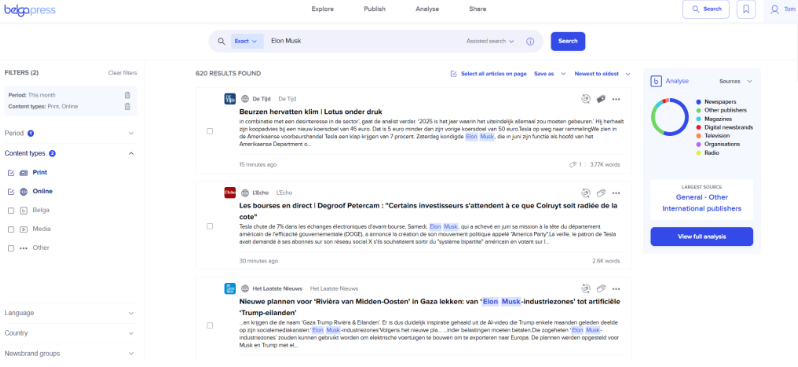
The second filter is the content type filter. With this filter, you indicate which content types may appear in your search results. If no filter is selected, it means you want to see all results within that category. For our example, we only want to retrieve newspaper and online articles.
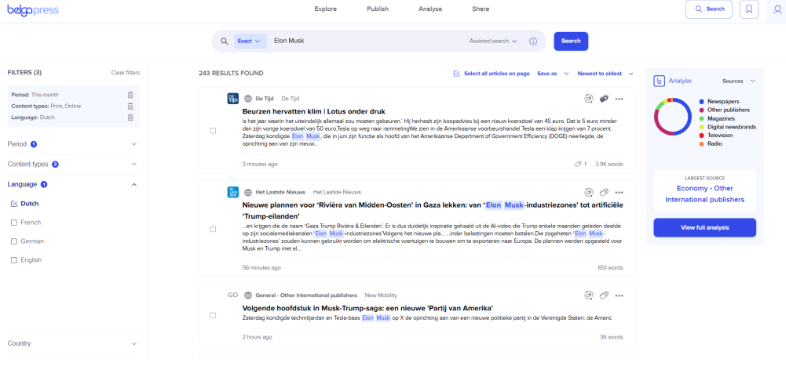
The third filter is the language filter. With this filter, you can indicate that you only want to receive, for example, Dutch‑language articles from the search engine.
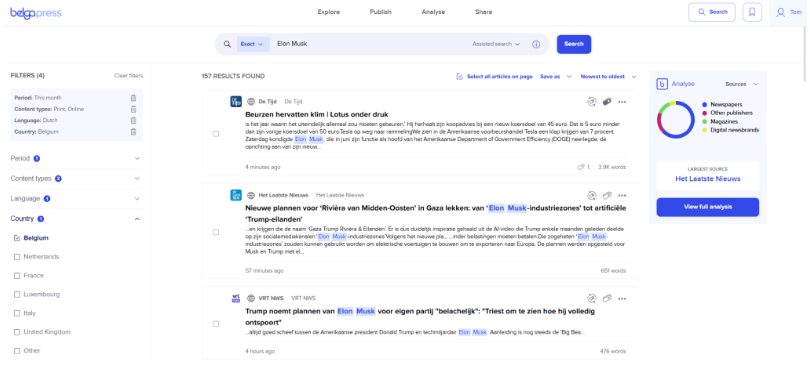
The fourth filter is the country filter. Here, you can indicate that you only want to see, for example, articles from the Belgian press. This refers to the country of the source, not the country the article is about.
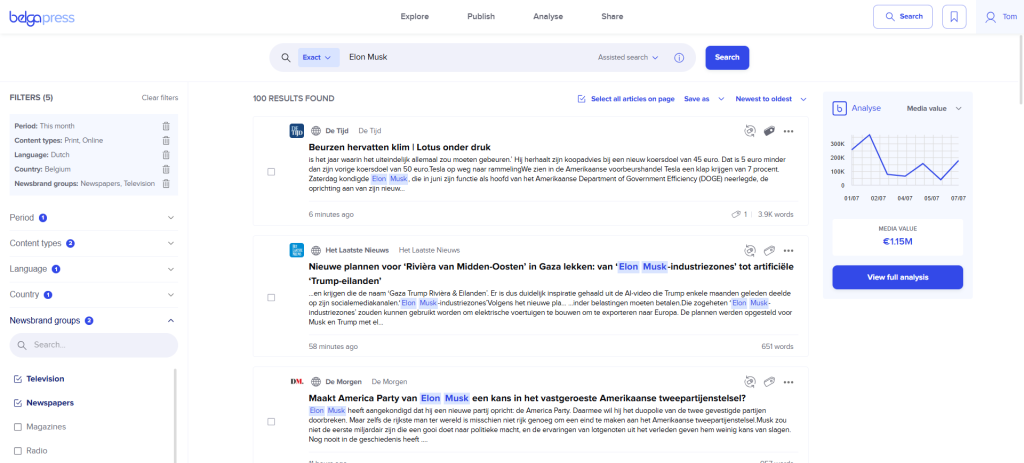
The fifth filter allows you to select newsbrand groups. Newsbrand groups are the categories in which Belga organizes its news brands. For our example, we only want to retrieve articles published by newspaper or television news brands.
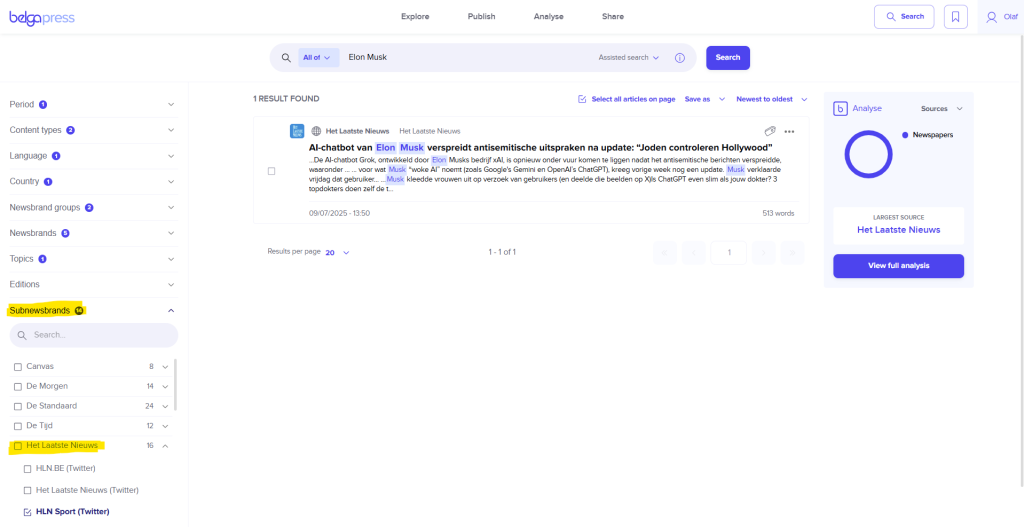
The sixth filter is the newsbrand or source filter. Here, you can indicate that you only want to see articles from specific brands or sources. In our example, we only want articles from Het Laatste Nieuws, Het Nieuwsblad, and De Tijd. We only display the sources that remain available based on the filters you selected earlier. You can select a source from the (long) list or easily find it by typing its name in the search bar. After typing three characters, the corresponding sources will already appear. Use the cross icon to return to the full list.

If you choose the option ‘my newsbrands – select all’, you select all your preferred news brands in one go. Using ‘select none’ clears the selection again.
As soon as you use the source filter, you gain additional options to filter by specific newspaper editions using the editions filter. You can also filter by sub‑source, which may include supplements or special editions from certain news brands. Here too, you can quickly search for the correct edition or supplement.
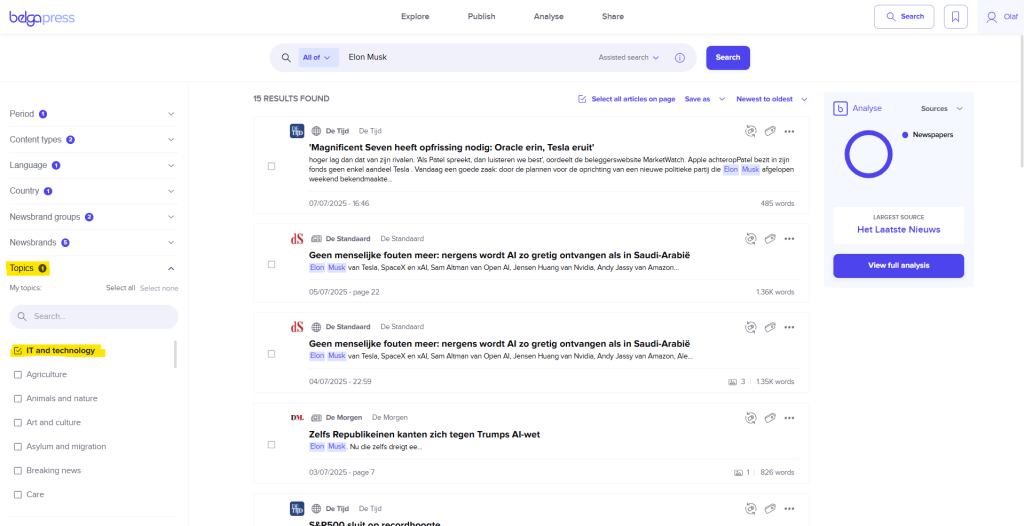
You can also focus on topics.
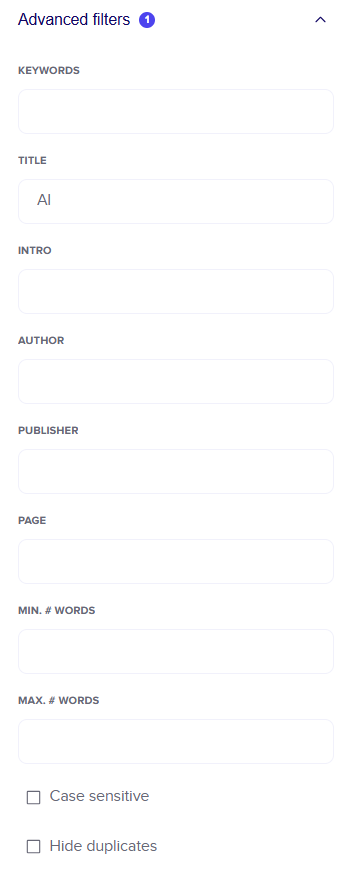
The final filter option contains additional advanced filters. For example, you can search specifically within the title (multiple terms are possible) or on a particular page. The values you enter in ‘keywords’ and ‘publisher’ are interpreted as an AND query. At the bottom of this advanced filter, you’ll find two checkboxes: one to perform a case‑sensitive search, and another to filter out duplicate articles.
Your search results and what you can do with them
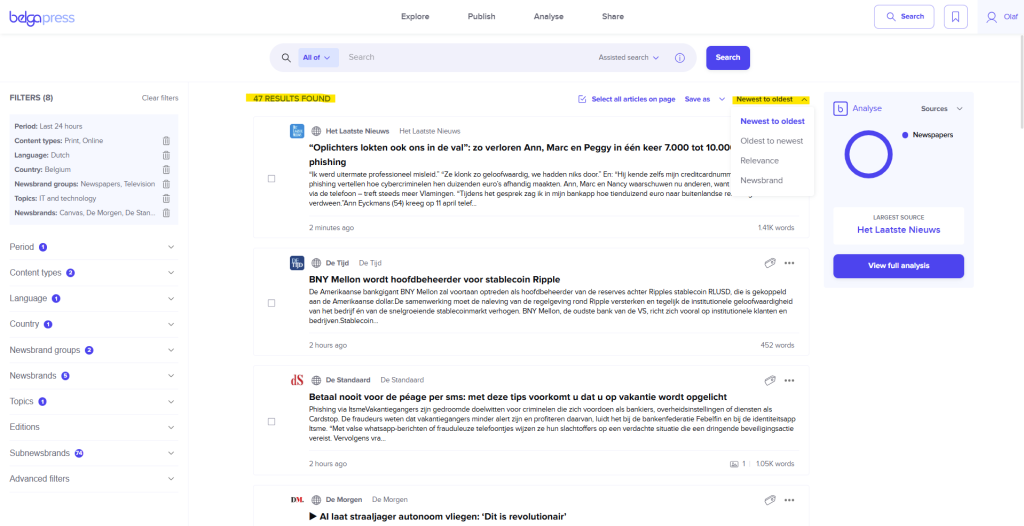
As soon as you launch a search, the middle section of the screen fills with results. With every filter action, the search results adjust accordingly, and you can see the number of results. You can sort them from new to old (default), from old to new, by relevance, or by newsbrand.
At the bottom of the page, you’ll find navigation tools that let you move quickly through the search results. If you wish, you can adjust the number of results shown per page, or jump directly to a specific page by entering its number in the box. The back to top button takes you straight to the top of the page.

Now that you have your desired search results, it’s time to take a closer look at them. Click on an article to read it in full. You can perform several actions on the article.
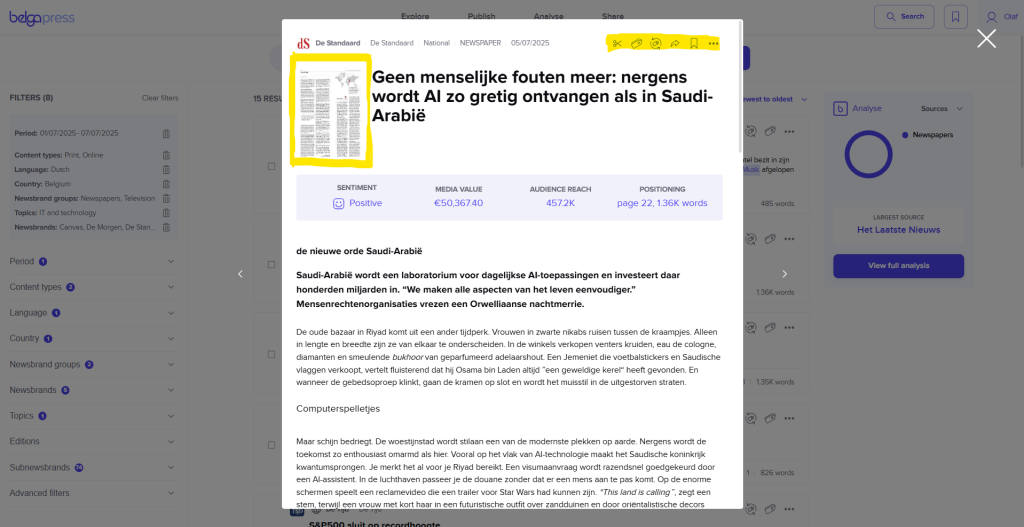
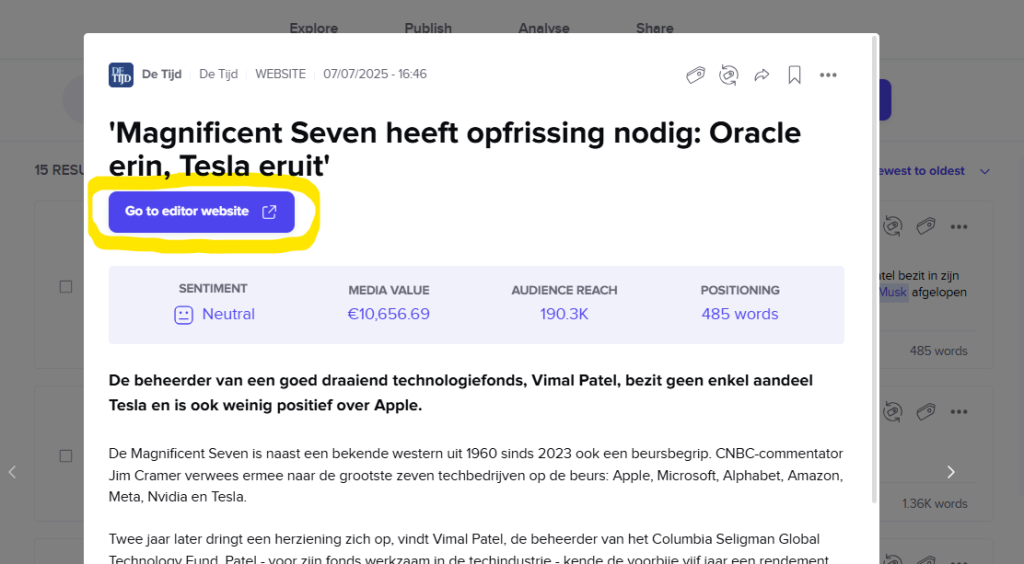
For a newspaper article, you will see a thumbnail of the newspaper page in the top-left corner. When you click this thumbnail, the full newspaper page will open in a new tab. For an online article, you can view the article in its original context by clicking the icon that appears after the title.
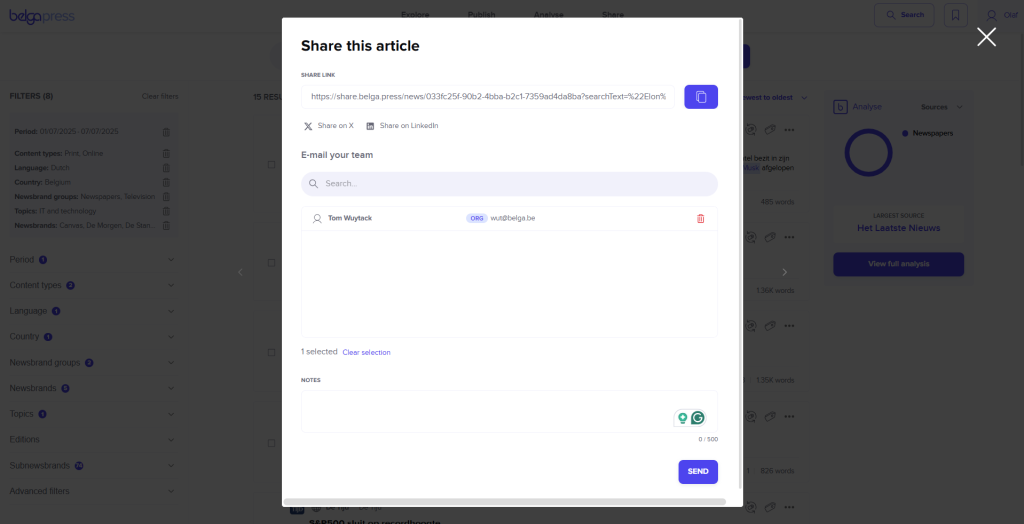
At the top right of the article, you will find the Belga.press action buttons. With the arrow icon, you can share an article. You can copy the Belga.press link and share it through various social media channels. You can also email the article to anyone by typing in their email address (then click add contact) or by selecting an existing contact. You can add a short note for the recipient in your email. You can share with multiple people, but not with a contact group, and keep in mind that you can only share one article per source per month with the same person.
With the bookmark icon, you can save an article to read it later. You will then find the article in your saved items.
Depending on your profile, you may see additional features, such as labeling or printing an item (the latter is only allowed for academic or legal purposes).
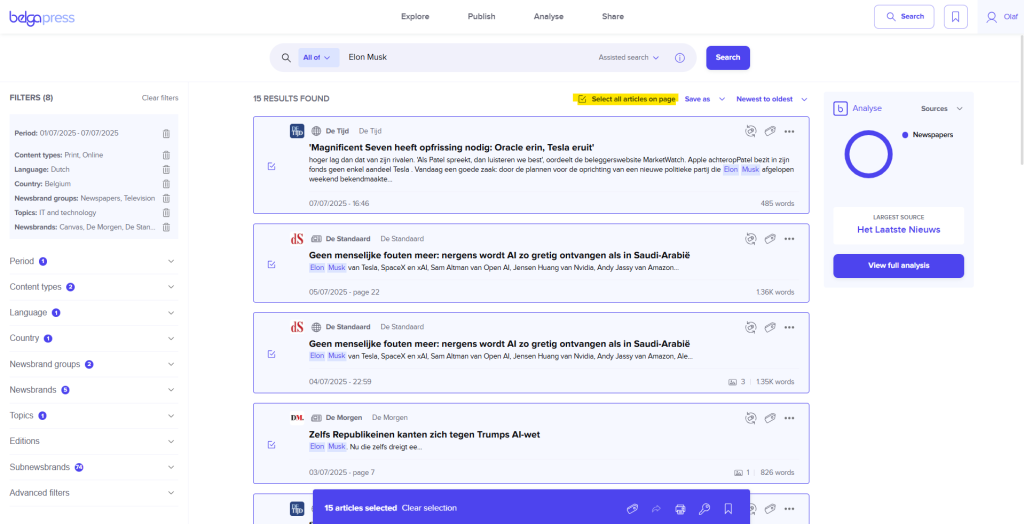
It is also possible to perform actions on multiple articles at once. You can do this by selecting the checkboxes next to the articles. The action buttons will then appear in the blue bar at the bottom of the screen.
A bit of analyses with your results
While searching, you will always see a concise visual analysis on the right. This analysis reflects the complete set of articles in your search results. If you apply additional filters, the chart will adjust to match the updated results.
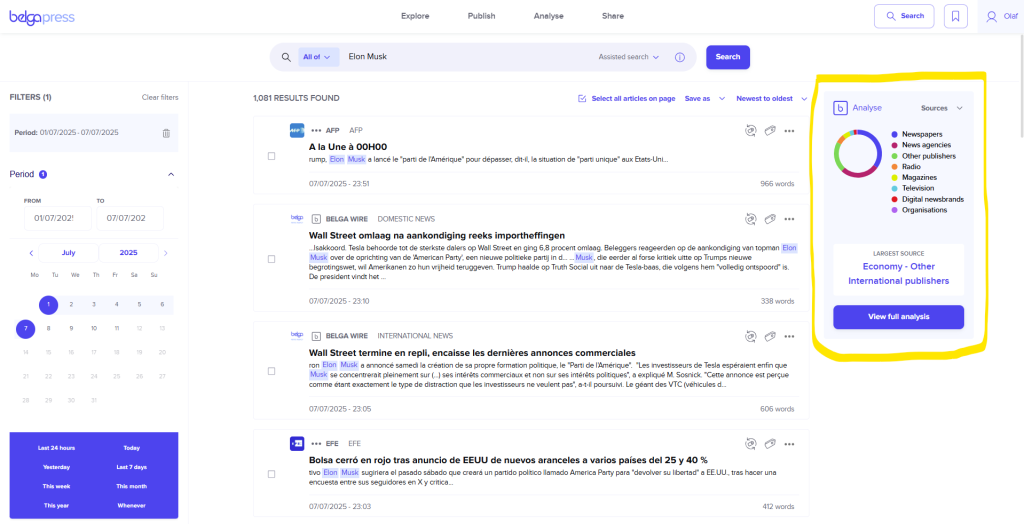
If you have access to the analysis module, you can easily switch between different charts. By default, we show which sources are involved, but you can quickly switch to number of articles, sentiment, media value, or media reach. If you want to dive deeper into the analysis, click view full analysis. You will then be prompted to save the search query as a saved search, after which you can continue working with your analysis.
At article level, we currently offer four analysis parameters. The first is sentiment, or emotional tone. Using artificial intelligence, we automatically scan the content of each article and indicate whether the articles in your search query are positive, negative, or neutral.
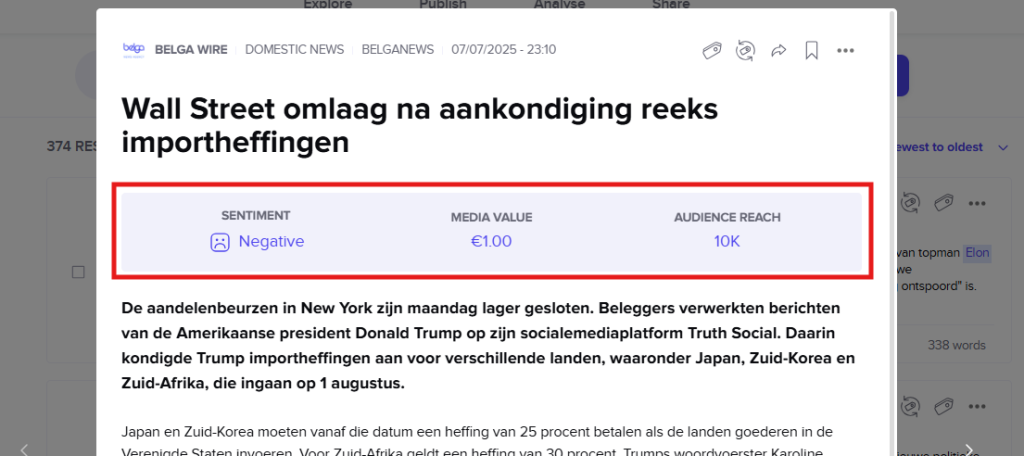
The second parameter is media reach, which refers to the reach of the articles. For this, we rely mainly on the CIM figures. The third parameter, which is not visible to everyone, is media value. You can interpret media value as the equivalent advertising value. We determine this value together with Mediaspecs.
The final parameter, written articles, shows the number of hits returned by your search query.
Saving a search query
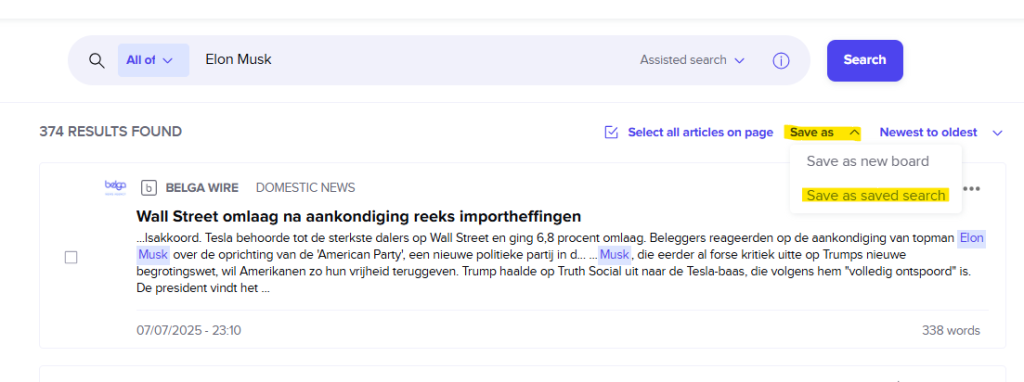
Within Belgapress, it is also possible to save a search query. This way, you don’t have to configure the same search every time. You can save a search by clicking save as a saved search in the top-right corner. You can give your search a name so you can easily find it again later.null
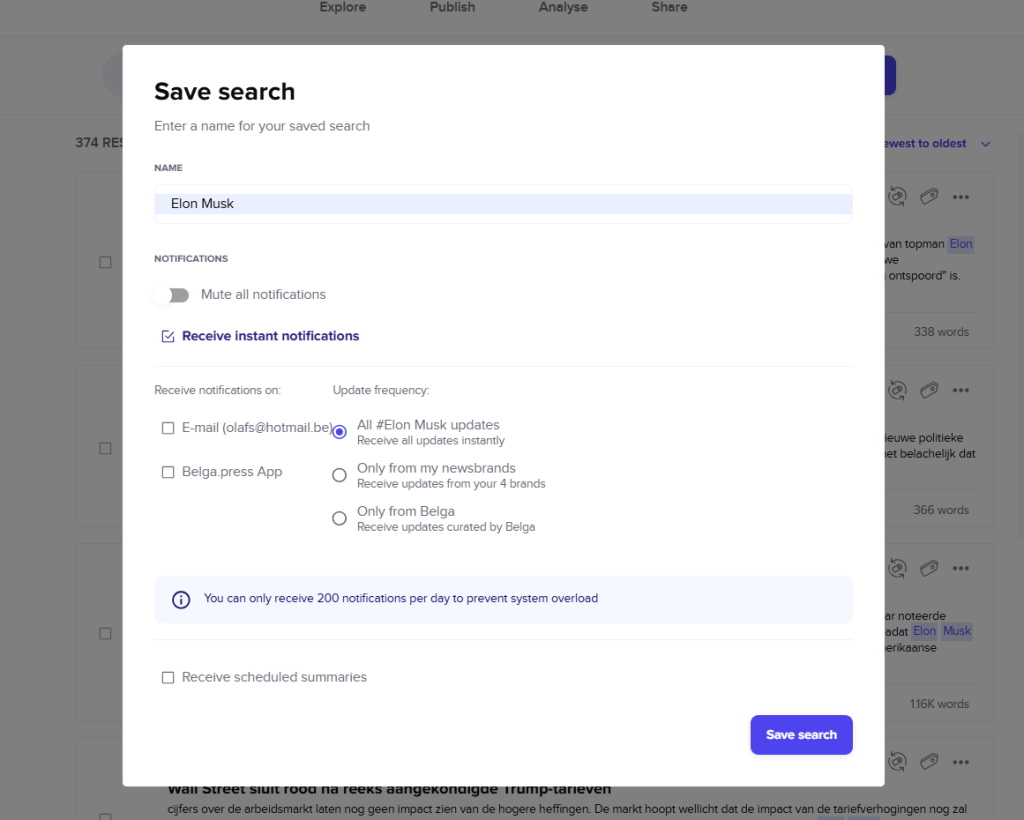
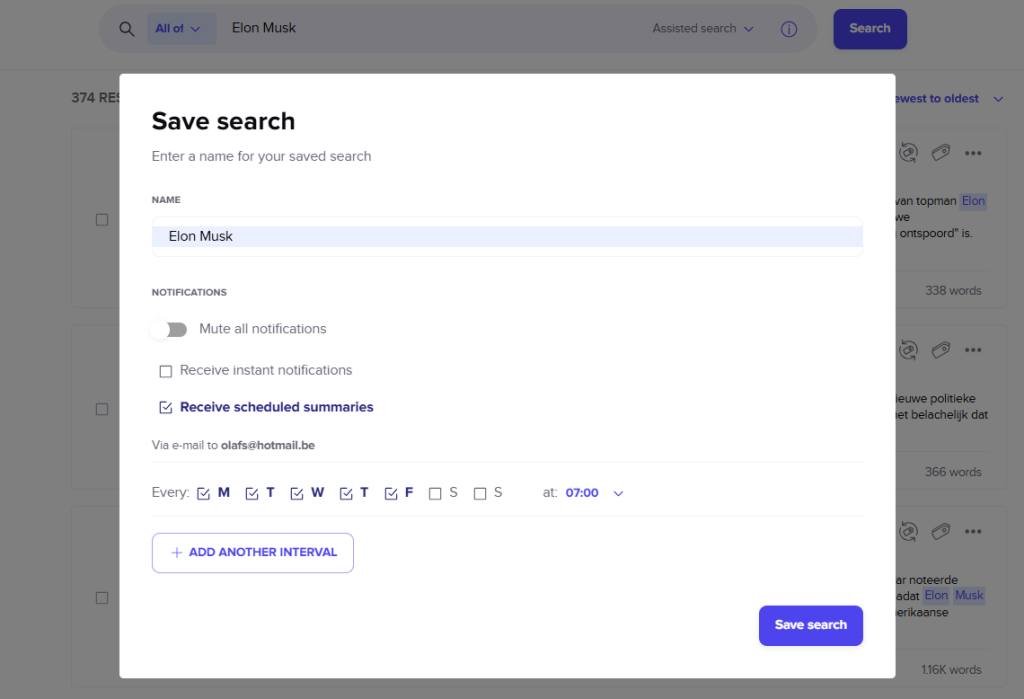
When creating a saved search, you can immediately choose to receive notifications. Select instant if you want to receive new articles as soon as they are published, and choose how you want to receive them (email or app) and for which news brands. With the other option, you choose to receive an overview email on the selected day(s) and time(s), containing all new articles since the previous notification. You will then receive an email with a link to belga.press, an indication of the number of new articles, and a short summary of the first five articles.
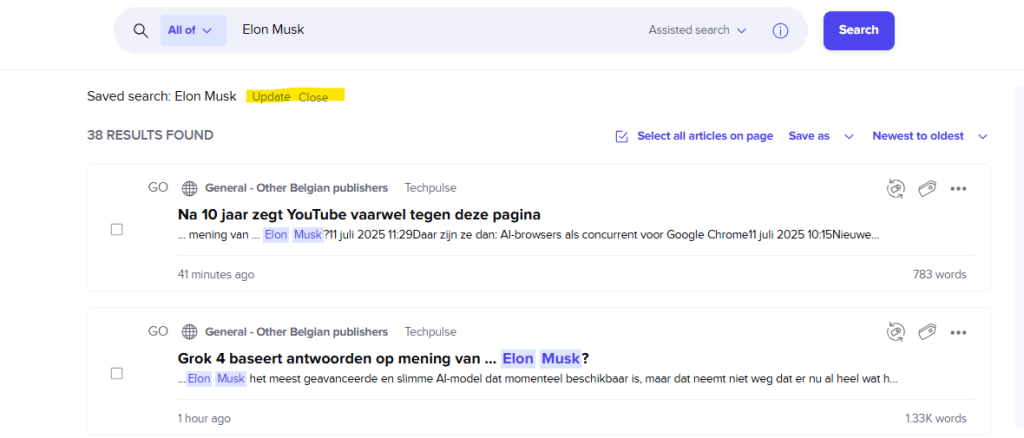
Once you save a search query as a saved search, new results for that query will also appear in your real‑time feed in the kiosk. In this way, you essentially create your own personal storytag. You can also find your saved searches in the mobile app. A saved search can be easily updated by adjusting your search criteria and then clicking the update button in the top-left corner.
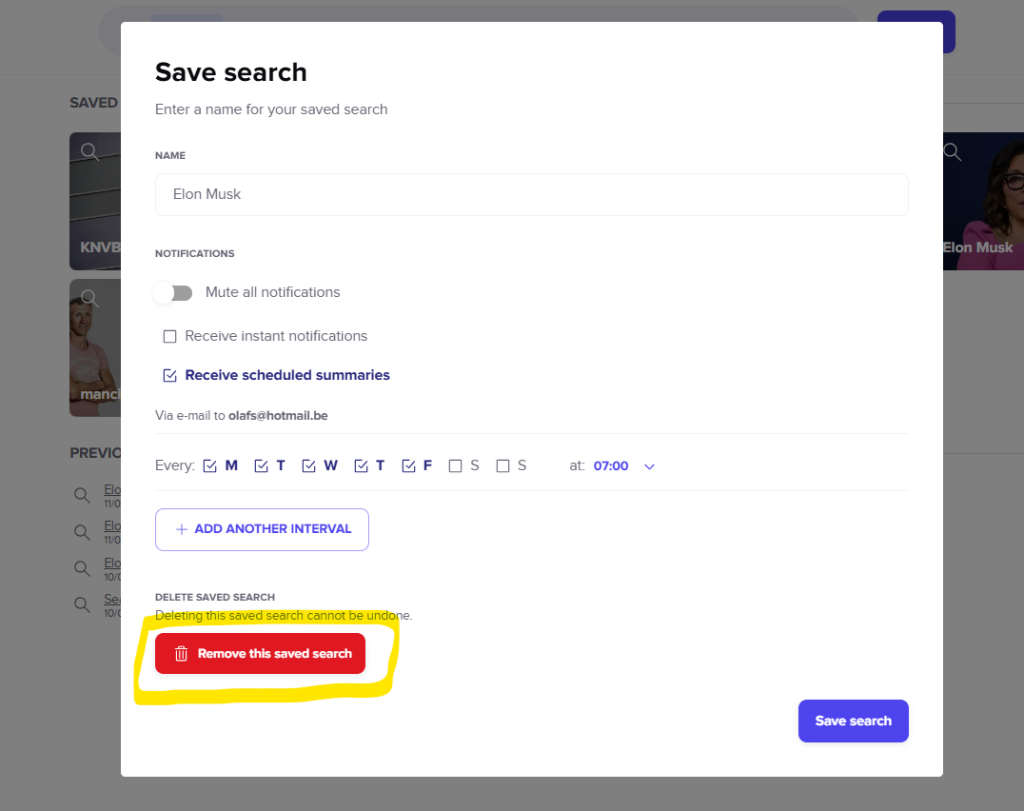
An overview of your saved searches can be found on the start page of the search section. Here, you can also delete any saved searches you no longer need.