
Note: This feature is exclusively available to curators.
Introduction
With Live Feeds, we are introducing dynamic news feeds. While a newsletter is a distinct snapshot in time, a Live Feed can be described as a continuous stream of specifically selected information.
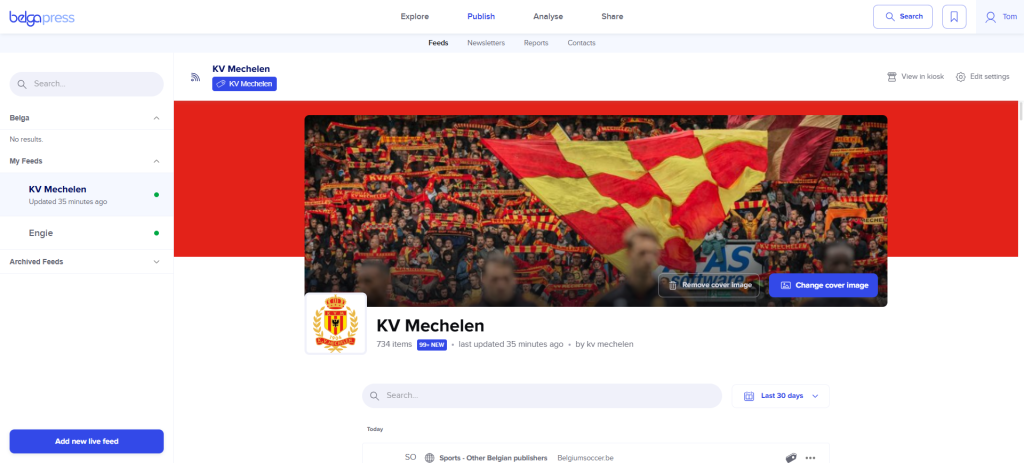
You can build a Live Feed based on one or more labels. All content associated with those labels will automatically be added to your feed. The beauty of this feature is that, just like with a newsletter, you have full control over who has access and how the feed looks in terms of branding. Every Live Feed can be accessed both via the web environment and the native app. If desired, we can also make the content available for integration into platforms such as your intranet.
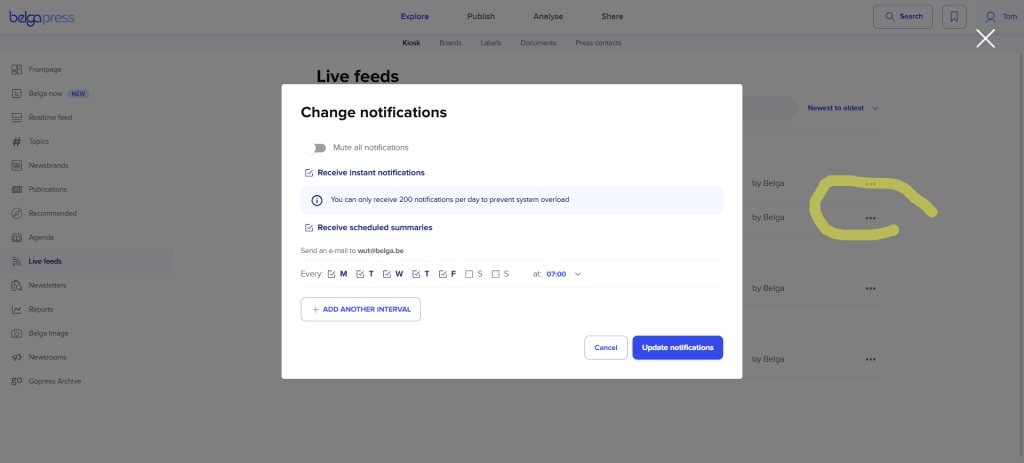
This allows you to provide your target audience with multiple live feeds tailored to the needs within your organization. Rather than providing an information overload in a single feed, recipients can choose which live feeds they wish to follow and whether they want to receive notifications for them. The initial configuration for these options is determined by the curator.
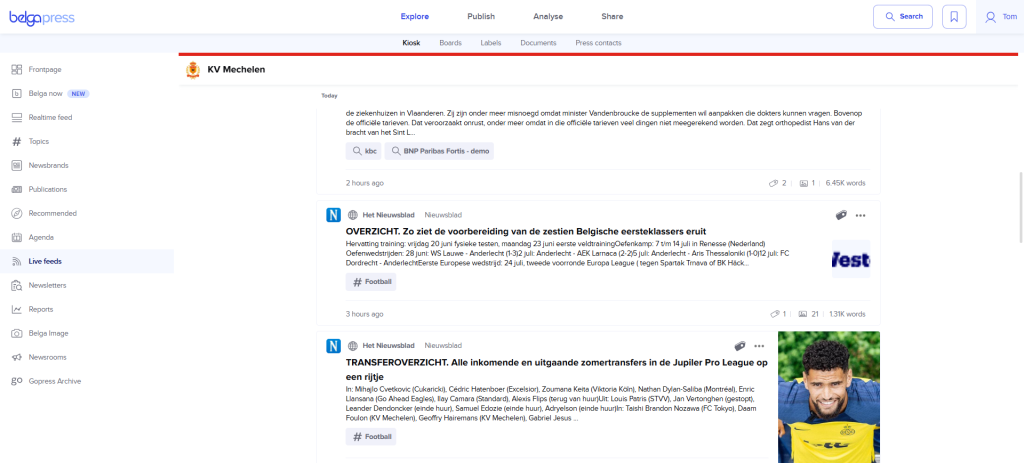
Please note that Belga also offers specialized Live Feeds featuring news on specific themes, sectors, and more. Interested? Please contact our account managers at [email protected].
Managing Live Feeds
Navigate to Publish > Feeds to access this section. The interface functions are very similarly to the Labels setup. On the left, you will find all Live Feeds, categorized into those available to the entire organization and your personal feeds (which you can then share specifically with colleagues). The central pane of the screen displays all posts within a selected feed.
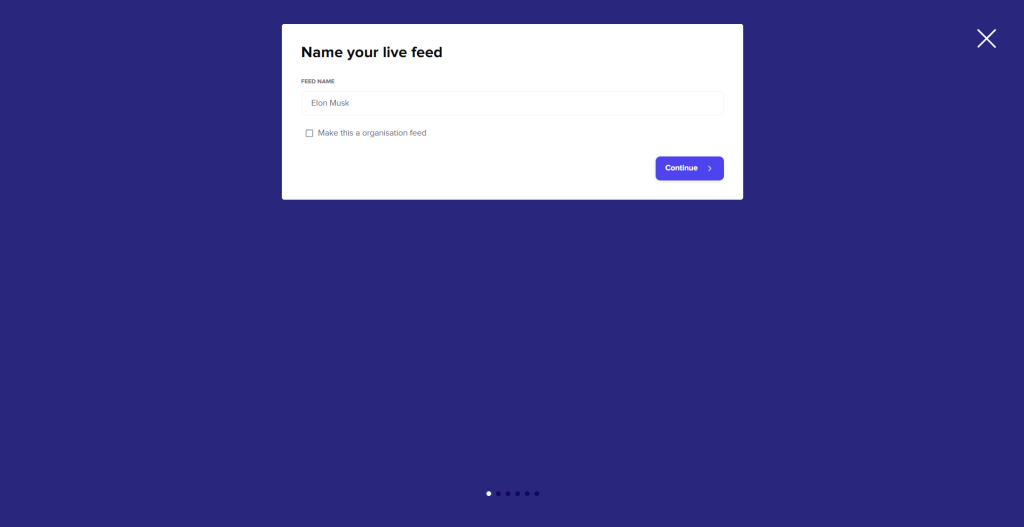
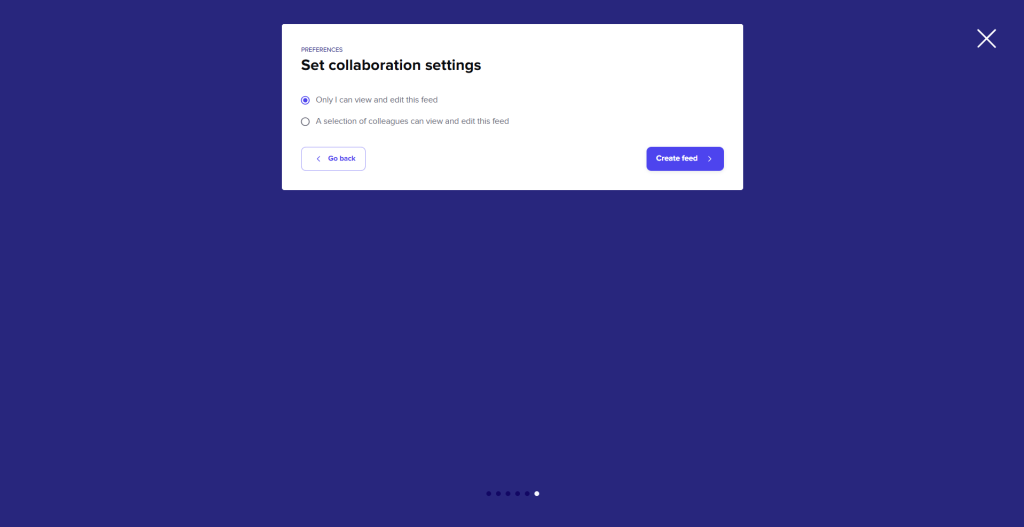
A wizard guides you through the process of creating a feed. To do so, click on “add new live feed”, give your feed a name and choose whether you want to make it available to all curators within your organisation. Select your brand and then one or more labels whose articles you want to include in your feed. In the next step, choose the readers of your live feed. These can be multiple individuals, a contact list, or a combination of both. Then decide whether or not to set up notifications (note: users can adjust these themselves afterwards). In the final step, choose who can manage the live feed with you. Complete the process by clicking “create feed”. You will immediately find the newly created feed in the left-hand column.
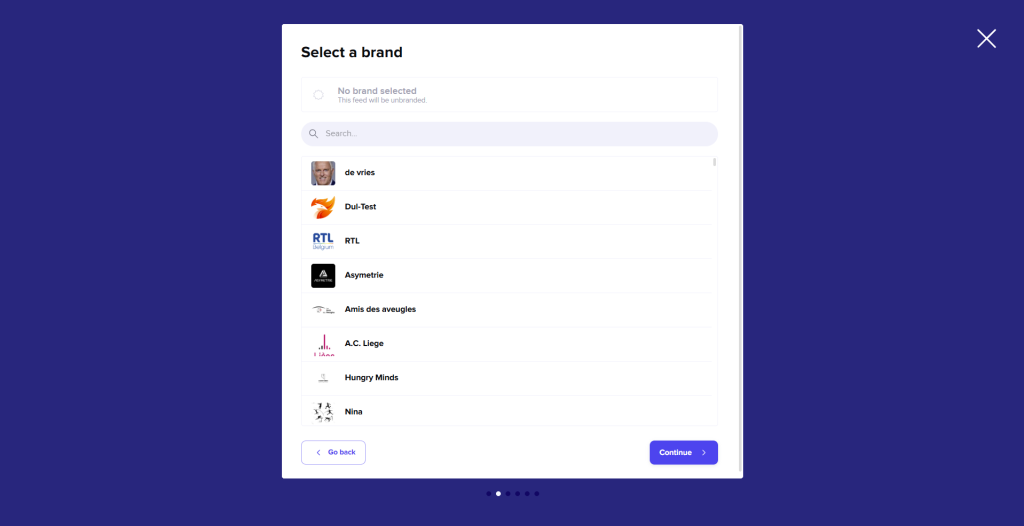
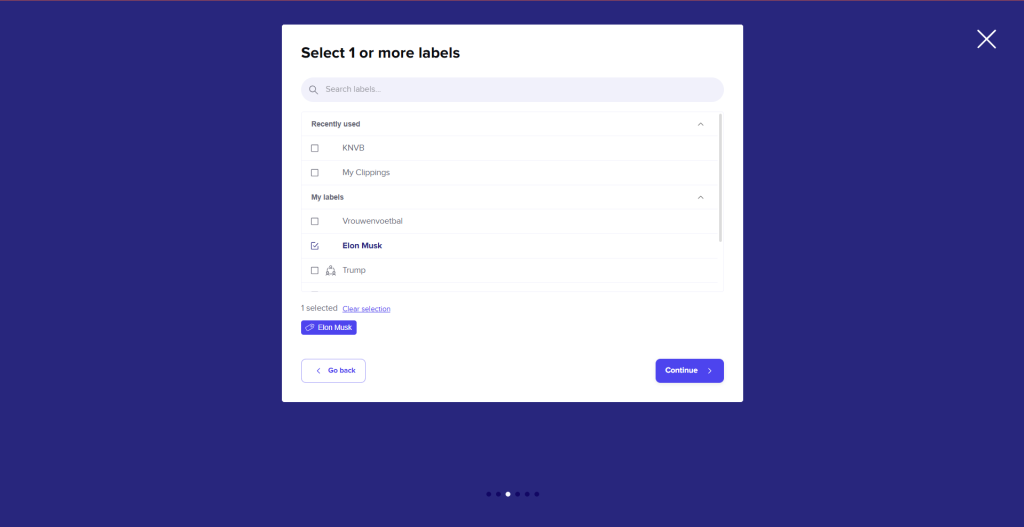
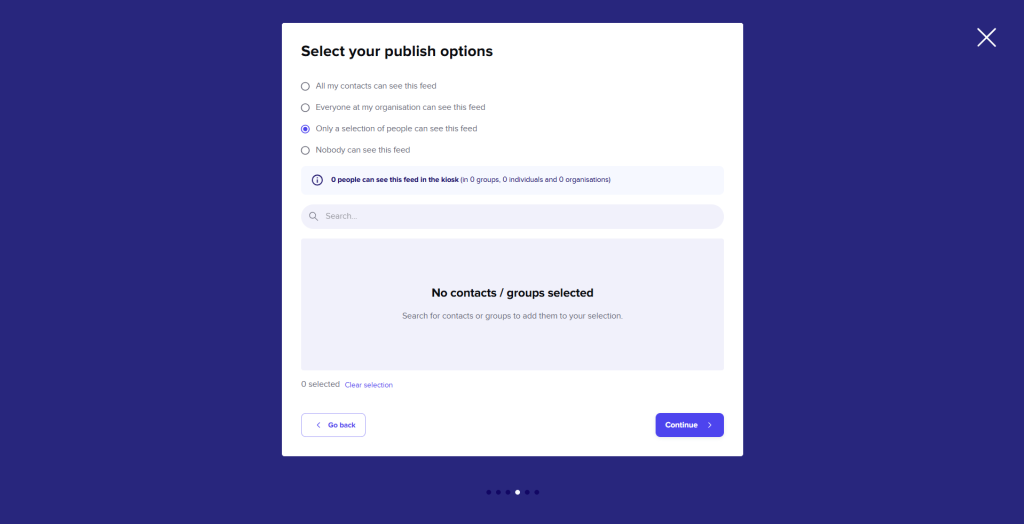
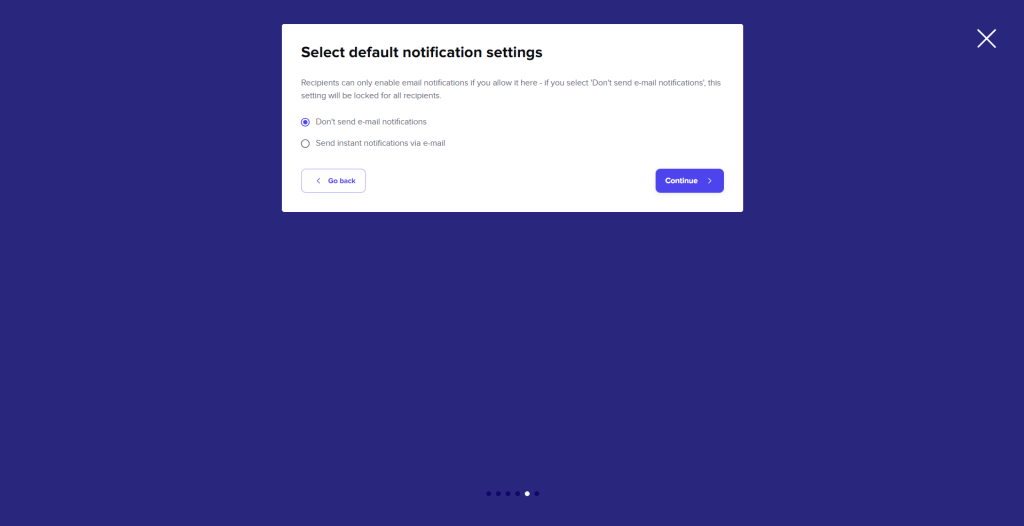
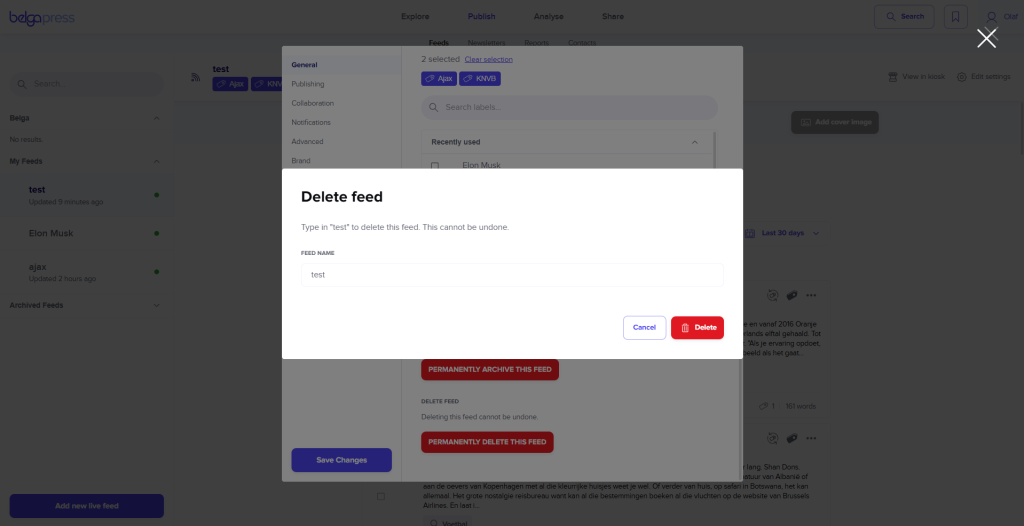
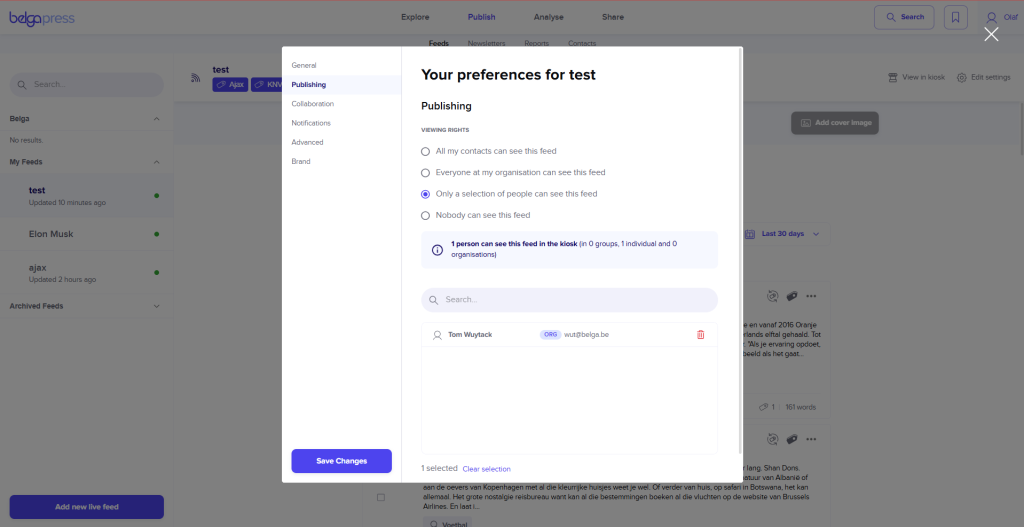
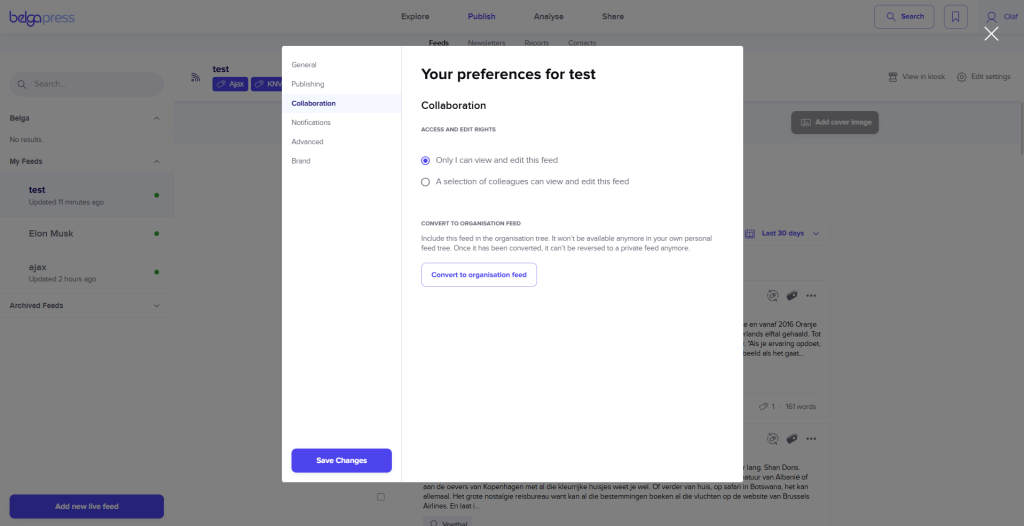
After creation, you can manage each feed via ‘Edit settings’. In the ‘General’ section, besides changing the name, brand, and labels, you can also archive the feed (freezing it in its current state) or delete it permanently. To manage your audience, go to ‘Publishing’. You can adjust administrators via ‘Collaboration’ and modify notification settings via ‘Notifications’.
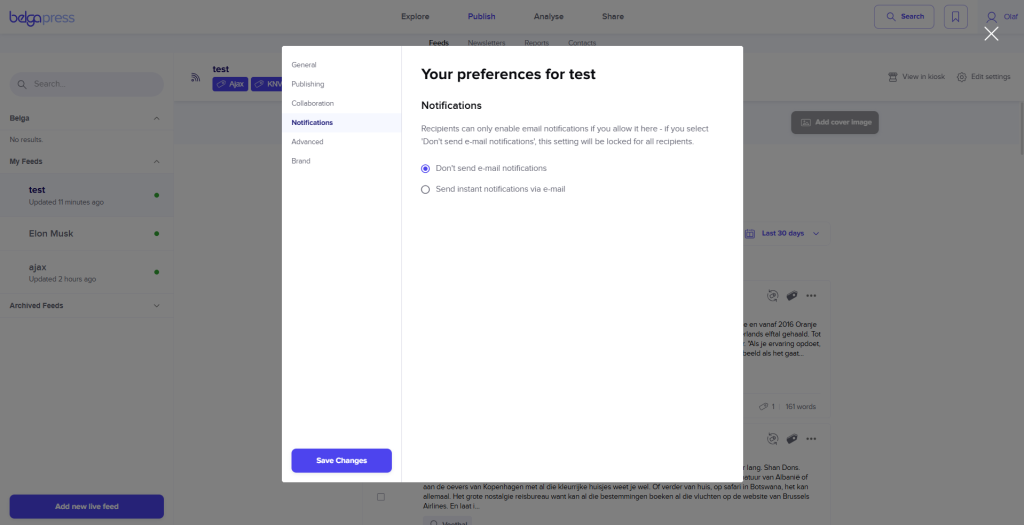
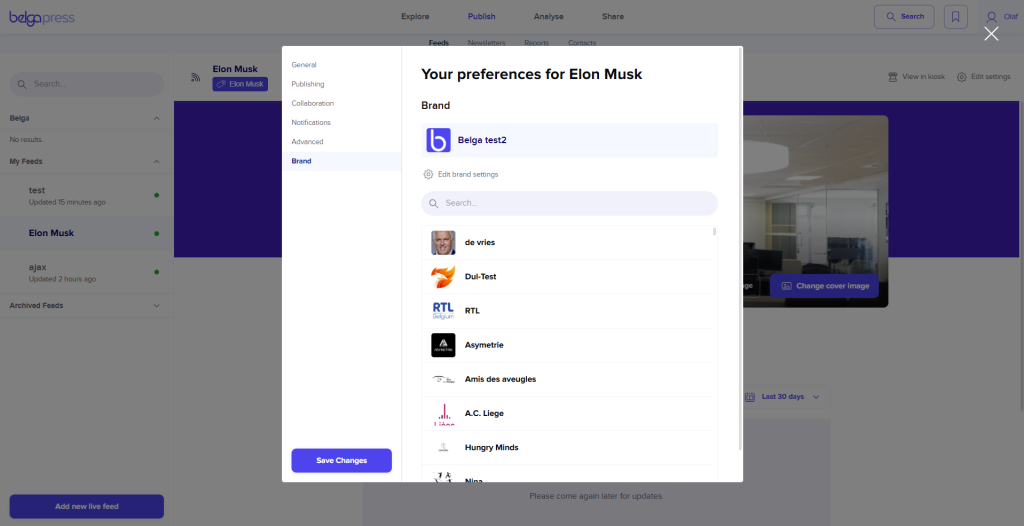
Press ‘Save changes’ to confirm all your modifications.
Quick integration link Live feeds (intranet etc)
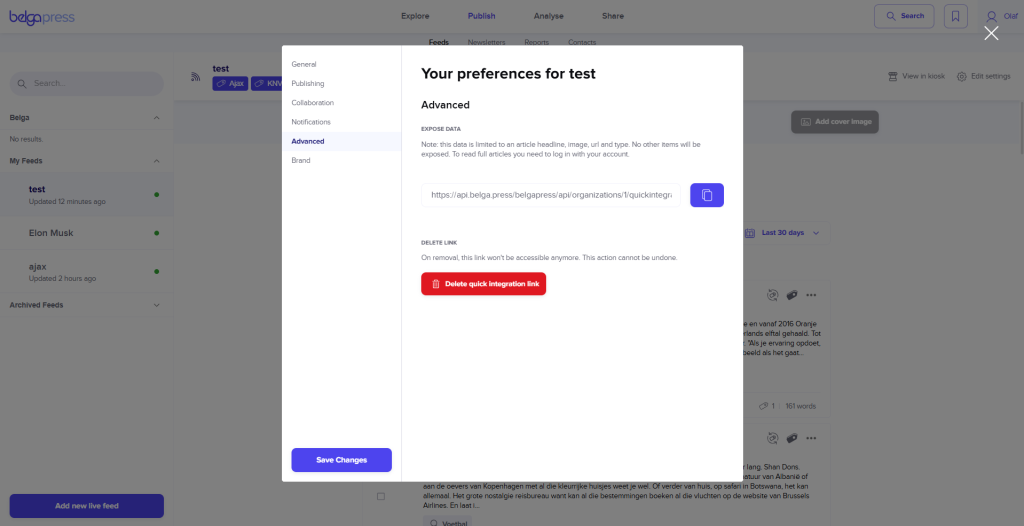
If you want an easy way to integrate articles from a specific Live Feed into your intranet, a BI tool, or other platforms, you can use our Quick Integration Link feature. This can be found under ‘Feeds > Edit settings > Advanced’. Simply clicking the button will generate a JSON feed that is designed for easy integration.
More information about this here .